Full Lifecycle Automation of RavenDB with Ansible
Highlights
- Use Ansible playbooks to deploy RavenDB nodes across multiple machines.
- Automate RavenDB cluster formation, database creation, and index management.
- Reduce manual DevOps work with repeatable, version-controlled RavenDB automation.
In this article, we introduce the RavenDB Ansible Collection. It’s a comprehensive solution for automating RavenDB’s full lifecycle, and can be your starting point for operationalizing RavenDB in a modern DevOps workflow.
Ansible
Ansible automates and simplifies repetitive, complex, and error-prone operations. As a powerful IT automation engine, it provides agentless automation over SSH. It uses straightforward YAML syntax to define provisioning, configuration, deployment, and orchestration steps, making it easy to manage systems at scale with minimal setup or overhead.
RavenDB Collection
The collection we’ve prepared provides a streamlined, repeatable way to operate RavenDB at scale, from provisioning multi-node RavenDB environments to managing databases, indexes, certificates, and more. If you’ve decided to run RavenDB with Ansible, it’s a great way to reduce the cold start and complexity overhead.
What You Get Out of the Box ⚡
- No manual steps: spin up fully functional RavenDB clusters in minutes.
- Auto-secure: built-in certificate management.
- Effortless scaling: multi-node clusters with automatic cluster discovery.
- Safe to re-run: apply changes or recover from failures without breaking the cluster.
- Database & index automation: Fully supports .
- Secrets management: Fully managed licenses, secrets, and certificates behind the scenes.
- Less time spent configuring, more time building.
Let’s jump into the technicalities. After that, we will guide you through the entire setup process.
Before you begin
Before getting started, it’s helpful to review some Ansible-specific terminology and current limitations. Here’s what you should know.
Ansible terminology
|
Component |
Description |
|---|---|
|
The machine where Ansible is installed and commands are run from. | |
|
Target systems (hosts) that Ansible configures and manages via SSH | |
|
A file listing all managed nodes, grouped by purpose or environment. | |
|
YAML-based automation scripts that declare desired system configurations and tasks | |
|
Units of work used by playbooks to perform actions (e.g., install packages, copy files) |
Best practices
To ensure a smooth experience with the RavenDB Ansible Collection, make sure your environment aligns with the supported stack:
Ansible version
The collection supports ansible-core 2.15 through 2.18 (including the latest development release). Anything older than 2.15 is not supported and will likely fail.
Python Version
Requires Python 3.9 or higher. All modules and plugins assume modern Python compatibility.
Operating Systems
Built and tested for Debian-based (e.g., Ubuntu) and Red Hat-based (e.g., RHEL, CentOS, Rocky) Linux distributions. Other platforms are not officially supported at this time.
Ansible Setup
To avoid version conflicts and keep things isolated, it’s a good idea to install Ansible
inside a Python virtual environment.
This lets you work in a clean, controlled setup – especially useful when automating across different systems or CI environments.
On your control node, create and activate a virtual environment, then install Ansible:
  $ python3 -m venv control-node
  $ source control-node/bin/activate
  (control-node)$ pip install ansible

  (control-node)$  ansible --version
  ansible [core 2.17.12]
Step-by-Step Walkthrough Guide
Let’s explore using Ansible to automate and manage RavenDB deployments with practical, real-world examples and explanations.
You’ll learn how to:
- Deploy RavenDB instances in parallel across multiple machines, in both secure and insecure modes
- Connect multiple nodes into a working cluster
- Manage databases, indexes, and configuration with repeatable playbooks
First, you need to install the collection with the ansible-galaxy CLI:
  $ ansible-galaxy collection install ravendb.ravendb

  ravendb.ravendb:1.0.0 was installed successfully
With the control node configured and all prerequisites in place, we’re ready to move forward with the actual deployment. In this next step, we’ll use Ansible to install and configure RavenDB across all target nodes in the environment.
1. Deploy RavenDB instances in parallel across multiple machines
We’ll use WSL as the control node and three Hyper-V virtual machines as our target nodes to demonstrate a practical, reproducible setup. This mirrors a typical on-prem lab or local development environment, but the same approach works just as well for cloud instances or remote servers.
For this walkthrough, the target nodes are accessible via the following static IPs:
192.168.100.11
192.168.100.12
192.168.100.13
Each VM will be provisioned independently and in parallel using Ansible’s orchestration capabilities.
We’ll start by creating a simple Ansible inventory file, which lists all the target nodes along with connection details and a custom node_tag that we’ll use later during setup:
# inventory
[ravendb_nodes]
192.168.100.11 ansible_user=ubuntu ansible_password=ubuntu
ansible_become_password=ubuntu node_tag=A

192.168.100.12 ansible_user=ubuntu ansible_password=ubuntu
ansible_become_password=ubuntu node_tag=B

192.168.100.13 ansible_user=ubuntu ansible_password=ubuntu
ansible_become_password=ubuntu node_tag=C
This section will guide you through the setup if you prefer SSH key-based login – and you should!
Using SSH keys instead of passwords is considered best practice in automation for several reasons. SSH keys offer much stronger security by relying on cryptographic key pairs, making unauthorized access significantly more difficult than traditional password-based authentication.
Unlike passwords, which can be guessed, stolen, or brute-forced, SSH keys are immune to such attacks due to their complexity and design.
Many environments go one step further and disable password-based logins entirely, reducing the attack surface.
1. Generate an SSH Key
$ ssh-keygen -t rsa -b 4096 -f ~/.ssh/id_ansible_rsa -C "ansible-key"2. Copy the Public Key to Each Target Machine
You can do that either manually or using sshpass.
$ sshpass -p 'ubuntu' ssh-copy-id -i ~/.ssh/id_ansible_rsa.pub
ubuntu@192.168.100.11

$ sshpass -p 'ubuntu' ssh-copy-id -i ~/.ssh/id_ansible_rsa.pub
ubuntu@192.168.100.12

$ sshpass -p 'ubuntu' ssh-copy-id -i ~/.ssh/id_ansible_rsa.pub
ubuntu@192.168.100.13
3. Update Your Ansible Inventory to use the SSH key:
  [ravendb_nodes]
  192.168.100.11 ansible_user=ubuntu ansible_ssh_private_key_file=~/.ssh/id_ansible_rsa
  192.168.100.12 ansible_user=ubuntu ansible_ssh_private_key_file=~/.ssh/id_ansible_rsa
  192.168.100.13 ansible_user=ubuntu ansible_ssh_private_key_file=~/.ssh/id_ansible_rsa
4. Test the Connection
Test the connection with a ping. A clean pong is your green light that everything’s wired
up correctly.
  $ ansible all -i ./inventory -m ping
  192.168.100.11 | SUCCESS => {
      "ansible_facts": {
          "discovered_interpreter_python": "/usr/bin/python3"
      },
      "changed": false,
      "ping": "pong"
  }
  ...
🔑 Running Playbooks with Sudo
Many of the upcoming playbooks in this article require elevated privileges (sudo access). Now that you’ve switched to SSH key-based login, Ansible can no longer access the sudo password unless you provide it explicitly.
To ensure these tasks run correctly, add the following flag when executing playbooks:
--ask-become-pass
Example:
# This will prompt you to enter the user’s sudo password at runtime.
ansible-playbook -i ./inventory ./setup_ravendb.yml --ask-become-pass
Note:
For simplicity, we’ll stick to a flat ini file for this guide, but if you’re comfortable with Ansible best practices, you could define your inventory in a hosts.yaml file using groups, variables, and more structured syntax.
Before we write the playbooks, let’s take a step back and examine what we’re trying to achieve: deploy RavenDB on all three nodes, preparing them for cluster formation.
Here’s a visual to help anchor the rest of the walkthrough:
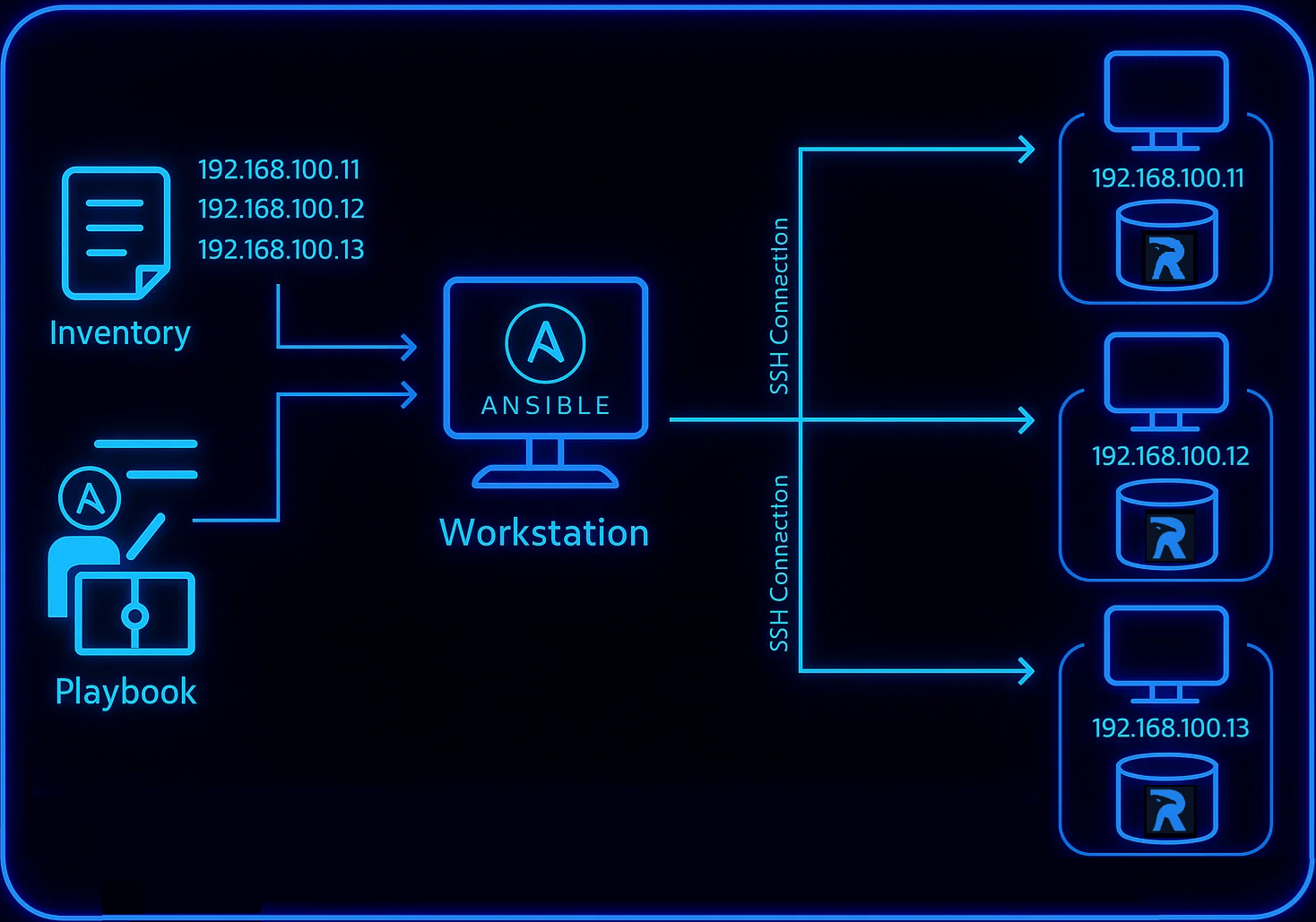
Once this is done, each VM will be a fully installed and configured RavenDB node ready for clustering or standalone use. Let’s move on to writing the playbook.
Now that our inventory is ready, let’s create the first playbook that will install and configure RavenDB on all target nodes.
Create a file named setup_ravendb.yml with the following content:
---
- hosts: ravendb_nodes
  remote_user: root
  roles:
     - role: "ravendb_node"
       vars:
           ravendb_state: present
           ravendb_version_minor: 6.2
           ravendb_settings_preset: default
           ravendb_hostname: "{{ ansible_host }}"
           ravendb_license_file: "./license.json"
What This Playbook Does:
This playbook uses the ravendb_node role to install and configure RavenDB on each host defined in our inventory. Let’s break down the key variables:
- ravendb_state: Ensures RavenDB is installed (present) or removed (absent)
- ravendb_version_minor: Specifies the RavenDB version family (e.g. 6.2)
- ravendb_settings_preset: Applies predefined defaults
- ravendb_license_file: Path to your RavenDB license file
🔐 About the License:
The license.json file contains your RavenDB license information. If you don’t have one, you can request a free developer license at: https://ravendb.net/licenses/developer
💡 Advanced Ansible users: consider encrypting the license file with Ansible Vault if you plan to share this playbook or use it in CI/CD environments.
🔍For a full list of supported variables and their descriptions, refer to the argument specification in the role metadata:
roles/ravendb_node/meta/argument_specs.yml
What the Role Actually Does:
Behind the scenes, this role takes care of much more than just installing binaries.
It prepares system users and directories, installs RavenDB from either a .deb or tarball (depending on the OS), copies the license file, sets correct permissions, and registers the service with systemd.
By the end of the run, RavenDB is fully installed, configured, and running.
Now, with just this one playbook, you can install three RavenDB nodes without touching a GUI or logging into the machines.
Next, we’ll run the playbook:
$ ansible-playbook -i ./inventory ./setup_ravendb.yml

PLAY [ravendb_nodes]****************************************************************

TASK [Gathering Facts]

********************************************************

ok: [192.168.100.11]

ok: [192.168.100.13]

ok: [192.168.100.12]

...

TASK [ravendb_node : Install or Upgrade RavenDB from DEB package]

************************************************

changed: [192.168.100.13]

changed: [192.168.100.11]

changed: [192.168.100.12]

...

PLAY RECAP

********************************************************************************************************

192.168.100.11             : ok=31   changed=14   unreachable=0    failed=0    skipped=18   rescued=0    ignored=0

192.168.100.12             : ok=31   changed=14   unreachable=0    failed=0    skipped=18   rescued=0    ignored=0

192.168.100.13             : ok=31   changed=14   unreachable=0    failed=0    skipped=18   rescued=0    ignored=0
With just a few lines of YAML and one playbook execution, we’ve provisioned three independently configured RavenDB instances. Thanks to Ansible’s parallel execution model, this approach easily scales – you can apply the same playbook to N nodes, whether they’re on-prem, in the cloud, or across hybrid environments.
Accessing RavenDB
Once the playbook completes successfully, each target machine should have a fully installed and configured RavenDB instance running as a systemd service. At this point, the nodes are ready to accept HTTP requests and can be accessed programmatically or via the browser.
Verify access:
$ curl http://192.168.100.11:8080/cluster/topology | jq -c '.Topology.AllNodes'

{"?":"http://192.168.100.11:8080"}
You can also access the RavenDB Studio UI in your browser:
http://192.168.100.11:8080
Now that our inventory is ready, let’s create the first playbook that will install and configure RavenDB on all target nodes.
Create a file named setup_ravendb.yml with the following content:
- hosts: ravendb_nodes
  remote_user: root
  roles:
    - role: "ravendb_node"
      vars:
        ravendb_state: present
        ravendb_version_minor: 6.2
        ravendb_secured_enabled: true
        ravendb_settings_preset: default
        ravendb_license_file: "./license.json"
        ravendb_admin_email: "omer@ravendb.net"
        ravendb_domain: "{{ node_tag }}-my-domain"
        ravendb_root_domain: "development.run"
What This Playbook Does:
This playbook uses the ravendb_node role to install and configure RavenDB on each host defined in our inventory. Let’s break down the key variables:
- ravendb_state: Ensures RavenDB is installed (present) or removed (absent)
- ravendb_version_minor: Specifies the RavenDB version family (e.g., 6.2)
- ravendb_secured_enabled: Enables Let’s Encrypt certificate-based setup
- ravendb_settings_preset: Applies predefined secure defaults
- ravendb_license_file: Path to your RavenDB license file
- ravendb_admin_email: Used for Let’s Encrypt certificate registration
- ravendb_domain and ravendb_root_domain: Used to generate public DNS-based URLs like https://A.A-my-domain.development.run
🔐 About the License:
The license.json file contains your RavenDB license information. If you don’t have one, you can request a free developer license at: https://ravendb.net/licenses/developer
💡 Advanced Ansible users: consider encrypting the license file with Ansible Vault if you plan to share this playbook or use it in CI/CD environments.
🔍For a full list of supported variables and their descriptions, refer to the argument specification in the role metadata:
roles/ravendb_node/meta/argument_specs.yml
What the Role Actually Does:
Behind the scenes, this role takes care of much more than just installing binaries. It automatically generates a complete RavenDB Setup Package tailored for each node, including secure defaults and metadata. It then handles DNS-based validation to obtain Let’s Encrypt certificates, ensuring each instance is provisioned with valid TLS credentials. The role applies node-specific settings, configures HTTPS and TCP endpoints, and ensures that every server starts up in a secure, production-ready state – all fully automated, with no manual steps required.
Now, with just this one playbook, you’re installing three secured RavenDB nodes. all without touching a GUI or logging into the machines.
Next, we’ll run the playbook:
$ ansible-playbook -i ./inventory ./setup_ravendb.yml

PLAY [ravendb_nodes] *****************************************************************


TASK [Gathering Facts] ************************************************************

ok: [192.168.100.11]

ok: [192.168.100.13]

ok: [192.168.100.12]


...


TASK [ravendb_node : Obtain rvn setup package]

ok: [192.168.100.12]

ok: [192.168.100.11]

ok: [192.168.100.13]


...


PLAY RECAP *************************************************************************************************

192.168.100.11             : ok=36   changed=19   unreachable=0    failed=0    skipped=18   rescued=0    ignored=0

192.168.100.12             : ok=36   changed=19   unreachable=0    failed=0    skipped=18   rescued=0    ignored=0

192.168.100.13             : ok=36   changed=19   unreachable=0    failed=0    skipped=18   rescued=0    ignored=0
With just a few lines of YAML and one playbook execution, we’ve provisioned three fully secured and independently configured RavenDB instances. Thanks to Ansible’s parallel execution model, this approach easily scales – you can apply the same playbook to N nodes, whether they’re on-prem, in the cloud, or across hybrid environments.
Accessing RavenDB
Since this setup uses Let’s Encrypt for certificate provisioning, every node was initialized with its own setup package, containing valid TLS credentials. This includes a PKCS#12 .pfx certificate file that can be used for programmatic access via curl or other tools – once we extract it into PEM format.
Let’s walk through accessing one of the nodes (node A) using the generated certificates (repeat for B and C as needed).
# Copy the setup package from the remote node


$ scp ubuntu@192.168.100.11:/etc/ravendb/security/setup_package.zip ./setup_package_A.zip


# Unzip the package locally

$ unzip setup_package.zip -d setup_package


# Extract the public certificate (PEM format)

$ sudo openssl pkcs12 -in ./setup_package/A/cluster.server.certificate.a-my-domain.pfx -clcerts -nokeys -out ./setup_package/A/cluster.server.certificate.pem -legacy -passin pass:


# Extract the private key (PEM format)

$ sudo openssl pkcs12 -in ./setup_package/A/cluster.server.certificate.a-my-domain.pfx -nocerts -nodes -out ./setup_package/A/cluster.server.certificate.key -legacy -passin pass:


# Restrict permissions on the admin client certificate

$ sudo chmod 640 ./setup_package/admin.client.certificate.a-my-domain.pfx


# Upload the admin client certificate to the node

$ sudo curl -X PUT "https://a.a-my-domain.development.run/admin/certificates" \ -H "Content-Type: application/json" \ --cert ./A/cluster.server.certificate.pem \ --key ./A/cluster.server.certificate.key \ -d '{ "Name": "AdminClientCert", "Certificate": "'"$(cat ./admin.client.certificate.a-my-domain.pfx | base64 -w 0)"'", "SecurityClearance": "ClusterAdmin" }'
Verify access:
sudo curl --cert ./setup_package/A/cluster.server.certificate.pem --key ./setup_package/A/cluster.server.certificate.key  https://a.a-my-domain.development.run/cluster/topology | jq -c '.Topology.AllNodes'


{

   "A":"https://a.a-my-domain.development.run",

}
You can also access the RavenDB Studio UI in your browser (Make sure your browser is set up to present the admin client certificate when prompted):
https://a.a-my-domain.development.run“
2. Connect multiple nodes into a working cluster
The RavenDB Ansible Collection isn’t just about provisioning isolated nodes – it also provides modules to help you automate cluster formation.
Up to this point, we’ve deployed three RavenDB nodes. Each is fully installed and running, but they operate independently. In many scenarios, that’s all you need—a set of standalone database nodes.
But in production environments, you’ll often want to form a cluster, where nodes work together, replicate data, and maintain consensus.
Let’s write another playbook:
  #  cluster.yaml
  ---
  - name: Form Cluster
    hosts: localhost
    gather_facts: no

    tasks:
      - name: Node B is Watcher
        ravendb.ravendb.node:
          node:
            tag: B
            type: "Watcher"
            url: "http://192.168.100.12:8080"
            leader_url: "http://192.168.100.11:8080"

      - name: Node C is Member
        ravendb.ravendb.node:
          node:
            tag: C
            url: "http://192.168.100.13:8080"
            leader_url: "http://192.168.100.11:8080"
RavenDB nodes must be explicitly joined into a cluster. This is not done at the OS level, but through the RavenDB HTTP API, which is why this task targets localhost (i.e., the Ansible control node) instead of the remote nodes. We’re instructing RavenDB directly to connect the nodes into a cluster.
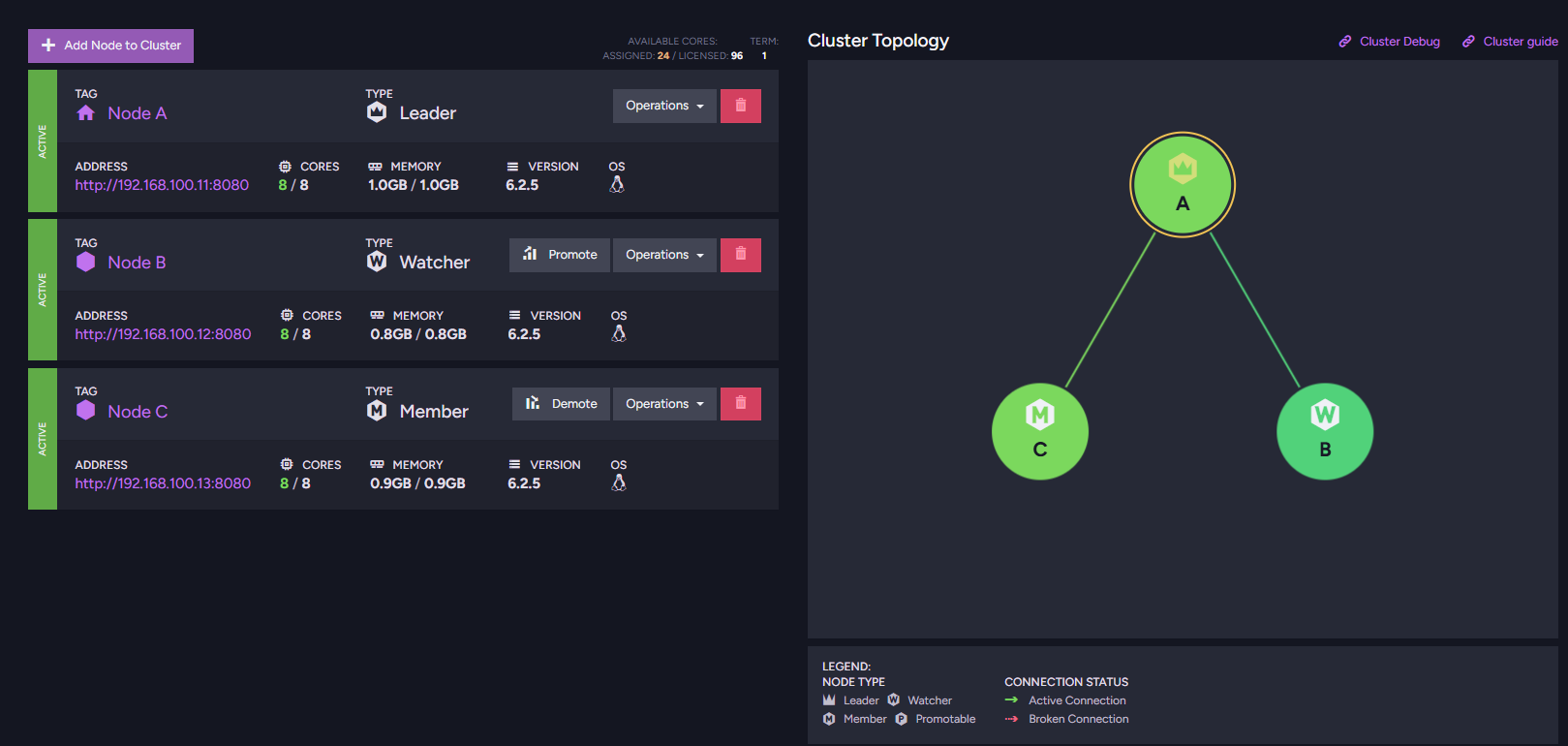
In this example, we’ll pick node 192.168.100.11 as the cluster leader and join the other two as a Watcher and Member, respectively.
In this setup:
- Node A (
192.168.100.11) is the cluster leader. - Node B joins as a Watcher (read-only replica).
- Node C joins as a full Member (with voting rights).
Execute the playbook from your control node:
$ ansible-playbook -i ./inventory ./add_node.yamlThis will send the appropriate HTTP requests to the leader node, instructing it to form a cluster with the additional nodes.
You can confirm that the cluster was formed correctly by querying the topology:
  $ curl "http://192.168.100.11:8080"/cluster/topology | jq -c '.Topology.AllNodes'

  {
   "A":"http://192.168.100.11:8080",
   "B":"http://192.168.100.12:8080",
   "C":"http://192.168.100.13:8080"
  }
And just like that, your RavenDB cluster is up and running, precisely as defined in the playbook.
If you prefer to inspect the cluster topology visually, simply open RavenDB Studio on any of the nodes and navigate to Manage Server > Cluster. The full cluster layout, including node tags and roles, will be displayed there:
3. Manage database, indexes, and configuration with repeatable playbooks
So far, we’ve seen the power of using Ansible to spin up RavenDB nodes and even connect them into a working cluster – all with clean, declarative playbooks. But real-world usage doesn’t stop at provisioning. Once your servers are up, the day-to-day work begins: creating databases, writing indexes, updating configurations, and so on.
The good news? The RavenDB Ansible Collection has modules exactly for that.
These modules are designed to interact with RavenDB’s API to perform operational tasks – the kind you’d typically do through the Studio or manual scripts, but now in a fully automated, version-controlled, and repeatable way. Whether you’re managing a single environment or dozens of deployments, these modules bring consistency to how you handle core operations
So, to keep things simple and easy to follow, we’ll focus on just one node. Don’t worry, this isn’t a limitation. You can definitely apply the same playbook across many nodes if needed. But for demonstration purposes, one is enough.
Let’s update our inventory to include just the node we’ll operate on:
# inventory
[ravendb_nodes]
192.168.100.11 ansible_user=ubuntu ansible_password=ubuntu
ansible_become_password=ubuntu node_tag=A
We’re assuming this node was already provisioned in Section 1 using the setup_ravendb.yml playbook and is currently up and running.
Creating and Managing Databases
Now let’s perform one of the most common tasks – creating a new database. Here’s the playbook:
  ---
  - name: Create Database
    hosts: ravendb_nodes
    gather_facts: no

    roles:
      - ravendb.ravendb.ravendb_python_client_prerequisites

    tasks:
      - name: Ensure RavenDB database is present
        ravendb.ravendb.database:
          url: "http://{{ ansible_host }}:8080"
          database_name: "my_database"
          replication_factor: 1
          state: present
Let’s take a quick look at the variables used in the database creation task:
url: This is the base URL of the RavenDB node you’re targeting. In our case, we’re dynamically using{{ ansible_host }}to pull the IP from the inventory, followed by port8080, which is the default HTTP endpoint.database_name: The name of the database you want to create. Here, we’re naming itmy_database.replication_factor: This defines how many nodes will hold replicas of the database. Since we’re working with a single node for demonstration, we set it to1.state: Just like in other Ansible modules, this controls the desired state. Usepresentto create or ensure the database exists, andabsentto delete it.
📦 Why the ravendb_python_client_prerequisites Role?
This role sets up the required Python environment for using RavenDB modules. It creates a dedicated virtual environment, installs the RavenDB Python client and its dependencies, and configures Ansible to use the virtualenv’s Python interpreter. This approach keeps dependencies isolated and ensures consistent behavior across different systems, especially useful in clean environments or CI pipelines. You just need to include the role once per playbook before using any RavenDB modules.
Now, let’s run our playbook:
ansible-playbook -i ./inventory create_db.yamlThat’s it, the database is now created on the node.
Want to check it?
curl http://192.168.100.11:8080/databasesWant to Preview First? Use Check Mode
Sometimes you want to verify what would happen, without actually making changes. That’s where Ansible’s check_mode comes in handy:
    tasks:
      - name: Ensure RavenDB database is present (check mode)
        ravendb.ravendb.database:
          url: "http://{{ ansible_host }}:8080"
          database_name: "my_database"
          replication_factor: 1
          state: present
        check_mode: yes
Running the playbook like this lets you test your logic without creating anything on the server.
Deleting a Database
Need to remove a database instead? Just switch the state:
  - name: Ensure RavenDB database is absent
    ravendb.ravendb.database:
      url: "http://{{ ansible_host }}:8080"
      database_name: "my_database"
      state: absent
Cleanly, consistently, and repeatably. And we’re just getting started.
Creating and Managing Indexes
Once your database is up, one of the first things you’ll likely want to do is define indexes – whether to speed up queries, support projections, or enable map-reduce logic across your data. And just like with databases, you can manage indexes in RavenDB entirely through Ansible.
Let’s walk through the most common use cases.
Creating an Index
Here’s a basic playbook task to create a map-reduce index:
  - name: Ensure RavenDB Index is present
    ravendb.ravendb.index:
      url: "http://{{ ansible_host }}:8080"
      database_name: "my_database"
      index_name: "UsersByName"
      index_definition:
        map:
          - "from c in docs.Users select new { c.name, count = 5 }"
        reduce: >
          from result in results
          group result by result.name
          into g
          select new
          {
            name = g.Key,
            count = g.Sum(x => x.count)
          }
      state: present
This creates (or ensures the presence of) an index named UsersByName on the my_database database. It uses a simple map-reduce definition over the Users collection.
💡 If you rerun the playbook with the same index name but a different definition, RavenDB will automatically update the existing index.
Multi-Map Indexes
RavenDB supports multi-map indexes, indexes that consolidate data from multiple collections. Here’s an example that combines data from Users and Orders:
  - name: Ensure RavenDB Index is present
    ravendb.ravendb.index:
      url: "http://{{ ansible_host }}:8080"
      database_name: "my_database"
      index_name: "UsersAndOrdersByName"
      index_definition:
        map:
          - "from c in docs.Users select new { Name = c.name, UserCount = 1, OrderCount = 0, TotalCount = 1 }"
          - "from o in docs.Orders select new { Name = o.customer, UserCount = 0, OrderCount = 1, TotalCount = 1 }"
        reduce: >
          from result in results
          group result by result.Name
          into g
          select new
          {
            Name = g.Key,
            UserCount = g.Sum(x => x.UserCount),
            OrderCount = g.Sum(x => x.OrderCount),
            TotalCount = g.Sum(x => x.TotalCount)
          }
      state: present
Deleting an Index
Deleting an index is as straightforward as setting its state to absent:
  - name: Ensure RavenDB index is absent
    ravendb.ravendb.index:
      url: "http://{{ ansible_host }}:8080"
      index_name: "UsersByName"
      database_name: "my_database"
      state: absent
This ensures the index is removed from the specified database if it exists.
Controlling Index Modes (Enable, Disable, and More)
You can also control the mode of an index: whether it’s actively indexing, paused, disabled, or otherwise. Here are examples for enabling and disabling an index:
  - name: Ensure RavenDB Index is enabled
    ravendb.ravendb.index:
      url: "http://{{ ansible_host }}:8080"
      database_name: "my_database"
      index_name: "Orders/ByCompany"
      mode: enabled
- name: Ensure RavenDB Index is disabled
ravendb.ravendb.index:
url: "http://{{ ansible_host }}:8080"
database_name: "my_database"
index_name: "Orders/ByCompany"
mode: disabledThese allow you to toggle indexing behavior without deleting the index.
In addition to enabled and disabled, RavenDB supports several other modes like pause, resume, and reset. These are useful when tuning performance, managing load, or responding to operational issues, and they’re fully supported by the module via the mode parameter.
Conclusion
The RavenDB Ansible Collection brings powerful, repeatable automation to every stage of your database lifecycle – from provisioning nodes and forming clusters to managing databases, indexes, and configuration. Whether you’re deploying a fresh environment or maintaining existing infrastructure, this collection helps you enforce consistency, reduce manual effort, and scale operations with confidence.
To explore further, visit our official Ansible Galaxy page to install the collection.
Comprehensive documentation is available to guide you through usage and setup, including details on all available modules and their arguments.
And if you’re looking for ready-to-run examples, check out the growing library of example playbooks on GitHub.
Happy automating! 🛠️⚡
FAQs
What is the RavenDB Ansible Collection used for?
The RavenDB Ansible Collection provides a comprehensive solution for automating RavenDB’s full lifecycle, allowing it to serve as the starting point for operationalizing the database in a modern DevOps workflow. It provides a repeatable way to spin up fully functional multi-node clusters in minutes.
What are the system requirements for running the RavenDB Ansible Collection?
To ensure compatibility, your control node needs Ansible version 2.15 through 2.18 and Python 3.9 or higher. Additionally, the target managed nodes must run a supported Linux distribution, which currently includes Debian-based systems (like Ubuntu) or Red Hat-based systems (like RHEL, CentOS, or Rocky).
How should Ansible authenticate with my target database servers?
Ansible configures and manages target systems using agentless automation over SSH. While you can use standard passwords, it’s considered best practice to use SSH keys instead. SSH keys rely on cryptographic key pairs, making unauthorized access much more difficult.
Woah, already finished? 🤯
If you found the article interesting, don’t miss a chance to try our database solution – totally for free!