Highlights
- Use RavenDB OLAP ETL to move operational data into analytics systems automatically.
- Transform transactional data into Parquet format optimized for OLAP workloads.
- Send scheduled data batches directly to destinations like Amazon S3 without building a separate pipeline.
Operational Data to Insight
There comes a moment in projects when operational data is not enough, and deeper data analysis becomes necessary. Your sales team may want a study of long-term trends, digging further for the insight or answering questions that transactional systems simply aren’t designed to handle.
Your team already has an OLAP database for analytics available. All you need is the transport of data from sources to the destination.
The data has to be delivered reliably; it has to be shaped into a format your OLAP engine can work with, and of course, the less painful the setup, the better it will be. A script that you need to run manually every single day is not a real solution.
This is exactly why RavenDB provides the OLAP ETL. It can prepare the data, transform it into a suitable format, and send it to your storage on the schedule you choose. The whole process doesn’t require building a separate pipeline or maintaining additional infrastructure. The entire flow is managed inside a single RavenDB task, which keeps everything simple.
What is OLAP?
You might wonder what OLAP even is, and why it needs its own dedicated flow. How does it differ from OLTP databases like RavenDB?
OLAP (Online Analytical Processing) databases are designed for analytics and large datasets. Unlike OLTP (Online Transaction Processing) databases, their architecture is optimized for analyzing large datasets with multiple dimensions. Instead of handling real-time interactions, OLAP databases focus on answering complex questions, such as detecting long-term sales trends across regions and product categories, measuring the actual impact of promotions and pricing strategies, and uncovering hidden correlations between customer demographics, seasonality, and product performance.
While RavenDB’s primary protocol of communication is REST API, OLAP often diverges from it. Some OLAP databases also use REST APIs, but the standard practice is to capture chunks of data on some persistent medium (disk, object storage) and perform periodic migrations. That is the standard approach, and we follow it in RavenDB OLAP ETL.
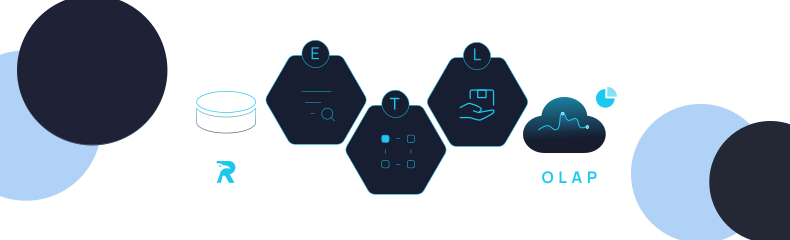
ETL (extract, transform, load) is a process that continuously extracts data from a source (e.g., a RavenDB database), transforms it according to a script, and then loads it into a designated location. It allows a continuous propagation of new documents and their changes from RavenDB to OLAP and, if needed, transform them to match your model. But what would be the expected format? We can’t simply throw raw data into the OLAP database; it needs to be processed to better align with OLAP.
Parquet, or fully Apache Parquet, is an open-source data format designed for data storage and processing of analytical data. Unlike traditional row-oriented formats, Parquet organizes data by columns, allowing data engines to read only the specific fields they need. This allows efficient batch-aware processing.
Parquet batch orientation makes RavenDB’s OLAP ETL function a bit different compared to standard RavenDB ETL. You don’t send data with every transaction – it was designed to handle batches of data. We want to send data hour by hour, day by day, or week by week, depending on your systems. It still works smartly, so it gathers only the changed documents.
So how do we connect it, and what do we need?
Establishing connection
To enable OLAP ETL, you need a RavenDB server running with a free Developer or Enterprise license. We will use AWS’s S3 bucket service and local storage for this example.
If unsure of your RavenDB licence, you can check whether you can use ETL by opening the chosen database in RavenDB, selecting the Tasks section, and then Ongoing Tasks. Then, try to create a new ongoing OLAP ETL task. If still in doubt, check Info Hub’s licensing section on the right.
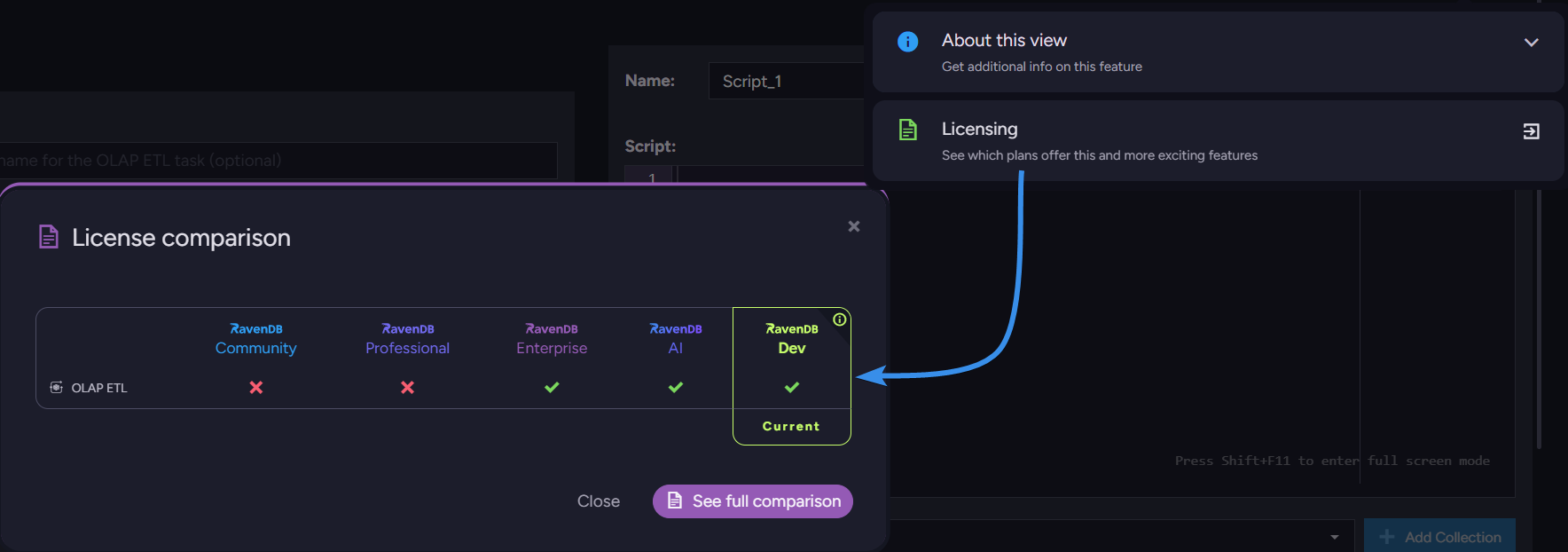
In this guide, we’ll use RavenDB v7.1 with a sample dataset
Connection string
To begin, choose a name for your ongoing task. The next thing you must select is Run Frequency. As mentioned earlier, depending on your system, you can set the frequency to different values; we will set it to 1 day. Depending on the database’s workload and the importance of the data, you might leave it for an hour or a week.
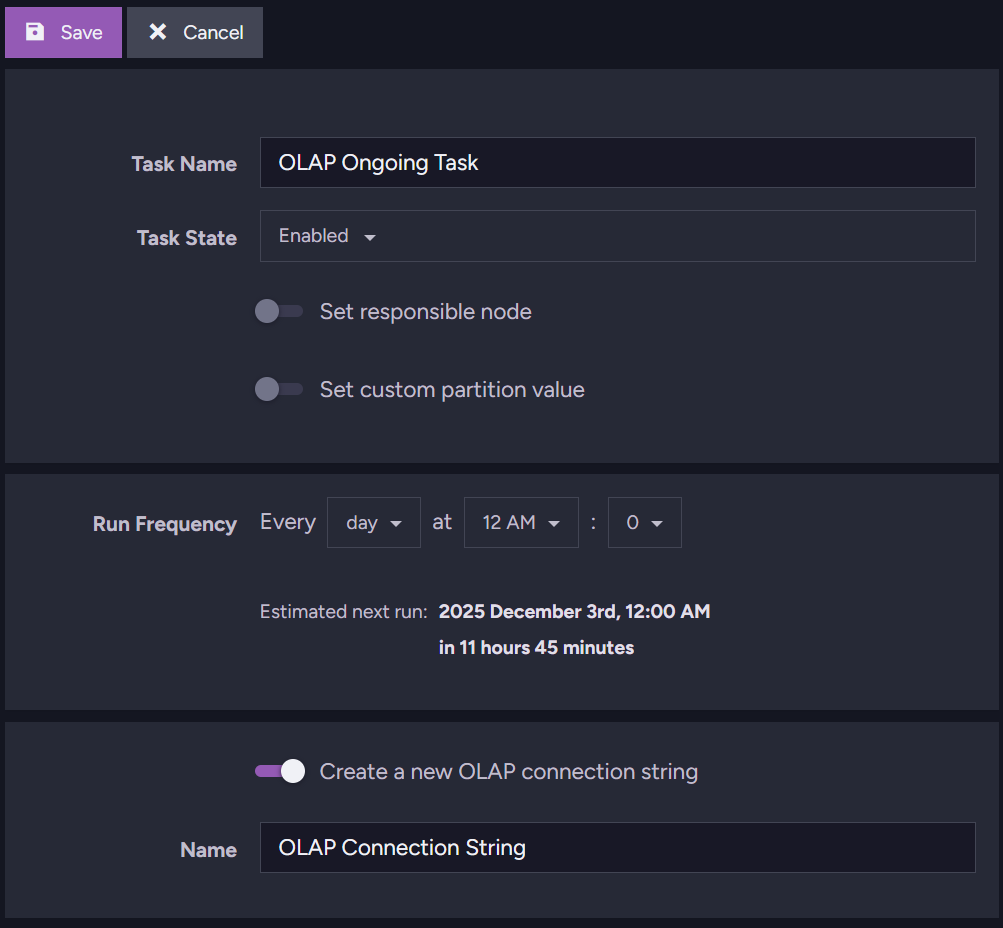
Then we continue with the creation of the connection string. We choose the name of our connection string and then go to the first destination (scroll down if you don’t see it 😉), local import.
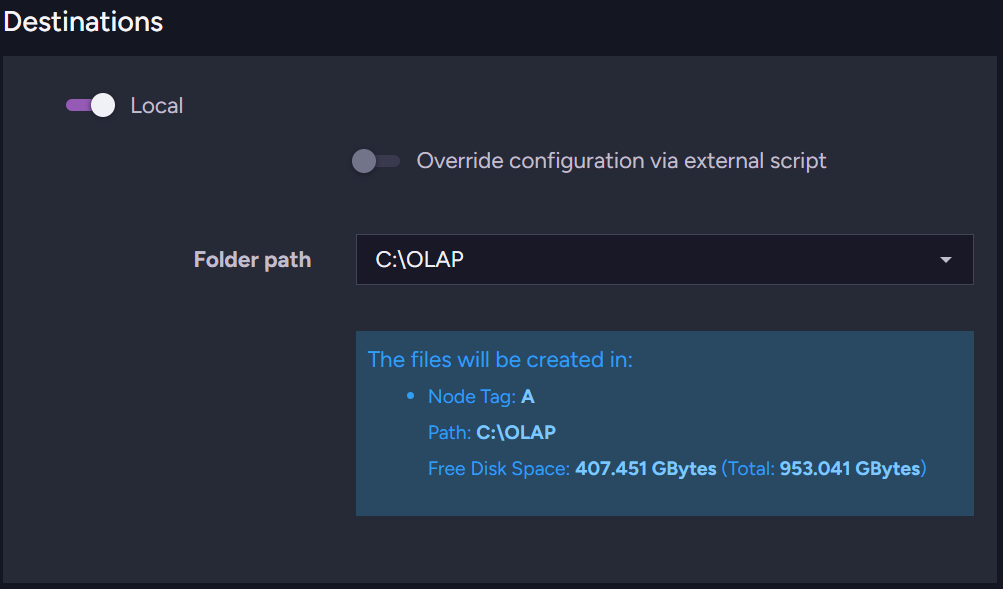
It’s simple, fast, and you have complete control over your files. This generates a directory for you with collections subdirectories depending on your script. We will explain the transformation script in more detail later in the article. All you need to do is select the directory where your files should go. For now, let’s check one more destination service, Amazon S3.
Amazon S3 is an object storage service. It allows us to store data in AWS Cloud and group them in collections called buckets.
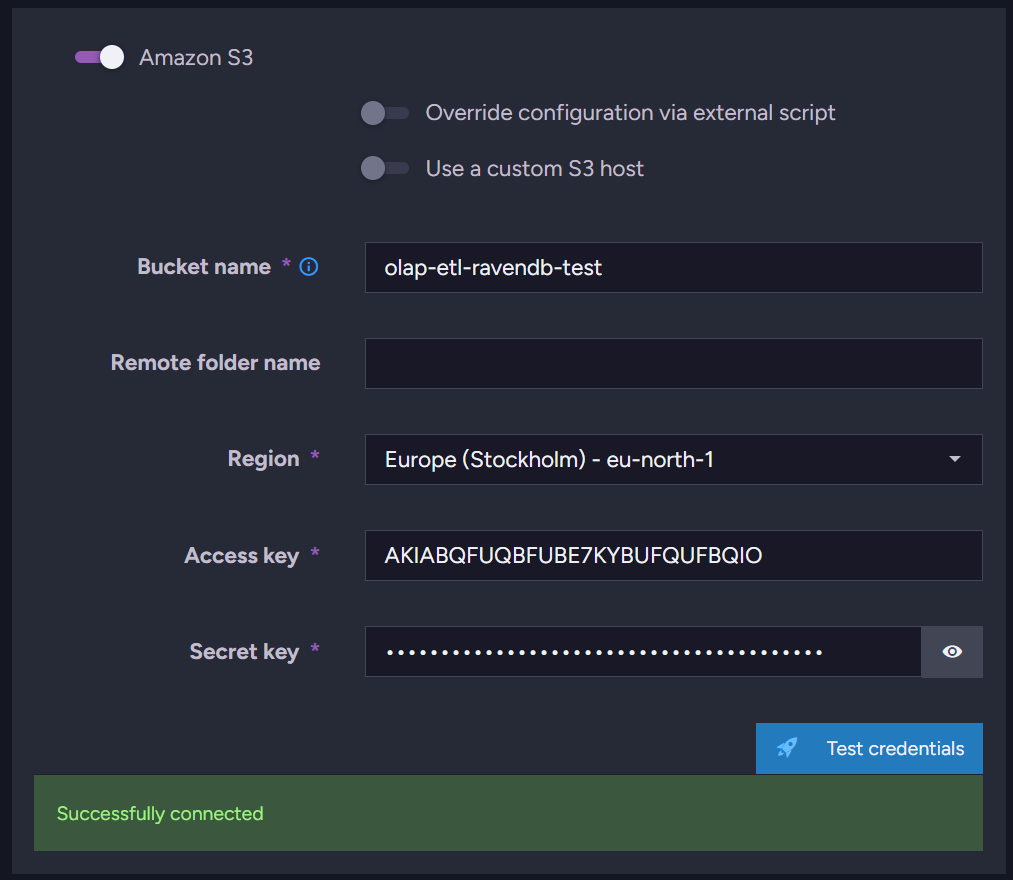
ETL will interact directly with S3, so we need to provide the required credentials. Paste those into the appropriate slots:
- Access Key
- Secret Key
- Bucket name (RavenDB will figure out URL of bucket)
- Region
You can also change the default ID column at the bottom of the page. The default column name is _ID.
Now that the connection string is ready, it’s time to write the transformation script.
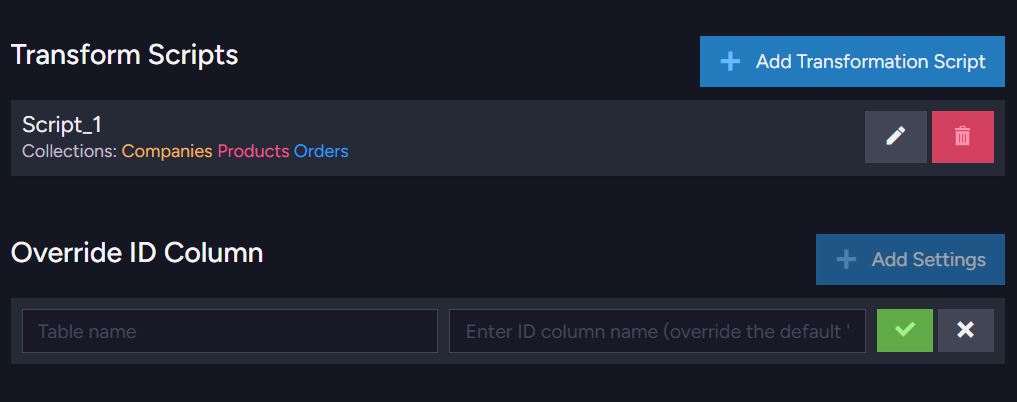
Transformation script
The transformation script is the part that requires the most thought, as you are directly shaping your data. You shouldn’t send everything; analytics systems don’t need data that provides no value and only takes up storage. Here’s a simple example to illustrate the basics:
  var orderDate = new Date(this.OrderedAt);
  var year = orderDate.getFullYear();
  var month = orderDate.getMonth() + 1;

  loadToOrders(partitionBy(['year', year], ['month', month]), {
      Company: this.Company,
      ShipVia: this.ShipVia
  });
Let’s start from the top. We prepare an object and extract the year and month from each document, and use those values in loadTo. In loadTo, we save it as ‘Orders’ and then partition subdirectory by year and month. Like in typical ETL, we load Company and ShipVia.
Now let’s look at a more complete example where we pull more details from the order and related documents:
  var orderDate = new Date(this.OrderedAt); // 1️⃣
  var year = orderDate.getFullYear();
  var month = orderDate.getMonth() + 1;

  // 'this' in this context is a single order 2️⃣
  if (!this.Lines || !this.Lines.length) {
      return;
  }

  // 3️⃣
  for (var i = 0; i < this.Lines.length; i++) {
      var line = this.Lines[i];

      var company = load(this.Company);
      var product = load(line.Product);
      var categoryDoc = product && product.Category ? load(product.Category) : null;

      var discount = line.Discount || 0;
      var grossAmount = line.PricePerUnit * line.Quantity;
      var netAmount = grossAmount * (1 - discount);

  //4️⃣
      loadToOrders(
  	 //5️⃣
          partitionBy(['year', year], ['month', month]),
          {
              OrderId: id(this),
              OrderYear: year,
              OrderMonth: month,

              CompanyName: company ? company.Name : null,

              ProductId: line.Product,
              ProductName: product ? product.Name : null,
              ProductCategory: categoryDoc ? categoryDoc.Name : null,

              Quantity: line.Quantity,
              UnitPrice: line.PricePerUnit,
              Discount: discount,
              GrossAmount: grossAmount,
              NetAmount: netAmount
          }
      );
  }
Let’s go piece by piece now, as it is bigger.
- Read the order and build year/month partitions. 1️⃣
- Check if the order has any lines (nested fields): 2️⃣
- If there are no lines, then skip the order.
- If there are no lines, then skip the order.
- Loop through each order line: 3️⃣
- Load related documents:
- Company for the order
- Product for the current line
- Product category
- Company for the order
- Calculate required values (prices, totals, etc.).
- Load related documents:
- Use loadToOrders to output a flattened record: 4️⃣
- Order-level data: ID, year, month
- Line-level data: product, category, quantity, prices, amounts
- Order-level data: ID, year, month
- Store all output rows into year/month partitions for easier analytics. 5️⃣
Then on the bottom of the transformation script section, you need to choose your collections that ETL will have access to. In this script, we need Orders, Products, and Companies collections.
What remains is to save the transformation script and the ongoing task. Now wait for the data to transfer or configure the rest of the databases.
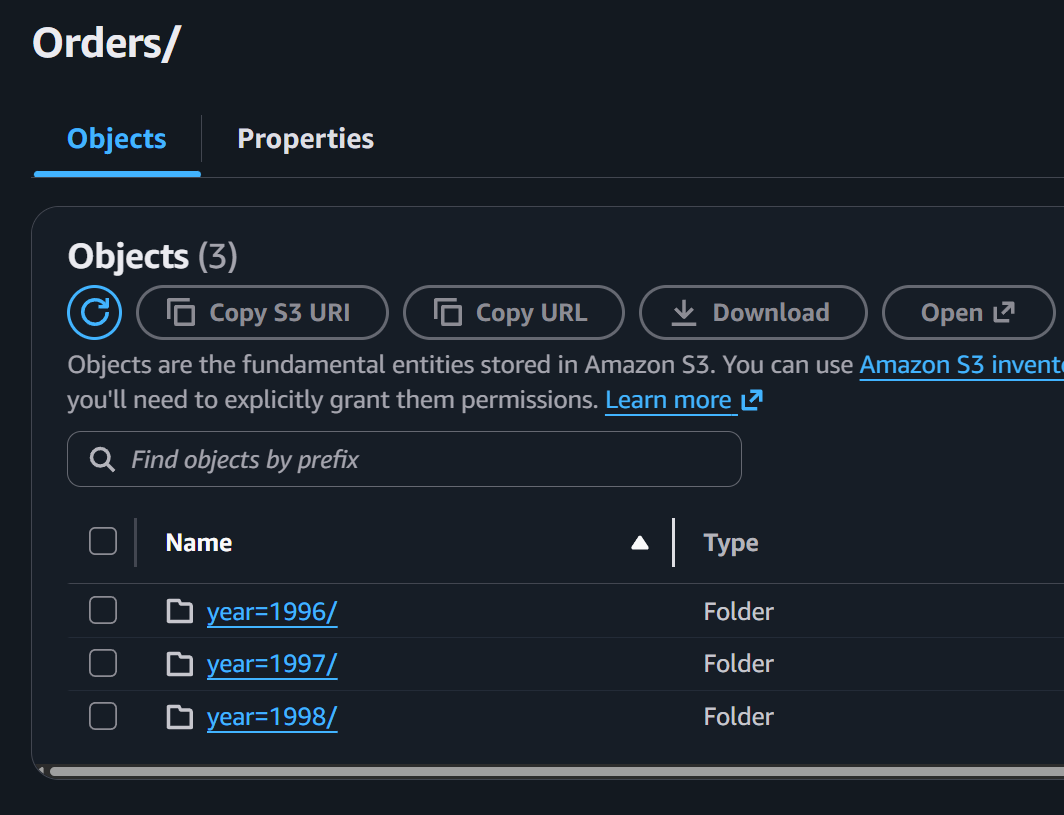
Example of data extracted with RavenDB OLAP ETL on Amazon S3
And after opening one of the files, we can see our data:
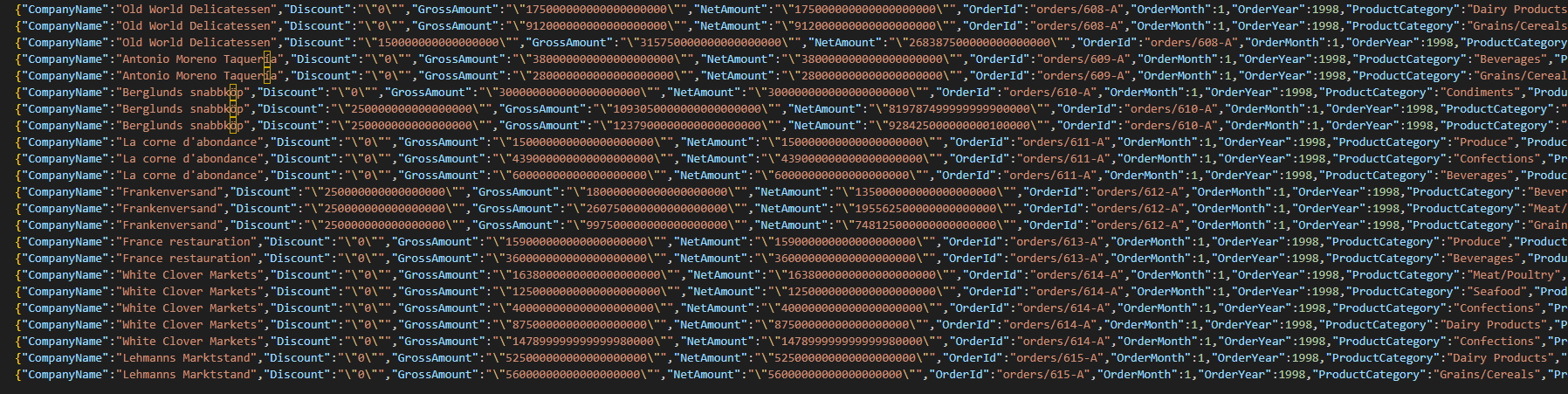
Now your OLAP tool can load the Parquet encoded records from this specific directory and process them properly. Data is awaiting to be crunched!
Summary
As you can see, instead of building an entire analytics pipeline from scratch, RavenDB’s OLAP ETL lets you transform your data into Parquet and ship it straight to OLAP adjacent systems like AWS S3 on a schedule you control.
If you are using Snowflake as your OLAP solution, you might be interested in directly moving data to it with our Snowflake ETL – the article can be found here.
Interested in RavenDB? Grab the developer license dedicated for testing under this link here, or get a free cloud database here. If you have questions about this feature, or want to hang out and talk with the RavenDB team, join our Discord Community Server – invitation link is here.
Frequently Asked Questions
Does RavenDB integrate with business intelligence (BI) reporting tools?
Yes, you can easily connect RavenDB to Power BI. This integration allows you to conduct live business intelligence reporting and visualize your data analytics.
Can I load my RavenDB data into Snowflake for analytics?
Absolutely. RavenDB provides a dedicated Snowflake ETL integration that allows you to load and transform your data directly into Snowflake, specifically for analytics purposes.
Is it possible to stream my document data into search and analytics engines like Elasticsearch?
Yes, you can utilize the Elasticsearch ETL feature to seamlessly stream your RavenDB data directly into Elasticsearch indices.
Woah, already finished? 🤯
If you found the article interesting, don’t miss a chance to try our database solution – totally for free!