Generate Embeddings for AI Search with RavenDB and External Models
Highlights
- Connect RavenDB to external AI models like OpenAI, Hugging Face, MistralAI, Google AI, or Ollama.
- Generate embeddings automatically from selected document fields using RavenDB AI Tasks.
- Use vector search to query data by meaning, with cached embeddings to reduce repeated AI costs.
As AI models improve, ignoring their potential would be a mistake. Following this market trend, we engineered and released AI Integration. We’ve put effort into not giving you an AI filler but a well-optimized, convenient, and seamlessly fitting RavenDB ecosystem solution with the best DX possible.
With AI Integration, you can quickly generate embeddings via third-party providers (like OpenAI or HuggingFace). Embeddings are “meaning vectors”, so the embedding generation process extracts your data’s “meaning” into vectors. It lets you instantly search your data by meaning, without any work on your side, just using RavenDB features.
You can use those generated embeddings to perform vector search, or use AI to change your custom query text into embedding for querying. This way you can go creative with the queries while everything will still work. Your embeddings that are generated while querying are also cached, to be cost-efficient for you.
Only Enterprise license users can use third-party services, but we also have an embedded version using bge-micro-v2 model available for everyone! Let’s dive in and see how to connect and use this awesome feature.
Connecting
To begin, start in the new ‘AI Hub’ tab on the left bar after selecting any database. To connect your AI model to the database, create the AI Connection String that we will use later. The model providers we support:
- Azure OpenAI
- Google AI
- Ollama
- OpenAI
- MistralAI
- Hugging Face
- Embedded model that will use your machine resources
Now, let’s connect one of those. We will connect OpenAI in this article, but the process should be more or less similar for all options.
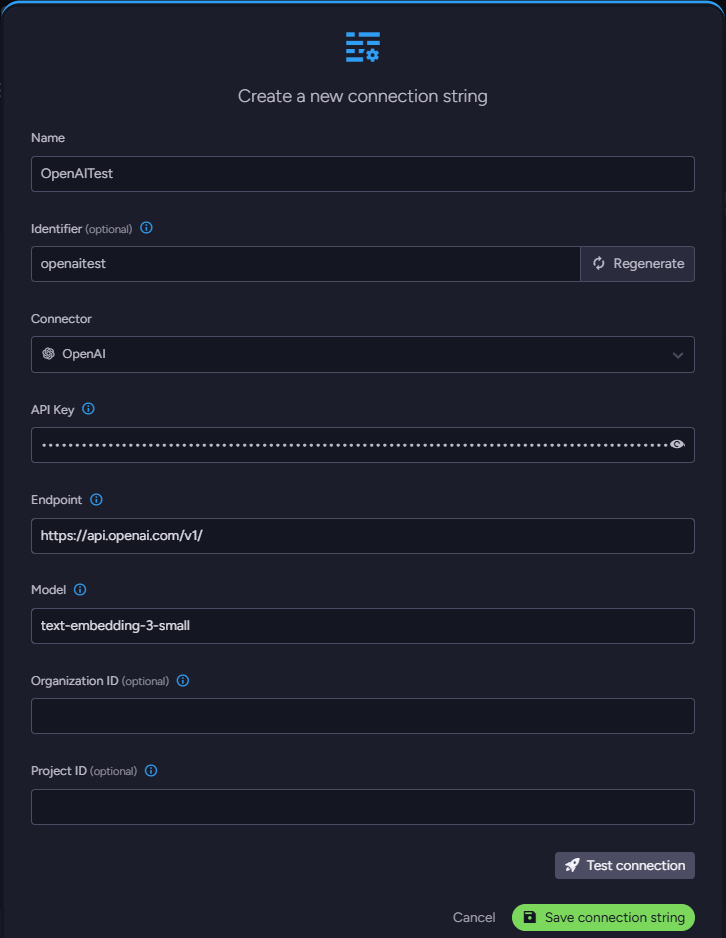
Let’s start with the name and identifier. Provide it yourself, or just enter the name, and the identifier will be generated automatically. Select OpenAI and get the API key from here. Paste your API key and put https://api.openai.com/v1/ as the endpoint. What is left is selecting a model. For OpenAI, you can find embeddings generation models here. This article uses text-embedding-3-small.
After confirming your connection by clicking ‘Test connection’ at the bottom, save the connection string.
Defining a new ongoing AI Task
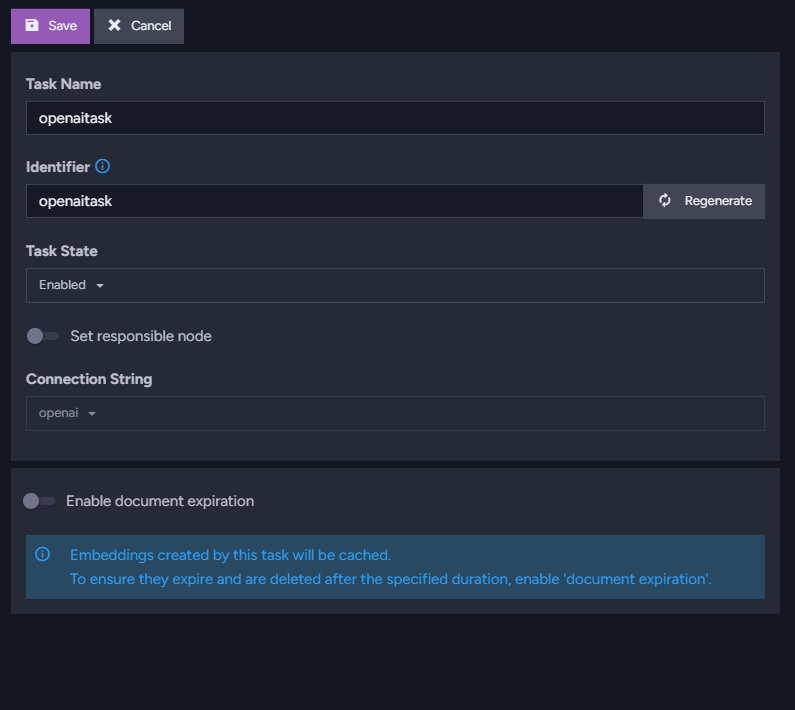
Now, we want to create an embedding generation Task. Go back into ‘AI hub’ and select ‘AI Tasks’. First, name your task and generate its identifier; it can be called the same way as the connection string. Select your connection string at the bottom, and let’s go to the right side.
Select the text to be transformed
Choose the collection of the documents for which you want to generate embeddings. You can attach only one collection to one task. If you wish to use more collections with AI, you need to create more tasks.
After selecting a path, you must add ‘Source Text Path’, which indicates for which text field you want your embeddings to be generated. In my case, I will be using ‘Name’, so I put it in and clicked ‘Add path configuration’. You can put any field you want to use here.
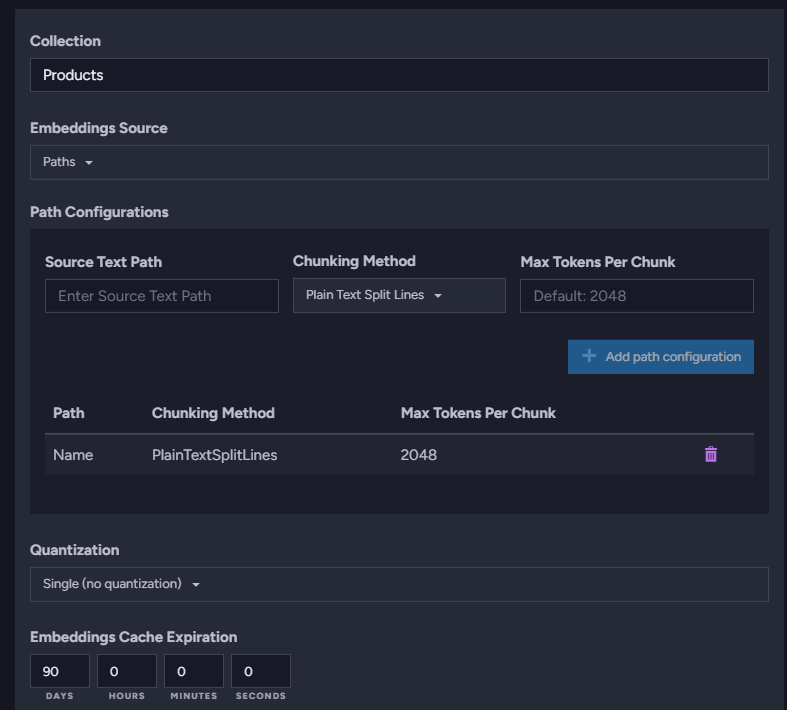
You can also use JS script to do that. For example
  embeddings.generate({
      Name: text.splitLines(this.Name, 2048),
  });
Be aware of chunking and its different methods. To simplify, the chunking is the process of dividing your fields into smaller pieces to fit your text into the AI token limit. A few methods use TextChunker from SematicKernel, which you can learn more about here. Meanwhile, Plain Text Split does not “see” separators and won’t cut words. It also splits after defined tokens. It produces hashes that are case-insensitive and trim white spaces.
The last one, HTML Strip, strips your chunks from HTML and then works the same as Plain Text Split.
About Quantization
If you are worried about the available storage space for the embeddings, we can help you. At the bottom of this menu, we have ‘Quantization’, which can significantly reduce the size of the embeddings we generate, with a slight loss of precision.
We have three options counting in lack of quantization. The other two are Int8 and Binary. When creating embedding, the size of each value in embedding is 4 bytes if we are not using quantization. Int8 reduces it to 1 byte, and binary reduces it to 1 bit. By changing generated values, we reduce their size while precision is affected only slightly. You can even try and create two databases without and with quantization to notice the difference. The easiest would be to notice binary quantization because it changes values above zero to 1 and smaller than zero to 0.
Finish
After saving, the ongoing task will generate a new collection called @embeddings/YourCollectionName that will hold your embeddings. The embeddings should look similar to this one:
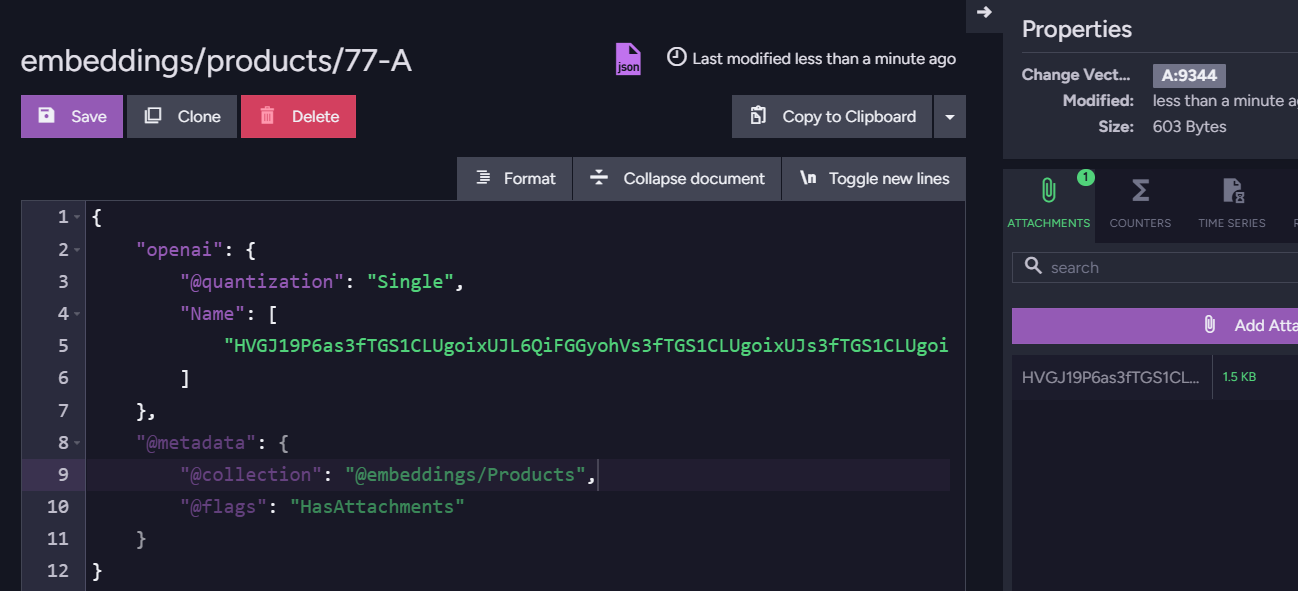
Those documents have the embeddings stored as document attachments. The next thing you can change here is the expiration date of the embedding cache. As mentioned, we cache your embeddings and queries for cost efficiency, so we don’t spend unnecessary tokens by generating embedding for the exact text more than once. Cached embeddings can be seen in the form of attachments in generated documents. By default, the embeddings generated by the task expire after 90 days, and the cache created for queries after 14 days. Those times can be changed in your task. You can see those embeddings in the collection ‘@embeddings-cache’ like ordinary documents.
Static index
Let’s create a static index that will use embeddings generated by our task. This index will use sample data to test it. Products/ByNameVector
  from doc in docs.Products
  select new
  {
      NameVector = LoadVector("Name", "openai")
  }
We also need to check if we are using Corax on the bottom menu in the ‘Configuration’ tab, as this is a Corax-dedicated feature. LoadVector is a new function that will index those new embeddings after providing the field name and task name. It will use the task to locate your embeddings for this indexing. Now, we can save, let indexing finish, and then query with it.
Querying
Now, in the ‘Query’ tab, let’s query our static index for Italian food using the ‘NameVector’ field to see if it works. Use this structure:
from index 'Products/ByNameVector' where vector.search(NameVector, "Italian food", 0.7)If you are creating your query, remember to replace ‘Products/ByNameVector’ with the name of your index. You can change “Italian food” to whatever you want, but I recommend testing it first because we know what will come up on sample data. The number at the end defines the similarity the query will look for. After launching this query, you should get relevant results.
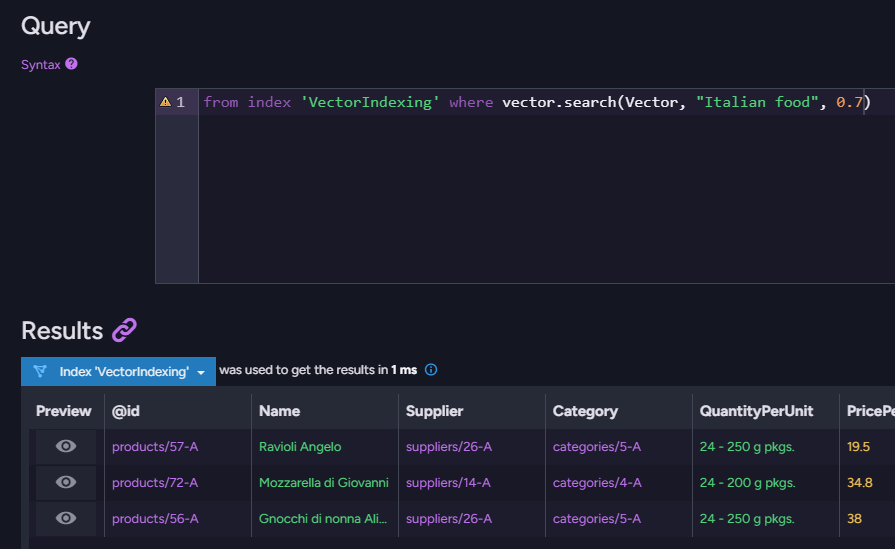
As mentioned, this generates an embedding for the query parameter ‘Italian food’. This embedding will be cached and used if the query hits the same parameter again, making it as cost-efficient as possible. At this moment, it is also worth mentioning that you can do this without a static index. We only need to make our connection string and ongoing AI task to do that. To query with autogenerated indexes, you can use this query structure:
from "Products" where vector.search(embedding.text(Name, ai.task("openai")), "italian food", 0.7)All you need to do is change those three elements:
- Products
- Name
- openai
After inputting your data, it should work as you want. That’s all. It’s an easy, efficient, and valuable tool you can implement quickly and effortlessly.
Conclusion
This article quickly explored the new AI Integration feature, which can instantly elevate your application. We covered basic setup to show you how easy it is to integrate AI into your database, so you and your application no longer need to worry about embedding generation!
Frequently Asked Questions
Do I need an Enterprise license to use RavenDB’s AI integration?
Only if you want to connect to external, third-party AI providers like OpenAI, Google AI, or Hugging Face. If you do not have an Enterprise license, you can still use the feature by utilizing RavenDB’s embedded model (bge-micro-v2), which relies on your local machine’s resources and is available to everyone.
How do I configure my database to automatically generate embeddings?
First, navigate to the AI Hub and create an AI Connection String specifying your chosen model and API key. Next, create an AI Task that points to the specific collection and the exact text field (like the “Name” field in a “Products” collection) that you want the model to vectorize.
How can I reduce the storage space required for my vector embeddings?
You can use the Quantization feature available in the AI Task settings. Quantization reduces the size of the generated embedding values from the default 4 bytes down to 1 byte (Int8) or even 1 bit (Binary), which saves a massive amount of storage space at the cost of only a slight loss in search precision.
How does RavenDB save on API costs for repetitive searches?
To ensure cost-efficiency, RavenDB automatically caches both the generated document embeddings and the search query terms. If a user searches for the exact same text again, the database uses the cached embedding instead of spending expensive tokens to generate it a second time. By default, task embeddings expire after 90 days, while query caches expire after 14 days.
Woah, already finished? 🤯
If you found the article interesting, don’t miss a chance to try our database solution – totally for free!