Leverage RavenDB observability with Datadog
Highlights
- Connect RavenDB to Datadog using OpenTelemetry and the Datadog Agent.
- Build dashboards to monitor RavenDB metrics such as CPU usage.
- Create Datadog alerts to catch database health issues before they become bigger problems.
Observability, Monitoring, and RavenDB
Continuous monitoring is essential to determine when your application’s health is in danger. Usually, you need to manage not only your database, but ultimately your entire system; you require a robust solution that monitors it and raises alerts if something’s wrong.
One of these is Datadog, a cloud platform designed to enhance the observability of your apps. It’s powerful, easy to set up, and gives your team a clear view of the system’s health. It packs all observability tools in one place, customizable dashboards, real-time alerting, and other treats to keep your team ahead of problems.
RavenDB has rich observability, including OpenTelemetry support and built-in metrics. Thanks to that, applications like Datadog can leverage it, combining it with different parts of your system to provide detailed application health status, not just a single element, and alert you when anomalies are detected.
In this article, we will walk you through connecting RavenDB with Datadog. With just a few steps, Datadog will start pulling RavenDB metrics, providing insights into your application’s health. With increased database monitoring, you can sleep calmly. If something happens to your database, Datadog will alert you immediately. Like Cerberus guarding Hades, he will be watching over your database relentlessly. 🐶
This way, we can monitor RavenDB alongside other systems in one place without needing to access Studio separately. You can even check it on your phone, as there is an official Datadog app, making you always just a few clicks away. You don’t need to check it; you will get a notification when required.
Let’s show how to set up a simple dashboard for RavenDB on-premise or create a high CPU usage alert so you will always know that something is happening to your database, that will seamlessly integrate with other system components.
Connecting
What you will need:
In this article, we will use Docker to run the agent, simplifying the setup process. The agent is a native application for Datadog that collects and sends your metrics. Docker will host the agent in an isolated and portable container environment while allowing it to listen to RavenDB.
Note: If you don’t want to use Docker, you can install the Agent directly on your machine and skip the first step.
Part 1: Agent
To connect your RavenDB, we need to establish a connection between Datadog, its Agent, and RavenDB.
We will create a Docker Compose file to run it with a single command. You just need to fill in the placeholders. First, let’s open this file and paste this definition.
  services:
    datadog-agent:
      image: datadog/agent
      container_name: dd-agent
      cgroup: host
      pid: host
      environment:
        - DD_SITE=<DATADOG_REGION>
        - DD_API_KEY=<DATADOG_API_KEY>
        - DD_OTLP_CONFIG_RECEIVER_PROTOCOLS_GRPC_ENDPOINT=0.0.0.0:8888
        - DD_OTLP_CONFIG_METRICS_RESOURCE_ATTRIBUTES_AS_TAGS=true
      volumes:
        - /var/run/docker.sock:/var/run/docker.sock:ro
        - /proc/:/host/proc/:ro
        - /sys/fs/cgroup/:/host/sys/fs/cgroup:ro
      ports:
        - "8888:8888"
      networks:
        - default
      restart: unless-stopped
To set it up, you need to paste the API key. To get your API key, enter your Datadog account and find the ‘Application keys’ in your ‘Organization settings’ area. Create and copy a new API key. Replace <DATADOG_API_KEY> with your key in the file. Also, fill in <DATADOG_REGION> with the region that your Datadog account belongs to. Run the terminal in the same directory and use the following command.
docker compose up -dThis should create a working Agent in a Docker Container. Once that is ready, we can continue with the RavenDB setup.
Part 2: settings.json
The final stop is the settings.json file. It will configure RavenDB, allowing the connection with Datadog Agent.
In your RavenDB.Server directory, find a file called settings.json. Open it and at the end of the file, add the content below:
  "Monitoring.OpenTelemetry.Enabled":true,
    "Monitoring.OpenTelemetry.Meters.Runtime.Enabled":true,
    "Monitoring.OpenTelemetry.OpenTelemetryProtocol.Endpoint": "http://localhost:8888/v1/traces"
These options will trigger OpenTelemetry to send your metrics to the Agent every minute.
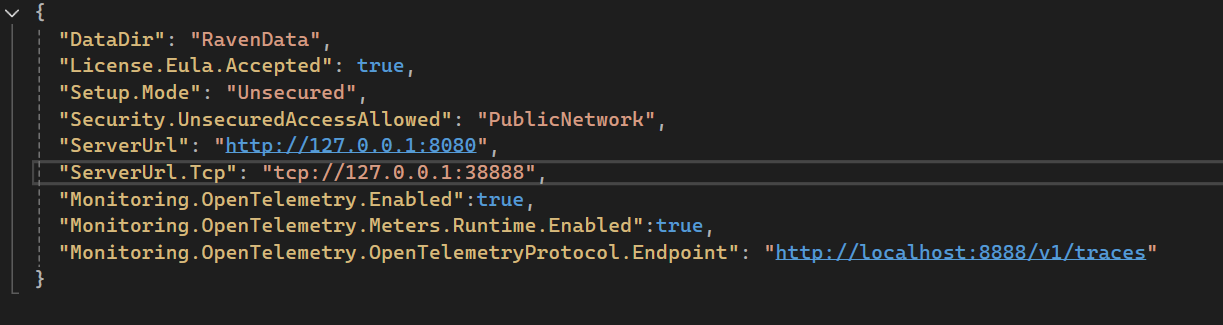
After adding those to your file, save it, and launch RavenDB.
Let’s go to Datadog and see how we can access that. Remember that you still need the Datadog Agent running (in our case, in a Docker container).
Part 3: Visualisation and Monitors
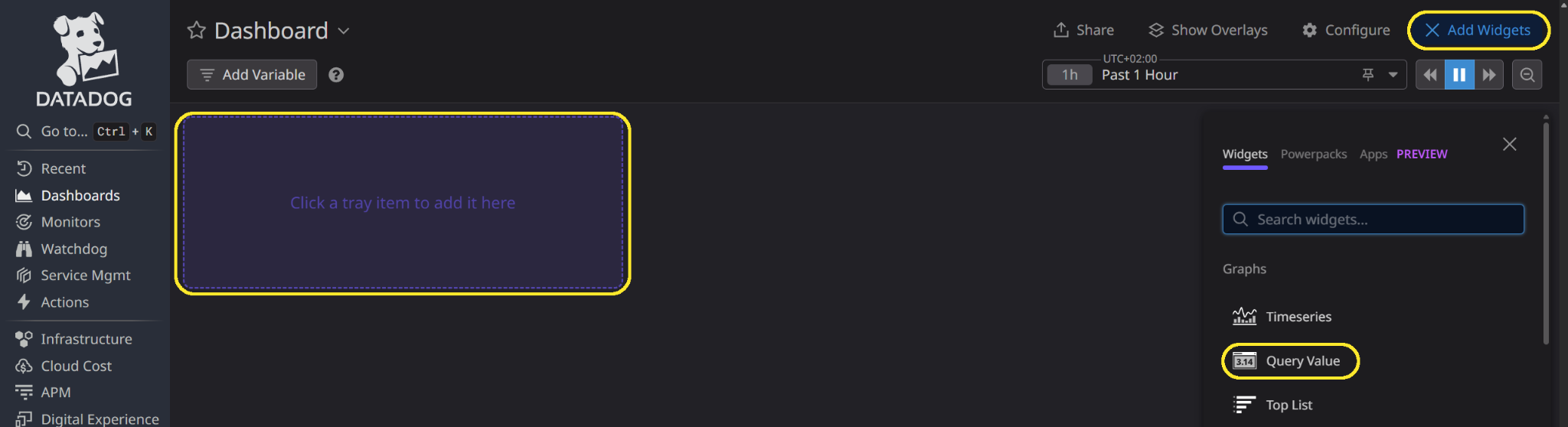
Let’s take a few metrics and place them on a dashboard. Go to the ‘Dashboards’ menu and click the ‘New Dashboard’ button on the top right. Now let’s add some visualisation. Click on ‘Add Widgets or Powerpacks’ or ‘Add Widget’, where the button for the new dashboard was, and select the desired option. We will choose the query value type.
Here we will edit our widget. In the ‘Graph your data’ step, create a query, the default one is labeled as ‘a’, make sure ‘Metrics’ is selected. We select the second field (one that is yellow) and you may see other metrics here, RavenDB ones start with ‘ravendb’. We will choose ‘ravendb.server.resources.cpu.machine’.
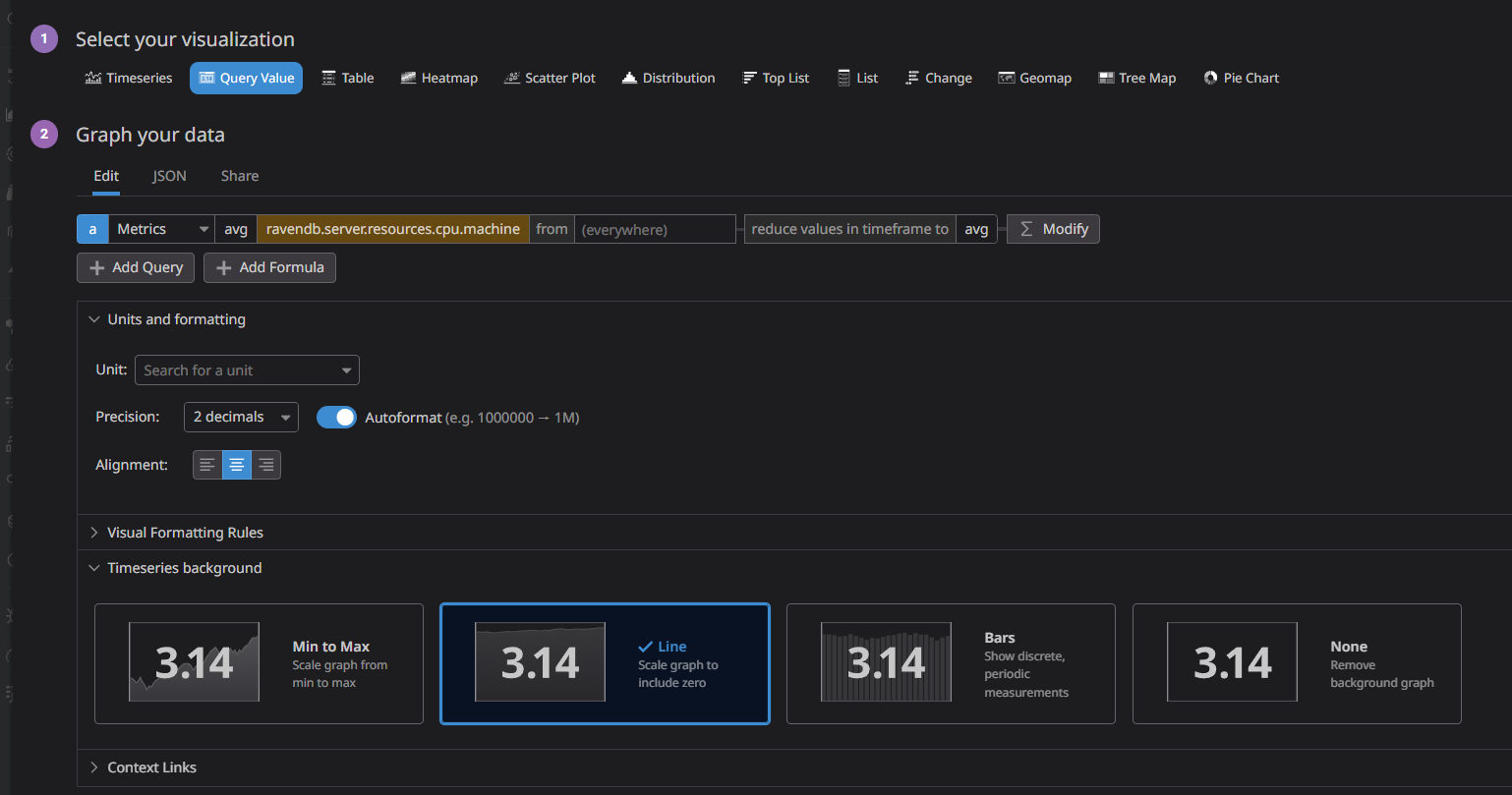
Save the widget. If you set up the widget correctly, you should see the data, as OpenTelemetry sends it every minute.
Let’s create a new monitor that alerts us when CPU usage gets high.
Monitors
Monitors are used to connect other elements of your Datadog. You can connect metrics with teams, tags, incidents, and other components to create the notifications you need. When the dashboard allows you to view your metrics in one place, monitors let you set warnings and alarms, so with a single glance, you can see if any element of your database is in trouble.
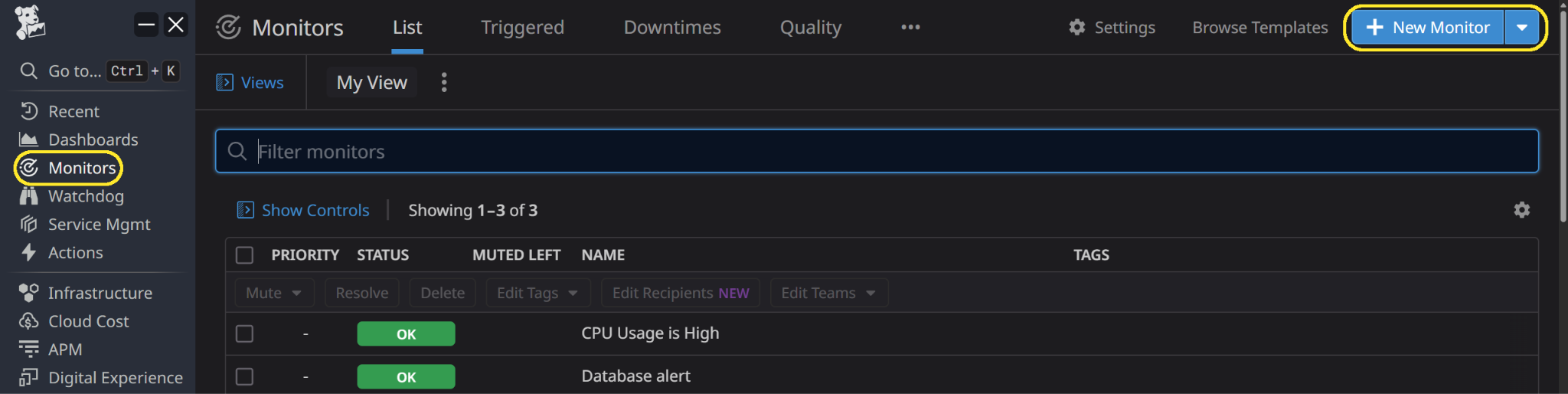
On the left bar, find the ‘Monitors’ section. In there, you can click on the top right to create a new monitor. Select ‘Metrics’ as monitor type. The process of configuring the monitor has been separated into five steps.
- Choose the type of monitor we want to have; for this article, we chose a simple threshold alert.
- Select what you want to be alerted to; we chose CPU usage, just as we did in the widget. Configure details such as the amount of time evaluation takes into consideration.
- Select thresholds to determine when our alerts should be triggered. We can select a warning or an alert to ring. Set the warning to warn us above 75%, and then start alert above 90% of CPU usage.
- Define the notification that you will receive. Those messages support markdown and variables, allowing for effective communication. For this, we will use the following notification.
  {{#is_alert}} CPU usage above 90% {{/is_alert}}
  {{#is_alert_to_warning}} CPU usage above 75% {{/is_alert_to_warning}}
  {{#is_alert_to_warning}} CPU usage under 90% but still high {{/is_alert_to_warning}}
  {{#is_alert_recovery}} CPU usage is back to normal {{/is_alert_recovery}}
At the end of this step, you can also choose metadata about priority, tags, and the team.
5. Assign permissions for this monitor, then click save. Let’s see if the alert works.
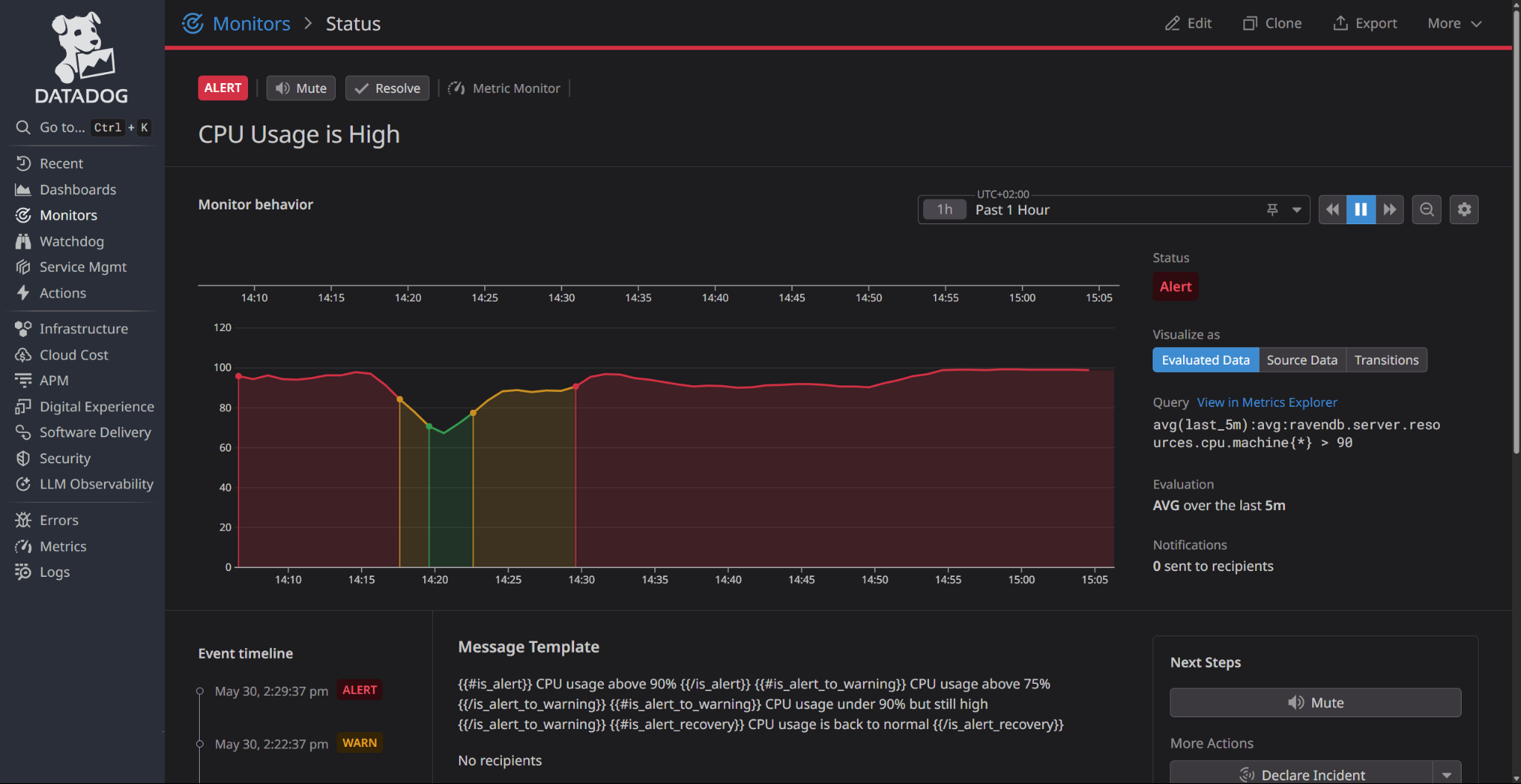
As you can see, it works. I’ve caused a high CPU on purpose. The last step is to select who should receive notifications from these alerts. To send your notifications, just add @Chosen_group_or_email in the chosen notification level. For example:
{{#is_alert}} CPU usage above 90% @IT-team {{/is_alert}}A test button is located at the bottom right, next to the save button, to check if notifications are sent. For more information about monitors, refer to the Datadog documentation here.
Of course, there are many more options for notifications, allowing you to customize them to your specific needs, such as automatically starting incidents or automating your end-to-end processes with workflows.
Mobile app
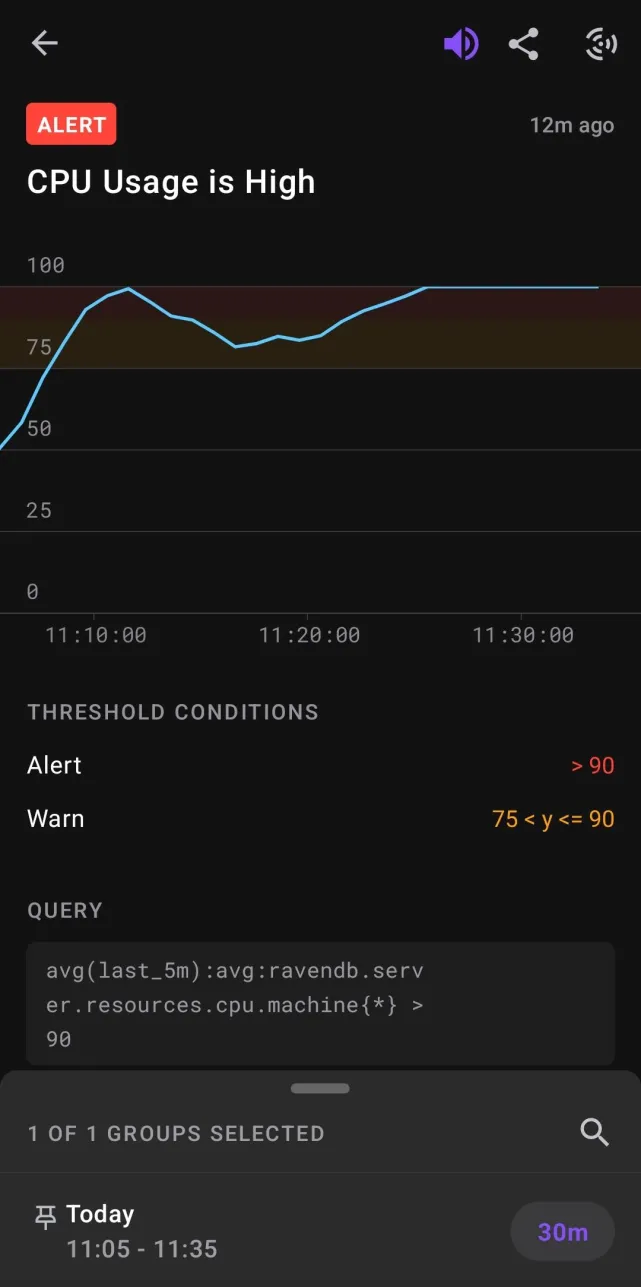
Additionally, don’t forget that Datadog offers a mobile app that allows you to monitor your systems on the go. There is also an option to pin a widget with your chosen items or incident log to your main screen, changing your normal phone into a powerful observation tool. You just log in on your mobile device, where you can access all your dashboards and monitors everywhere you have a connection.
Now it’s your turn!
Enjoy the monitoring with Datadog, customize it to your needs, and relax, as everything is watched over for you.
Want to chat with the RavenDB Team & our community? Check out our Discord server.
FAQs
Why should I integrate RavenDB with Datadog?
Integrating RavenDB with Datadog provides a robust observability solution that continuously monitors your database. Datadog leverages RavenDB’s OpenTelemetry support and built-in metrics to provide insights into application health alongside your other systems in one centralized place.
What components are required to set up this monitoring integration?
To set up the integration, you will need a Datadog account, a running instance of RavenDB, and an OpenTelemetry Collector. The OpenTelemetry Collector acts as a bridge, receiving standard OTLP metrics from RavenDB and exporting them directly into your Datadog platform.
How do I configure RavenDB to send metrics to the Datadog Agent?
You need to modify your RavenDB settings.json file to enable OpenTelemetry exporting (using settings such as “Monitoring.OpenTelemetry.Enabled”: true) and configure it to point to your OpenTelemetry Collector’s endpoint. RavenDB will then automatically push standard OTLP metrics to the Collector every minute, which are seamlessly forwarded to Datadog.
Woah, already finished? 🤯
If you found the article interesting, don’t miss a chance to try our database solution – totally for free!