Migrate your databases in RavenDB
Highlights
- Use export and import when you need a simple way to move a RavenDB database between instances.
- Import by URL to migrate larger databases without downloading the export file locally.
- Use external replication when you need a live database copy with minimal or no downtime.
Most probably, you’re here because you need to migrate your data from one database to another. You are in luck because RavenDB makes it easy. There are a couple of ways to achieve it that fit different scenarios. You can either:
- Export & Import
- Import using URL
- Use external replication – No downtime
You don’t need to write your custom app or script to migrate your data; we’ve already prepared solutions for this scenario. Let’s dive in and move this data where it is needed.
Simple method: Export and Import
Exporting a file and importing on the other end:
- Simplest solution that works well
- Best if you move your database from one instance to another
- Gives most control, considering that you are getting your database on your hard drive
- The best way to move into the local server
- Consuming your storage – use a different method in situations with larger datasets.
tl;dr
- Export your data using the Export function.
- Import your data into the new database.
Step 1: Export
To transfer your data from one database using this method, start by entering your source database. Then, in ‘Tasks,’ select the ‘Export Database’ menu.
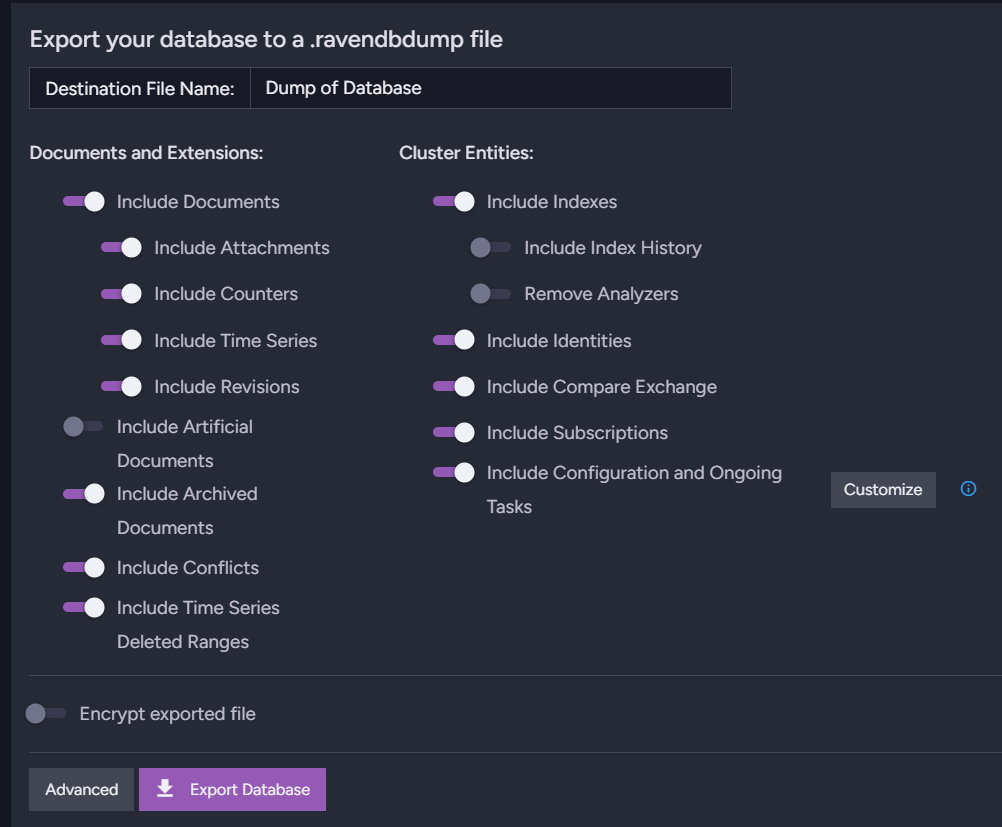
Choose what you want to export and name your file at the top. There is no need to downsize what you export, as you’ll be able to choose what you’ll be importing later, specifically. If you need to encrypt your data, for example, when you need to send it through a not perfectly secure channel or communicator, it is available near the bottom. Optionally, in the Advanced section, you can further customize what you specifically export from your database to the file.
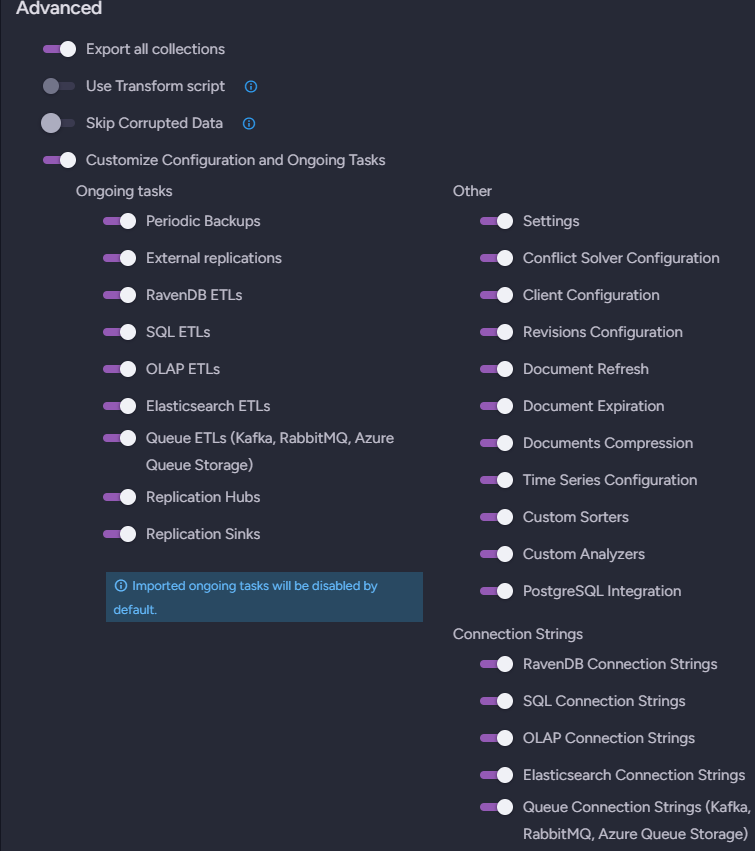
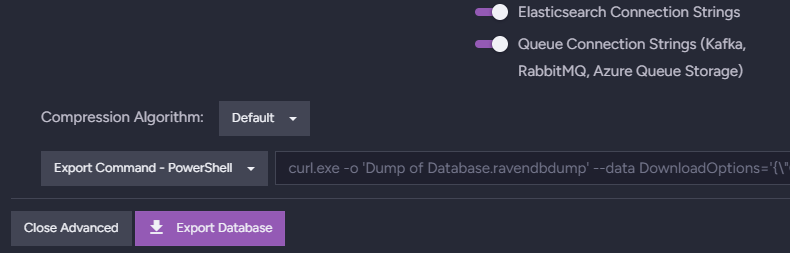
After selecting your options, open the customization menu. Next to the ‘Export Database’ button, you can change your compression algorithm to fit it more to your needs, like decompression speed. Clicking ‘Export Database’ will start preparing and downloading your database. Ensure you have sufficient free storage space for your file. We can’t precisely determine how big it will be, but you can determine the approximate size in the storage report in the ‘Stats’ section. The purple color on the right represents your database, and the size of your compressed file will be approximately the same or less than the one displayed after hovering over this rectangle.
Remember that if you create a new database and your source database is encrypted, the target database must also be encrypted.
Step 2: Import
Enter the same ‘Tasks’ section in the target database and choose ‘Import Data’. You need to select your file, and then you can choose what to import again. Choose which items you want to import from the file. Then, simply press ‘Import’ and wait for it to finish. There, you will have a screen updating you on progress.
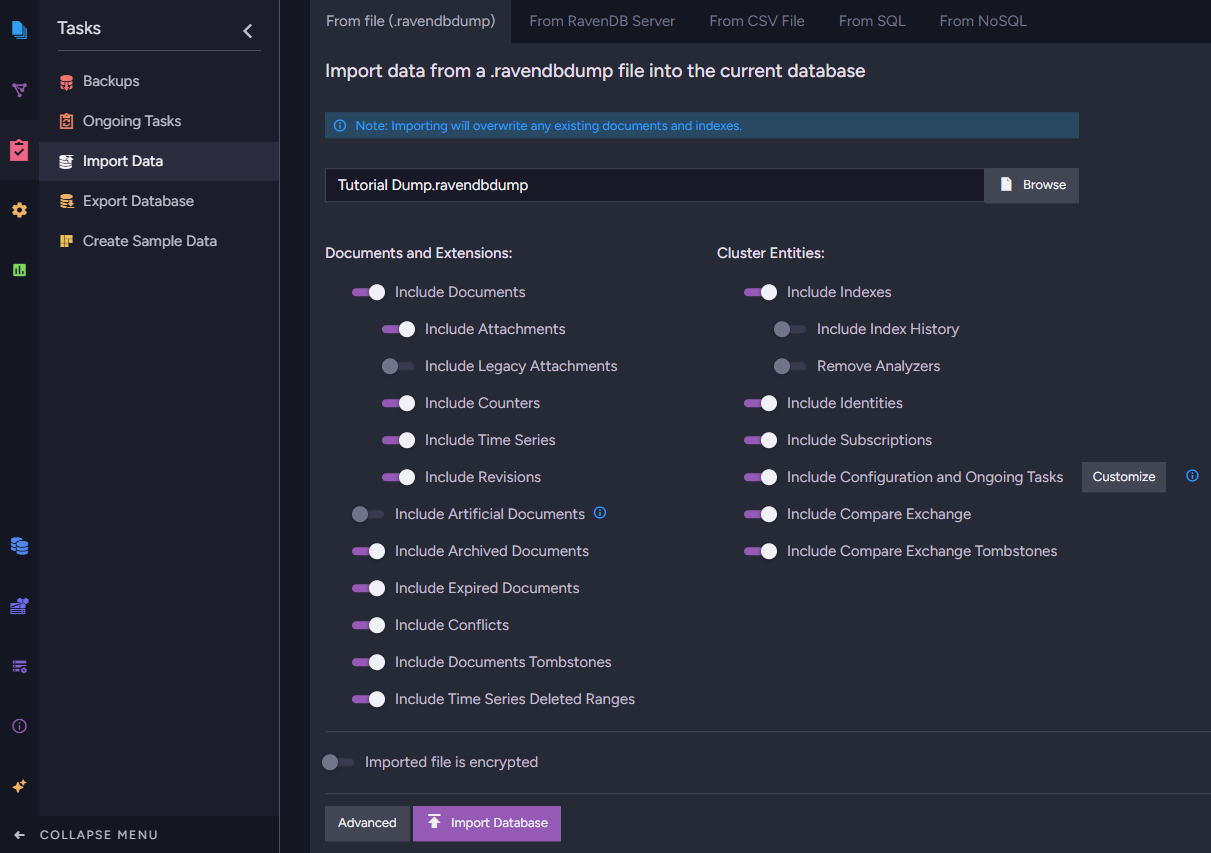
You can refer to the documentation for more information about this.
For all sizes: Import with URL
This method:
- Best if you cannot just download the export file, as your database is too large
- One-time replication that requires downtime
- Skips the need to download the file to the storage (direct import)
- Requires a stable internet connection as this is a non-resumable process.
tl;dr
- If you are using HTTPS, create a certificate
- Select URL and Database
- Select import options and import
Step 1: Prerequisites
Before migrating data, ensure the source and target RavenDB servers are secure. If your source server is on RavenDB Cloud or a safe version 4.x+ using HTTPS, and you are importing outside of your current server, follow these steps; otherwise, skip to Step 2.
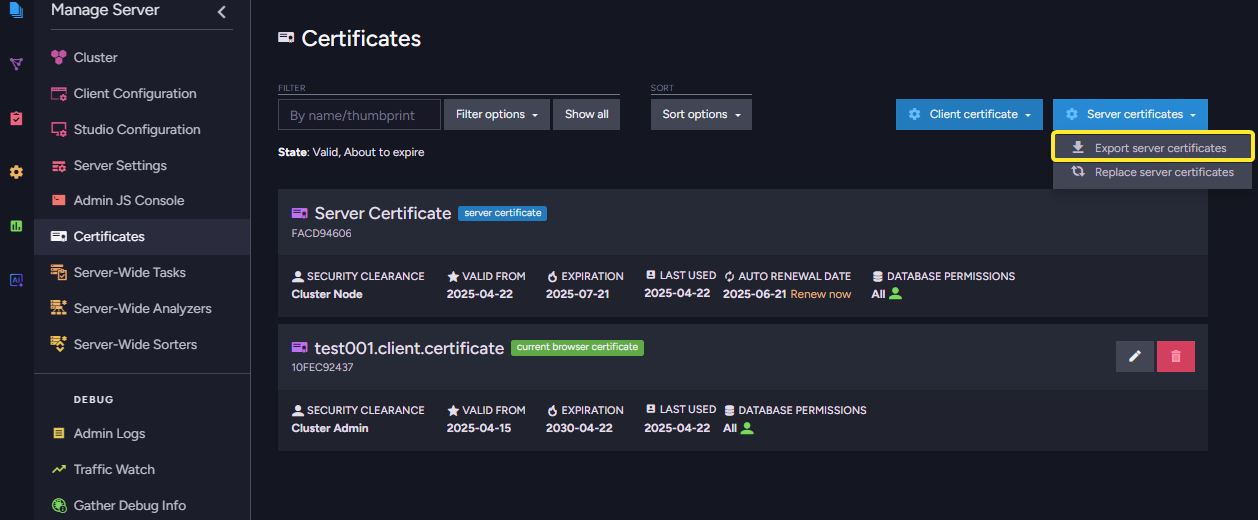
If you haven’t done it already, create a new database in the target server. First, export the certificate from the target server. They are necessary to allow for server communication. Open the Manage Server view in RavenDB Studio, go to the Certificates section, and select the ‘Export Server Certificates’ option from the ‘Server Certificates’ drop-down menu.
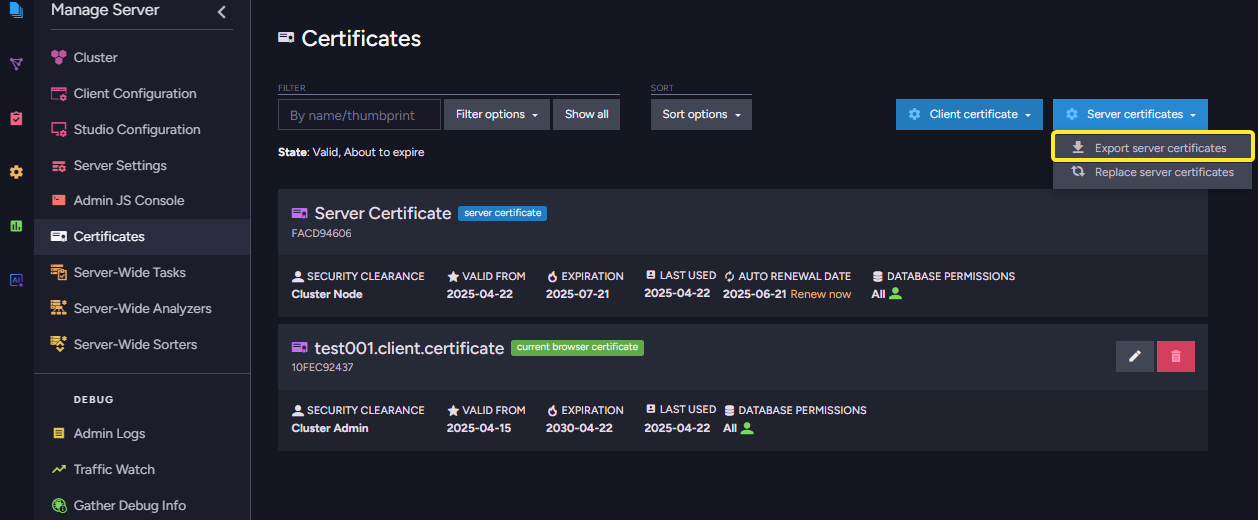
In the source server Studio, open the Manage Server view, go to the Certificates section, and choose Upload client certificate. Set the certificate details by entering a name, selecting a security clearance level (User, Read/Write should be enough), uploading the .pfx certificate file, and configuring database permissions. Click Upload to complete the process.
Also, remember that if you’re using RavenDB Cloud or have your own firewall/security group, you need to exclude the source server IP from being blocked by a firewall. This way, traffic can flow between the machines. It’s also worth checking if your database’s IP didn’t change after a restart.
Step 2: Choose server and database
Enter the ‘Tasks’ section in the target database and choose ‘Import Data’. From the options on the top of the page, select ‘From RavenDB server’. Enter the URL of your server in the ‘Server URL’ input field. You can obtain it either from the ‘Manage’ menu of your RavenDB Cloud Portal in the ‘Products‘ tab instance or by copying it from the URL bar. If you are importing from on-premises, you just need your server address. After your servers are connected, you must select the database to import. Just type in the database name to proceed.
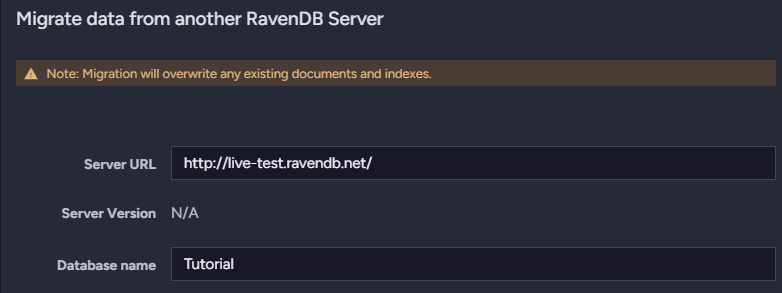
Step 3: Select import options
Now choose the options that appear. They are nearly identical to when exporting and importing from the previous method. After that, just press import, and RavenDB will do its magic, importing your database.
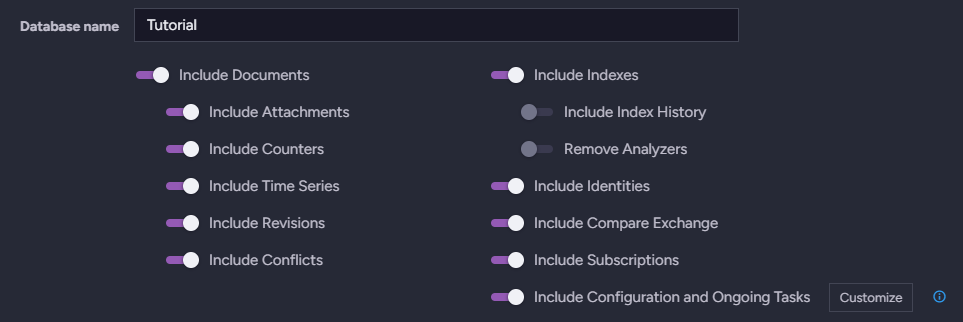
If you want more information about this method, check this part of the documentation.
Live copy of database: External Replication
If you want a live database copy, you want External Replication. This is:
- Perfect method for no-downtime migration, though it’s the most complex one
- Requires a ‘Production’ tier RavenDB license or higher in case of a local server or a ‘Development’ tier instance for RavenDB Cloud
- It can help to move Documents, Attachments, Revisions, Counters and Time Series. The rest requires individual treatment (e.g., settings, indexes, subscriptions, …)
tl;dr
- If you are using HTTPS, create a certificate
- If needed, import settings, Subscriptions, or anything that isn’t Attachments, Revisions, Counters, Time Series
- Enter the ‘Ongoing tasks’ menu in the source database and create a new ongoing External Replication task
- If needed, stop replication after that and start running a Subscription to process it
Step 1: Prerequisites
Before migrating data, ensure the source and target RavenDB servers are secure. If your source server is on RavenDB Cloud or a safe version 4.x+ using HTTPS, and you are importing outside of your current server, follow these steps; otherwise, skip to Step 2.
If you haven’t done it already, create a new database in the target server. First, export the certificate from the target server. They are necessary to allow for server communication. Open the Manage Server view in RavenDB Studio, go to the Certificates section, and select the ‘Export Server Certificates’ option from the ‘Server Certificates’ drop-down menu.
In the source server Studio, open the Manage Server view, go to the Certificates section, and choose Upload client certificate in Client certificate section. Set the certificate details by entering a name, selecting a security clearance level (User, Read/Write should be enough), uploading the .pfx certificate file, and configuring database permissions. Click Upload to complete the process.
Also, remember that if you’re using RavenDB Cloud or have your own firewall/security group, you need to exclude the source server IP from being blocked by a firewall. This way, traffic can flow between the machines. It’s also worth checking if your database’s server address didn’t change after a restart.
Step 2: Migrate settings
If you have customized settings, Subscriptions, or any other non-data items, transfer them with a simple export and import before toggling your External Replication. You can use the methods we mentioned earlier, but skip documents, revisions, counters, and time series. If you import anything that might start processing, like a Subscription, disable it.
What is not replicated:
- Indexes
- Conflict Resolver Definitions
- Compare-Exchange
- Subscriptions
- Identities
- Ongoing tasks
Step 3: Replication Task
Find the Ongoing Tasks menu in the source database’s ‘Tasks’ section and create a new task. Then enter the Name of your connection string, the targeted Database name that you will target, and the URL to your server. Optionally, you can select a name for your task, set a delay (data will be replicated only after this time period has passed; more information is available in the documentation), and/or select an existing connection string if you have one. After saving, your task should start transporting your files.
Step 4: Managing subscriptions
Now, if any Subscriptions are active on your database and their processing routines are idempotent, you need to create a delay for your app, allowing it to switch to the target database without losing any data.
- First, replicate most of the data from the source to the target using External Replication. Once the database on the target is up to date, disable the External Replication task on the source.
- Next, review all Subscriptions on the target and set their starting point to “Latest Document.” After that, turn the External Replication on the source back on. Allow some time for the Subscription processing to complete on the source. You need to wait until the last replicated documents are processed in the Subscription on the source.
- Then, wait for replication to catch up on target; checking the number of documents should be sufficient to confirm this. Finally, switch the application and Subscription processing over to the target database.
Again, you can read the documentation here if you want to learn more about it.
Summary
In RavenDB, we have many ways to migrate your database. After moving your data, you can now go and utilize your new capabilities that come from the server, or use the new feature that is now available for you after getting a new tier of instance in RavenDB Cloud.
Frequently Asked Questions
What are the main methods for migrating a database in RavenDB?
RavenDB offers three primary methods for migrating data: Export & Import (saving a local file), Import using URL (direct server-to-server transfer), and External Replication (a live copy with no downtime).
How should I migrate a database that is too large to download locally?
For large datasets, you should use the Import with URL method. This skips the need to download a file to your storage by importing data directly from the source server to the target server. Note that this is a one-time replication that requires a stable internet connection and some downtime.
Does the External Replication method migrate all of my database settings and indexes?
No. External Replication only handles Documents, Attachments, Revisions, Counters, and Time Series. It does not replicate Indexes, Subscriptions, Conflict Resolver Definitions, Compare-Exchange, Identities, or other Ongoing tasks. You must manually migrate these non-data items using a standard export/import before starting the replication.
Woah, already finished? 🤯
If you found the article interesting, don’t miss a chance to try our database solution – totally for free!