RavenDB & Global Changes in Let’s Encrypt
Am I affected?
- You’re running on-premise RavenDB cluster, secured by Let’s Encrypt
What do I need to do?
- Update your RavenDB server to a version that includes the newest patch by Feb 11, 2026.
- You can find a table with specific versions below in this article.
- After Feb 11, 2026, you won’t be able to authenticate against the server using server certificate
TL;DR
- Let’s Encrypt is complying by retiring the classic 2EKU profile. Starting Feb 11, 2026, new certs will have only 1EKU.
- RavenDB has released a patch that assures these breaking changes won’t affect your RavenDB server health.
Google Security Changes
In 2024–2025, Google’s Chrome Root Program introduced stricter rules for public Certificate Authorities (CAs).
The new policy requires that TLS certificates must serve a single purpose only:
- Certificates for web servers must include just the
Server AuthenticationEKU. - Certificates for client authentication must be issued from separate hierarchies.
- Certificates that combine both (
serverAuth+clientAuth) will be rejected in the future.
EKUs tell software what the certificate is meant for, such as identifying a server or authenticating a client.
📖 Google Chrome Root Program Policy
This change is meant to improve security and reduce the risk of misuse, but it forces every CA in the ecosystem (including the giants like Let’s Encrypt, which is used by RavenDB) to change the way they issue certificates.
How Let’s Encrypt Is Adapting
To comply with Google’s requirements, Let’s Encrypt is changing the certificate profiles they offer.
A profile in Let’s Encrypt defines how a certificate is issued, including which Extended Key Usages (EKUs) are added.
Until now, most people have simply used the default profile and haven’t needed to think about it. However, due to Google’s new rules, the default is changing, and with it, the way your certificates are created.
Certificate Profiles in Let’s Encrypt
- Classic (current default, being retired)
- EKUs:
Server Authentication+Client Authentication(2EKU) - Purpose: could be used for both web servers and client authentication.
- Problem: violates Google’s new “single-purpose only” rule.
- Retired on Feb 11, 2026.
- tlsserver (new default from Feb 11, 2026)
- EKUs:
Server Authentication(1EKU) - Purpose: dedicated for server use only, fully compliant with Google’s policy.
- This will become the default profile automatically.
- tlsclient (temporary migration profile)
- EKUs:
Client Authentication(1EKU) - Purpose: allows organizations that still rely on clientAuth certificates (issued by Let’s Encrypt), giving some extra time to migrate.
- Available from Oct 1, 2025 until May 13, 2026.
After that, no Let’s Encrypt certificate will include the Client Authentication EKU. If you also used LE for client certificates (rare), you will need to move to a private CA before May 2026.
📖 Let’s Encrypt: Ending TLS Client Authentication Certificate Support
Today, if you request a certificate with the classic profile (default), it will contain 2 EKUs (serverAuth + clientAuth):
  # Using certbot (classic profile, 2EKU)
  sudo certbot certonly --standalone -d example.com
From Feb 11, 2026, the same command will instead issue a certificate with 1 EKU only (serverAuth), because the default switches to tlsserver.
Like this:
  # Using certbot with tlsserver profile (1EKU)
  sudo certbot certonly --standalone -d example.com \
    --acme-server https://acme-v02.api.letsencrypt.org/directory \
    --preferred-chain "tlsserver"
After generating a certificate, you can inspect it with OpenSSL to see which EKUs it contains:
openssl x509 -in /etc/letsencrypt/live/example.com/cert.pem -text -noout | grep -A1 "Extended Key Usage"- If you see both
TLS Web Server Authentication,TLS Web Client Authentication→ it’s a 2EKU (classic) cert.
- If you see only
TLS Web Server Authentication→ it’s a 1EKU (tlsserver) cert.
This helps confirm whether your certificates are still dual-purpose or have already been migrated.
Why it matters for RavenDB
RavenDB has historically required 2EKU certificates. The server certificate was used to serve HTTPS, and simultaneously, it was also used for communication between cluster nodes.
This worked fine with Let’s Encrypt’s classic profile.
Here’s what the upcoming changes mean for you:
- Today: Let’s Encrypt
classiccertificates (2EKU) work with RavenDB. - After Feb 11, 2026: Renewals will switch to the
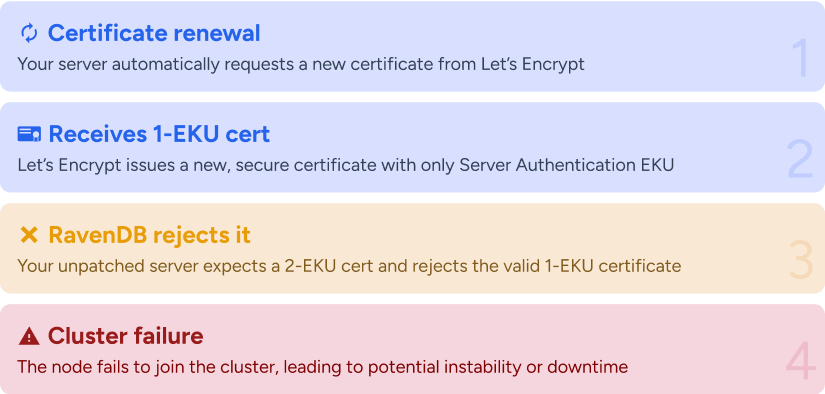
tlsserverprofile (1EKU). RavenDB versions without the patch will reject them, hence cluster nodes won’t be able to talk to each other. - After May 13, 2026: There will be no way to get 2EKU certificates from Let’s Encrypt at all.
Without an update on your end, RavenDB clusters that rely on Let’s Encrypt for automatic certificate renewal will fail when their certs are replaced.
What we’ve done to ensure the changes won’t affect you
We’ve prepared a patch release that adds full support for 1EKU server certificates, while still accepting 2EKU certificates.
- Existing 2EKU certs continue to work.
- Future 1EKU certs will also work once you update RavenDB.
This ensures a smooth transition and prevents downtime when Let’s Encrypt switches defaults.
What You Need to Do
If you use on-premise RavenDB, and want to continue using Let’s Encrypt mode:
a) Server upgrade
Update RavenDB to a version that includes 1EKU support before Feb 11, 2026.
| Versions | Note |
|---|---|
<6.2 | These versions have already met their EOL dates. We recommend updating to at least 6.2.11 or 7.1.4 |
|
6.2, 7.0, 7.1 | Update to at least 6.2.11 or 7.1.4 |
b) Audit server certificate usage
Remember that you won’t be able to authenticate yourself using a 1EKU server certificate (after your Let’s Encrypt certificate will be renewed with the tlsserver ACME profile). Check if your system relies on authenticating by sending a server certificate, and make sure to change it.
Setting LetsEncrypt profile in RavenDB Configuration
To give you complete control over which ACME profile RavenDB requests, we’ve introduced a new configuration option – LetsEncrypt.AcmeProfile.
This allows you to explicitly select the desired Let’s Encrypt profile (classic or tlsserver).
You can configure it in settings.json or peek its current value in RavenDB Studio.
Example settings.json:
  {
    "Setup.Mode": "LetsEncrypt",
    "LetsEncrypt.Email": "you@example.com",
    "LetsEncrypt.Domain": "db.your-domain.com",
    "LetsEncrypt.AcmeProfile": "tlsserver",
    "PublicServerUrl": "https://db.your-domain.com",
    "ServerUrl": "https://0.0.0.0:443"
  }
This way, you can proactively switch RavenDB to the tlsserver profile before it becomes the default in 2026 to prepare & ensure compatibility. To test it immediately, without the need to wait for the renewal, you’ll need to trigger it by hand in RavenDB Studio.
Note on manual server certificate generation
With this patch, RavenDB lowers the requirements for server certificates. If you are considering migrating from LetsEncrypt mode to manual certificate generation, the complexity has just decreased:
- Before
- The certificate had to include 2 EKUs (Server Authentication + Client Authentication).
- Required key usages: Digital Signature + Key Encipherment.
- In practice, the cert had to explicitly say “I am both a server and a client,” which made manual generation trickier.
- Now
- The certificate only requires 1 EKU (Server Authentication).
- Required key usage: Digital Signature only.
- This simplifies things – certs only need to declare server role
How It Looked Before
If you wanted to generate a manual cert (e.g. with OpenSSL), you had to request both EKUs and both usages:
  openssl req -new -newkey rsa:4096 -nodes -keyout server.key -out server.csr \
    -subj "/CN=myserver"

  # config had to explicitly request:
  # extendedKeyUsage = serverAuth, clientAuth
  # keyUsage = digitalSignature, keyEncipherment
How It Looks Now
With the new requirement, you only need serverAuth and digitalSignature:
  openssl req -new -newkey rsa:4096 -nodes -keyout server.key -out server.csr \
    -subj "/CN=myserver"

  # config only needs:
  # extendedKeyUsage = serverAuth
  # keyUsage = digitalSignature
Frequently Asked Questions
How does RavenDB secure server connections and enforce access control?
You can secure your server using X.509 certificates, which allows you to implement fine-grained access control across your database environment.
Are there built-in mechanisms to encrypt my database data?
Yes, RavenDB provides transparent encryption for data both at-rest and in-transit, ensuring complete data security over the network and on disk without requiring you to make any code changes.
Can I audit access to my secure database environment?
Absolutely. RavenDB includes a built-in Audit Log that records exactly who connected to the server and what actions they performed, providing a complete audit trail of user activity.
Woah, already finished? 🤯
If you found the article interesting, don’t miss a chance to try our database solution – totally for free!