Unlock RavenDB GenAI potential with attachments
Highlights
- RavenDB GenAI now works with attachments like PDFs, images, and logs for richer AI context.
- Build AI-powered workflows like image search, support triage, and resume screening directly in your database.
- Eliminate external pipelines by bringing AI processing closer to your data inside RavenDB.
RavenDB 7.1 introduced a major feature: GenAI. It is a highly customizable feature that brings AI directly into RavenDB, eliminating the need for complicated scripts or external orchestration. GenAI could enrich your documents with AI-generated data, based on the prompt & document context. You could automate labeling, generate summaries, enrich documents with metadata, build intelligent workflows, and more…
All without writing scripts and code that keep things synchronized. It was a big step in keeping AI closer to the data it operates on.
Some real-world use cases were still limited, though. GenAI could only see the document content, not its extensions. If context had been placed in an attachment, like a PDF or a JPG photo, the LLM couldn’t access it.
This changes now. With the latest release, RavenDB GenAI can work directly with attachments. PDFs, images, logs, and more, can be passed straight into the model, so the AI has the same context your users operate on.
Let’s look at three examples of how we can leverage this feature.
Image vector search without an image model!
Image vector search, in short called image search, is a way of finding images based on their actual content rather than just manually assigned labels. What it does is it first transforms images into their vector embeddings. This allows users to search either by typing a description or by providing a similar image.
In a previous article, we demonstrated how to set up image vector search using a script and an external image model. Now, thanks to methods like withJpeg or withPng, we can do that in RavenDB without the need for a model that supports images. You can generate an image summary, vectorize summaries within the text model, and enable semantic search over it.
In our RavenDB database, we have a collection called images with such documents:
  {
      "Name": "Gravel Bike",
      "MainPhotoFilename": "bike.jpg",
      "ImageSummary": null,
      "@metadata": {
          "@collection": "Images",
          "@flags": "HasAttachments"
      }
  }
We want bike.png to be searchable not just as a bike, but also by its appearance and meaning. For that, we want to create GenAI to generate a description of this image for us. We do that with the following code:
  var genAiTaskConfig = new GenAiConfiguration()
  {
      Collection = "Images",
      Name = "GenAiTask",
      ConnectionStringName = GenAiConnectionStringName,
      Prompt = "Describe the attached image in one short, factual sentence. Do not invent details.",
      SampleObject = JsonConvert.SerializeObject(new { ImageSummary = "A concise factual description" }),
      UpdateScript = "this.ImageSummary = $output.ImageSummary;",
      GenAiTransformation = new GenAiTransformation()
      {
          Script = """
                   const ctx = ai.genContext({ Name: this.Name });
                   const att = loadAttachment(this.MainPhotoFilename);

                   if (file.endsWith('.png')) ctx.withPng(att);
                   if (file.endsWith('.jpg') || file.endsWith('.jpeg')) ctx.withJpeg(att);
                   if (file.endsWith('.webp')) ctx.withWebp(att);
                   if (file.endsWith('.gif')) ctx.withGif(att);
                   """
  }
  store.Maintenance.Send(new AddGenAiOperation(genAiTaskConfig));
This code snippet creates a new GenAI task that summarizes document context (product name and image). Then it puts the summary inside ImageSummary field. It supports multiple types of file extensions as well.
This gives us descriptions in the document. Let’s now vectorize the summaries using the Embeddings Generation Task. We use this script to get the embeddings quickly:
  // 1. Register AI connection string (to OpenAI in this example)
  var embeddingsGenerationConnectionString = new AiConnectionString
  {
      Name = "openai-embeddings",
      ModelType = AiModelType.TextEmbeddings,
      OpenAiSettings = new OpenAiSettings(
          apiKey: "YOUR_API_KEY",
          endpoint: "https://api.openai.com/v1",
          model: "text-embedding-3-small") // use 3-large for even better results
  };

  // 2. Add an embeddings generation task
  private static void InitializeEmbeddingsGenerationTask(IDocumentStore store)
   {
       var embeddingsGenerationConfig = new EmbeddingsGenerationConfiguration()
       {
           Collection = "Images",
           Name = "EmbeddingsGenerationTask",
           Identifier = "emb-gen",
           ConnectionStringName = "openai-embeddings",
           EmbeddingsPathConfigurations = new List<EmbeddingPathConfiguration>()
           {
               new EmbeddingPathConfiguration()
               {
                   Path = "ImageSummary",
                   ChunkingOptions = new ChunkingOptions()
                   {
                       ChunkingMethod = ChunkingMethod.PlainTextSplit,
                       MaxTokensPerChunk = 2048
                   }
               }
           },
           ChunkingOptionsForQuerying = new ChunkingOptions()
           {
               ChunkingMethod = ChunkingMethod.PlainTextSplit,
               MaxTokensPerChunk = 2048
           }
       };
       store.Maintenance.Send(new AddEmbeddingsGenerationOperation(embeddingsGenerationConfig));
   }
This script sets up embedding generation in RavenDB for all ImageSummary fields from every document in the Images collection. Then it adds our fresh embeddings and places them in each document in the ImageEmbedding field.
Let’s add vector search index definition that uses our task, which we’ll query to get semantically relevant results:
  private class ImageWithEmbeddings_ByImageSummary: AbstractIndexCreationTask <ImageWithEmbedding>
  {
      public class IndexEntry() {
          public object VectorFromText {
              get; set;
          }
      }
      public ImageWithEmbeddings_ByImageSummary() {
          Map = imageWithEmbeddings => from imageWithEmbedding in imageWithEmbeddings
          select new
          {
              VectorFromText = LoadVector("ImageSummary", "emb-gen")
          };

          SearchEngineType = Raven.Client.Documents.Indexes.SearchEngineType.Corax;
      }
  }
And finally, let’s write a query:
  using (var session = store.OpenSession()) {
      var results = session.Query <ImageWithEmbeddings_ByImageSummary.IndexEntry,
      ImageWithEmbeddings_ByImageSummary> ().VectorSearch(
          fieldFactory => fieldFactory.WithField(x => x.VectorFromText),
          valueFactory => valueFactory.ByText("Bicycle"))
      .ToList();
  }
This code performs a vector search using our freshly generated embeddings and returns the matching document.
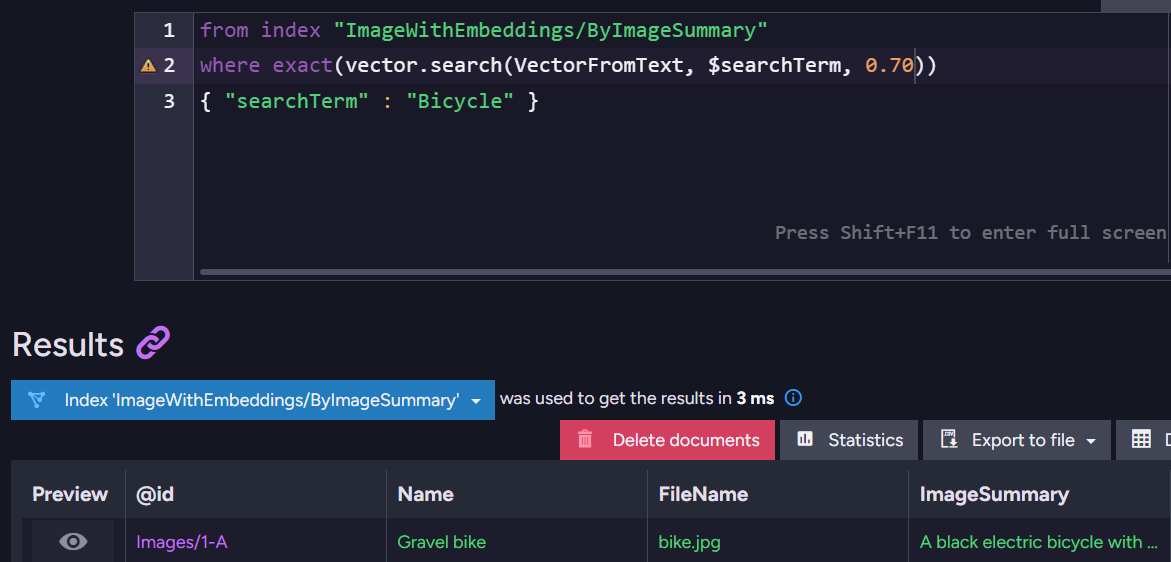
And doesn’t show any of the other two files:
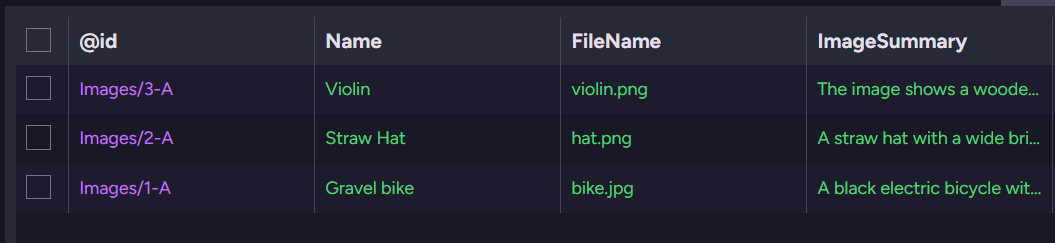
This way, you can achieve AI image search without an external image model for generating embeddings, saving you a lot of time and resources that you’d need to spend on incorporating a new AI model into your system.
You can extend it by adding logic to filter the results further before returning them to the user, or adjust it for the scale of your system.
If you’d like to see how to use an external model and add image-to-image search, check out our dedicated article here.
Support triage that understands attachments!
Handling customer support at a large scale often means digging through long email threads, screenshots, and logs just to understand what went wrong. A single support ticket may contain multiple messages and attached files, like error logs or images. Manually going through all this takes time, especially when a company receives hundreds of tickets daily.
With RavenDB and GenAI, we can automate the first step of triage: summarizing the issue, estimating severity, and assigning the ticket to the correct team. This doesn’t replace support employees; it will help them prioritize tasks more efficiently.
Let’s say your Tickets documents capture conversations (maybe not that exaggerated with details from the customer side… 😉) like the one below:
  {
      "Title": "Timeouts during checkout",
      "Emails": [
          {
              "From": "customer@example.com",
              "To": "support@company.com",
              "Date": "2025-09-19T08:42:00Z",
              "Subject": "Checkout timing out",
              "Body": "Hello, I am noticing that the checkout process does not complete and the loading spinner continues indefinitely. This prevents transactions from going through.",
              "Attachments": [
                  "checkout-error.png",
                  "browser-log.txt"
              ]
          },
          {
              "From": "support@company.com",
              "To": "customer@example.com",
              "Date": "2025-09-19T09:10:00Z",
              "Subject": "Re: Checkout timing out",
              "Body": "Thank you for reporting this. Could you please confirm which browser and version you are using, as well as any relevant network conditions?",
              "Attachments": []
          },
          {
              "From": "customer@example.com",
              "To": "support@company.com",
              "Date": "2025-09-19T09:25:00Z",
              "Subject": "Re: Checkout timing out",
              "Body": "I am using Chrome 128 on Windows 11. I have observed that the issue occurs when connected via Wi-Fi, but not on mobile data.",
              "Attachments": [
                  "network-trace.json"
              ]
          }
      ],
      "Summary": null,
      "Severity": null,
      "OwningTeam": null,
      "@metadata": {
          "@collection": "Tickets",
          "@flags": "HasAttachments",
          "collection": "Tickets"
      }
  }
We automatically fill in three fields:
- Summary: 1–2 sentences describing the main failure
- Severity: Low, Medium, or High
- OwningTeam: [Network, Database, Backend, Frontend, DevOps]
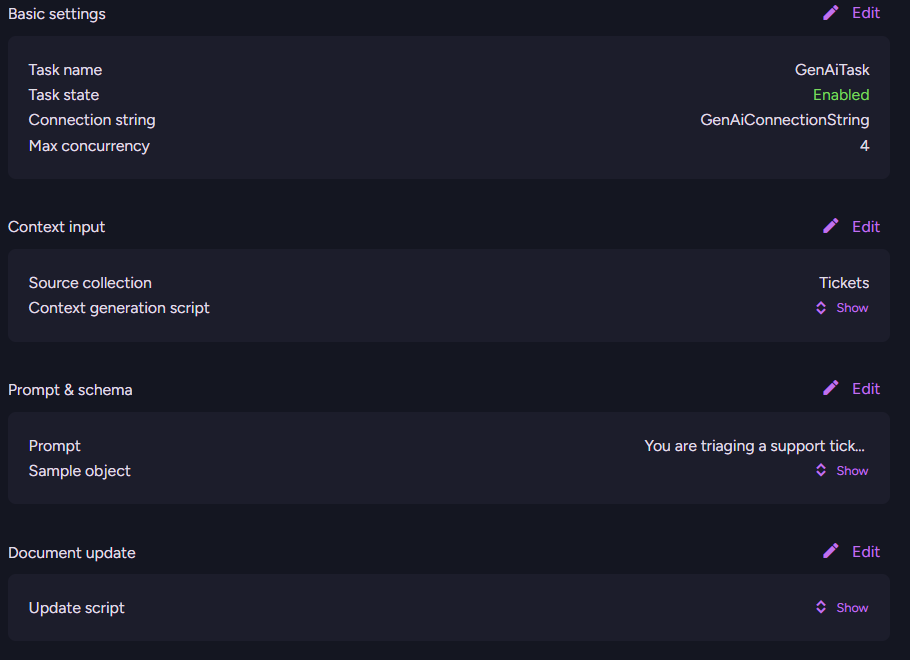
To process it all, we use this GenAI task:
  var genAiTaskConfig = new GenAiConfiguration()
      {
          Collection = "Tickets",
          Name = "GenAiTask",
          ConnectionStringName = GenAiConnectionStringName,
          Prompt = "You are triaging a support ticket. Read the attached TXT log and return: Summary (<= 2 sentences), Severity one of [Low, Medium, High], and OwningTeam from [Network, Database, Backend, Frontend, DevOps].",
          SampleObject = JsonConvert.SerializeObject(new
          {
              Summary = "Short summary of the main failure",
              Severity = "Medium",
              OwningTeam = "Backend"
          }),
          UpdateScript = """
                 this.Summary = $output.Summary;
                 this.Severity = $output.Severity;
                 this.OwningTeam = $output.OwningTeam;
                 """,
          GenAiTransformation = new GenAiTransformation()
          {
              Script = """
               let SingleStringEmailsInfo = "";

               for (let email of this.Emails) {
                   let emailInfo = `From: ${email.From}
                   To: ${email.To}
                   Date: ${email.Date}
                   Subject: ${email.Subject}
                   Body:
                   ${email.Body}`;

                   SingleStringEmailsInfo += emailInfo;
               }

               const ctx = ai.genContext({
                   Title: this.Title,
                   SingleStringEmailsInfo: SingleStringEmailsInfo
               });

               for (let email of this.Emails) {
                   for (let attachmentName of email.Attachments) {
                       let attachment = loadAttachment(attachmentName);

                       if (!attachment) {
                           continue;
                       }

                       if (attachmentName.endsWith('.txt') || attachmentName.endsWith('.log') ||
                           attachmentName.endsWith('.json') || attachmentName.endsWith('.xml')) {
                           ctx.withText(attachment);
                       }
                       if (attachmentName.endsWith('.png')) ctx.withPng(attachment);
                       if (attachmentName.endsWith('.jpg') || attachmentName.endsWith('.jpeg')) ctx.withJpeg(attachment);
                       if (attachmentName.endsWith('.webp')) ctx.withWebp(attachment);
                       if (attachmentName.endsWith('.gif')) ctx.withGif(attachment);
                   }
               }
               """
          }
      };

      store.Maintenance.Send(new AddGenAiOperation(genAiTaskConfig));
  }
Script automatically fills our task:
An interesting and important part of this GenAI task, being precise, the source collection script is:
SingleStringEmailsInfo += emailInfo;
It takes our email content and puts it into a single string. This makes GenAI treat all our emails as one and not three separate messages. We do it that way in order to summarise whole tickets and not just separate emails in one go.
Before the task, our document had three null fields:
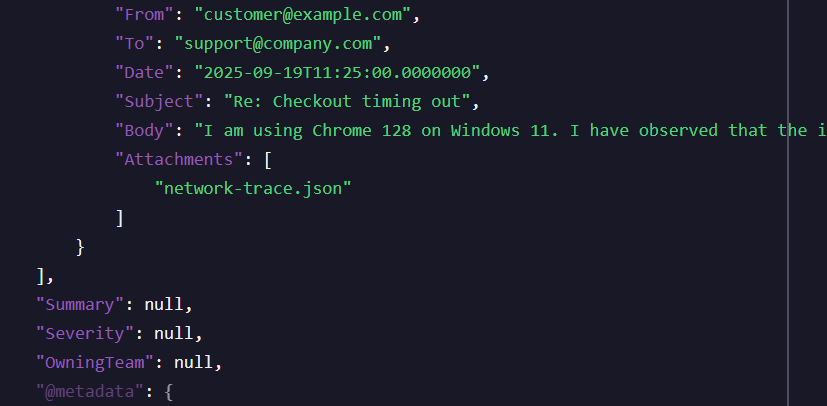
After task they are filled:
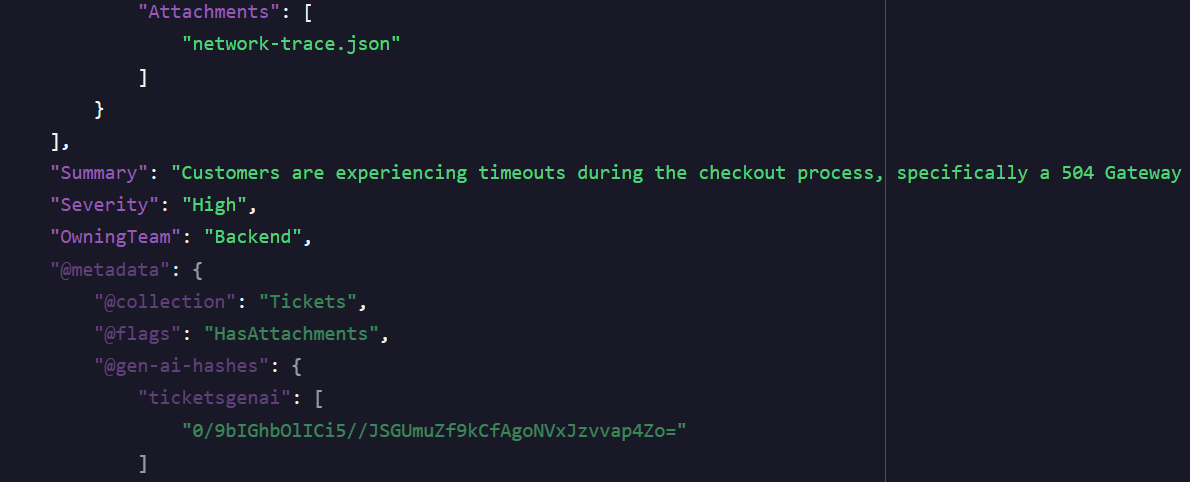
  "Summary": "The checkout process is experiencing timeouts, specifically during payment requests, which leads to a 504 Gateway Timeout error.",
  "Severity": "High",
  "OwningTeam": "Backend",
All that is left is attaching this to your own frontend. This way, whoever opens the ticket later doesn’t need to scan the whole conversation – they get the essential information up front.
Resume pre-viewer with PDF attachments
When handling incoming applications in large companies, a common problem is dealing with irrelevant resumes. Simply documents that have nothing to do with the role. Manually opening every PDF just to discard them wastes valuable time, especially if you can have hundreds or thousands of such files. With GenAI, we can automate the first step: checking whether a resume is on-topic for the advertised position, giving context to recruiters.
Of course, we are not using AI to make decisions; we are simply filtering completely irrelevant profiles. Ultimately, you are writing your scripts, and you can modify them to suit your needs ⚙️
Just as with images, where we can attach files and let RavenDB process them, the same approach applies to PDFs. In this case, the resume is stored as an attachment. Then it’s used to generate a simple decision:
“Does this resume appear to be from a candidate for our role, or is it completely irrelevant?”
Our database contains a collection called ProgramManagerCandidates with documents like this:
  {
      "Name": "Jane Doe",
      "ResumeFile": "resume.pdf",
      "FitVerdict": null,
      "@metadata": {
          "@collection": "ProgramManagerCandidates",
          "@flags": "HasAttachments"
      }
  }
We now configure a transformation that takes each document, loads the resume, and runs it through an AI prompt. Let’s make one just for the Program Manager role,
  var genAiTaskConfig = new GenAiConfiguration()
  {
      Collection = "ProgramManagerCandidates",
      Name = "GenAiResumeScreening",
      ConnectionStringName = GenAiConnectionString,
      Prompt = """
               You are screening a resume PDF for a Program Manager role in a large IT corporation migrating between cloud and on-prem data centers.
               Decide if the candidate fits. Base decisions ONLY on the provided resume.
               """,
      SampleObject = JsonConvert.SerializeObject(new
      {
          FitVerdict = false,
      }),
      UpdateScript = "this.FitVerdict = $output.FitVerdict;",
      GenAiTransformation = new GenAiTransformation()
      {
          Script = """
                   const fileName = this.ResumeFile;
                   if (!fileName) return;

                   const ctx = ai.genContext({
                     CandidateName: this.Name,
                   });
                   const att = loadAttachment(fileName);
                   ctx.withPdf(att);
                   """
      }
  };
  store.Maintenance.Send(new AddGenAiOperation(genAiTaskConfig));
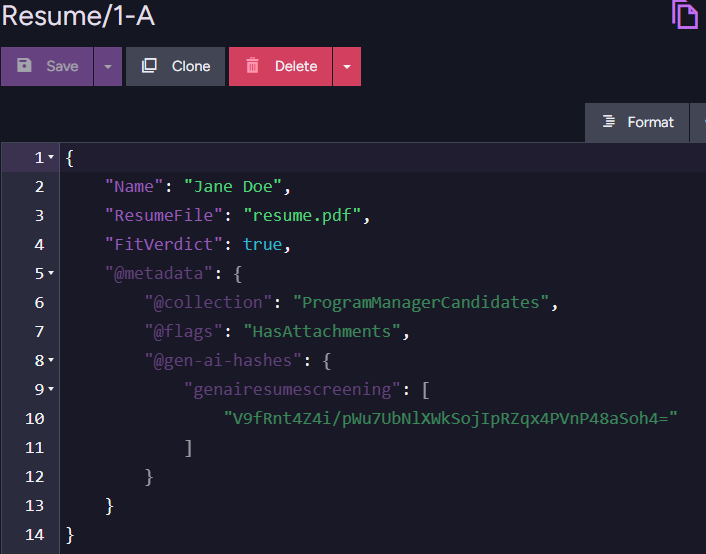
The script first checks whether the candidate has an attached file. It then creates context with the candidate’s name and target role. The attached resume is loaded into the context with ctx.withPdf. The AI runs the given prompt and returns field: FitVerdict (true/false) – whether this resume is relevant or not.
Summary
GenAI is a highly customizable feature, giving us nearly unlimited options; your imagination is the limit. If you are interested in more AI features, we suggest looking at the latest feature: AI Agents, which you can read about in an article here.
Interested in checking what you can do with this feature yourself? Download RavenDB now using this link and grab your developer license here. If you want to share any of your awesome ideas that use this feature, or you have questions about it, join our Discord Developers Community .
Frequently Asked Questions
What is the GenAI feature introduced in RavenDB 7.1?
GenAI is a major, highly customizable feature that brings AI capabilities directly into RavenDB, eliminating the need for complicated scripts or external orchestration to keep things synchronized.
What tasks can I automate using RavenDB’s GenAI?
You can use GenAI to enrich your documents with AI-generated data based on prompts and document context. This allows you to easily automate labeling, generate summaries, enrich documents with metadata, and build intelligent workflows.
Can GenAI in RavenDB analyze files attached to my documents, like PDFs or images?
Yes, with the latest release, RavenDB GenAI can work directly with document extensions like attachments. You can pass PDFs, images (like JPGs), and logs straight into the model so the AI has the full context. Attachments themselves are scalable and searchable binary files attached directly to your documents.
Woah, already finished? 🤯
If you found the article interesting, don’t miss a chance to try our database solution – totally for free!