
A few months ago, we introduced native vector search in RavenDB. Up to this point, we’ve mainly focused on text embeddings, showing how well vector search can work with language-based data. But let’s not stop there: vector search isn’t limited to text, and we can go beyond words.
Highlights
- Use RavenDB vector search to find products by text description or similar image.
- Store product images as attachments and their embeddings inside RavenDB documents.
- CLIP embeddings let text and images work in the same vector space for semantic search.
Let’s take it a level higher with image vector search. By generating embeddings from images and placing them in documents, we can easily search images – whether by typing a text description or by using a similar image. Just to recall, embeddings represent data “meaning” (in our case, text or images) as vectors within a model. This allows us to search efficiently by meaning by comparing vectors.
Let’s tackle this concept with an e-commerce example. In e-commerce, looking for a desired product can be frustrating for users if they need to look for too long. We can reduce this time with image search. Nobody likes to look for what they are determined to buy, just to struggle for hours to find the product they know they need. You might know how to describe it or even have a photo, but without image search, you are forced to either work harder or smarter.
With image search, users would be able to browse for their desired products by describing them or providing an image. This will provide a better user experience, better product positioning, less frustration, and increased sales.
We will show you how to implement both text-to-image and image-to-image searching using our database.
Prerequisites:
- Some images to search for
- CLIP embeddings model to turn both text and images into vectors within the same space
- RavenDB 7.0+
How it works
First, let’s see quickly how easy it can be to query an image with text. We are preparing an e-commerce store. To make the lives of our users easier, we want to use vector search. We generated a basic UI and connected a simple script to it. At the end of the article, you will find a gist with the full code we wrote for this article demo.
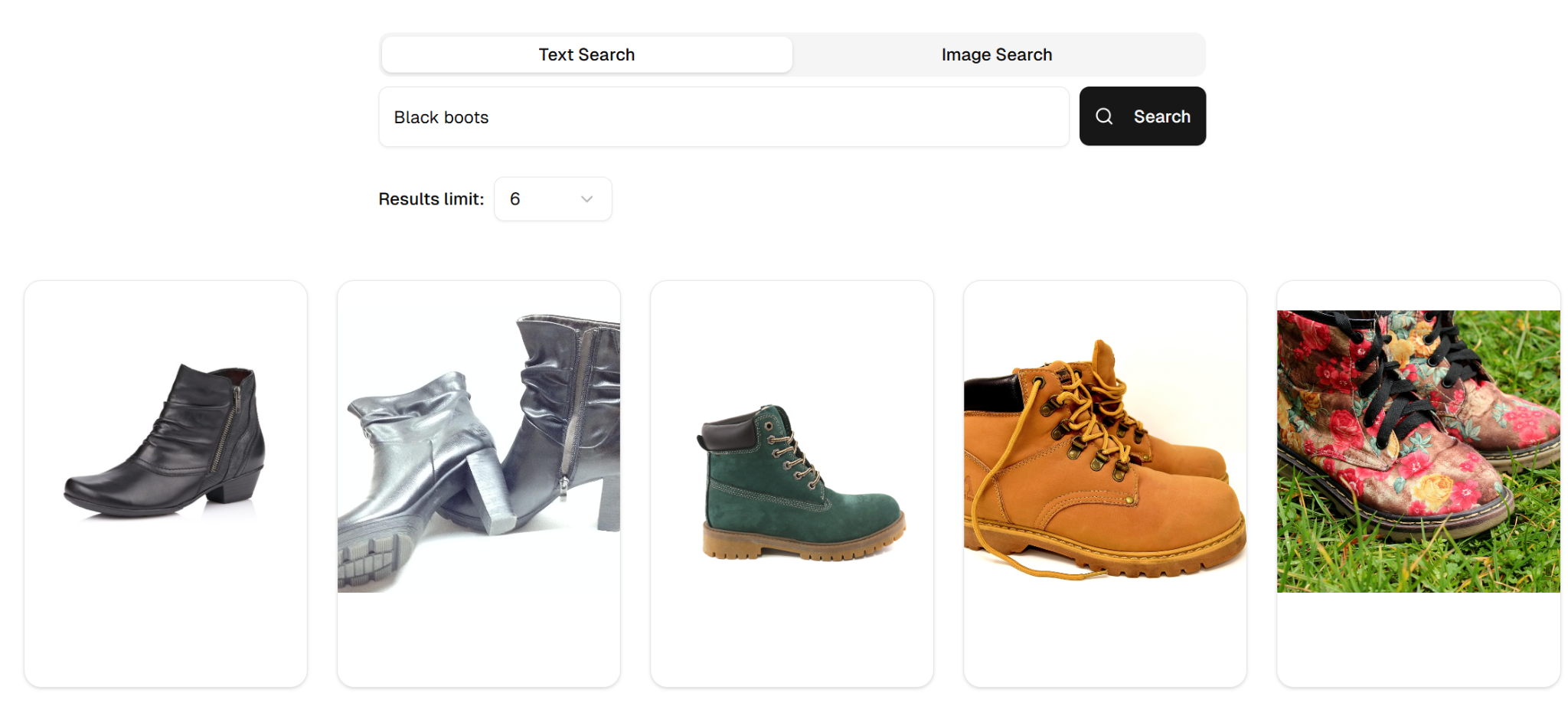
Let’s search for ‘boots’ using the semantic search bar:
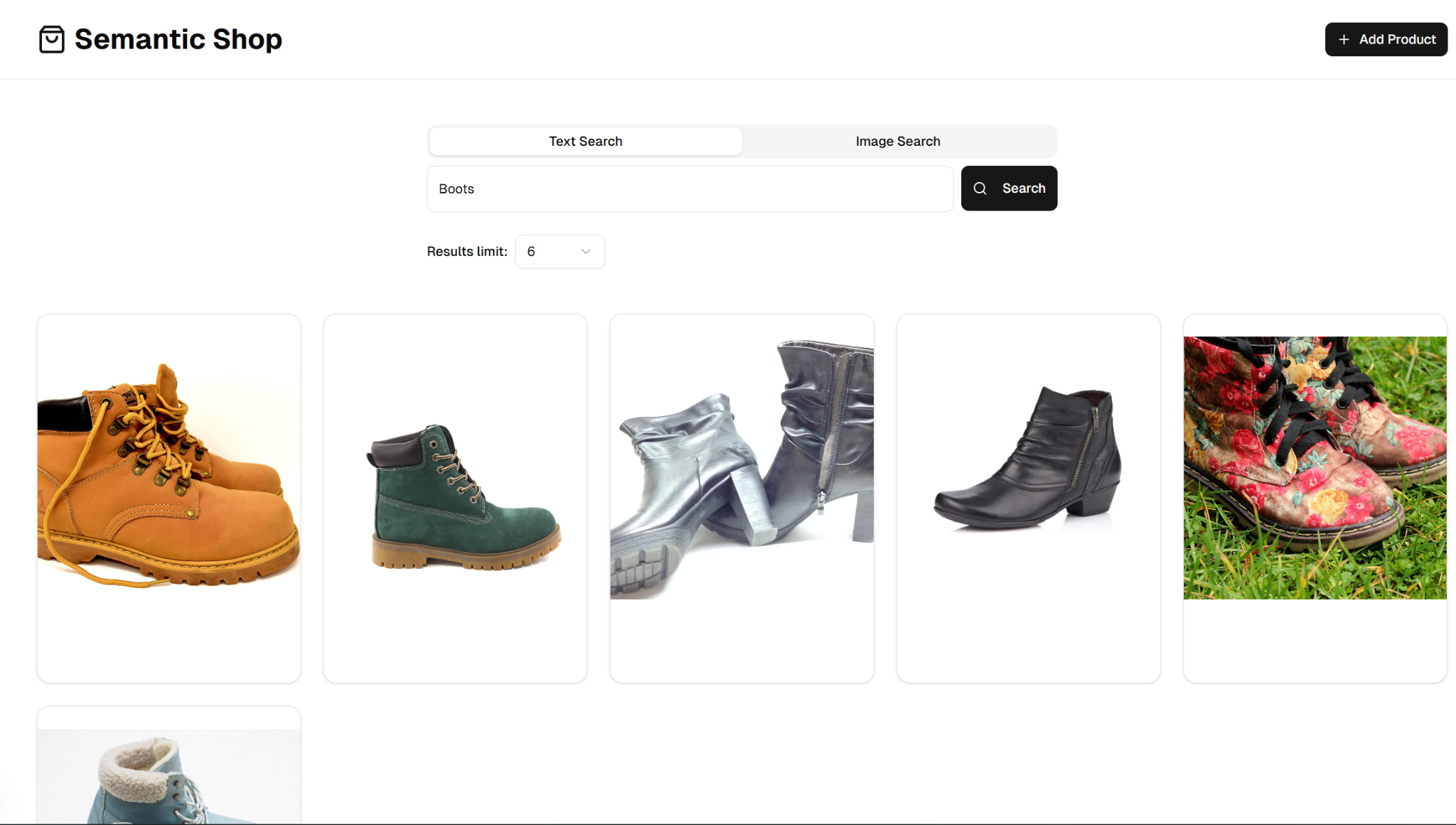
As you can see, after entering the search term ‘boots’ and clicking the search button, we retrieved six different boot products from our database. Let’s add another product. We can simply do that using a top-right button. Underneath, we will store it as a product with an image and an embedding, but we will explain that later.
We select “Add Product” and upload an image of a jacket along with its name. In a normal app, you would have more options, like setting the price, for example, but we skipped it as it is just a demo.
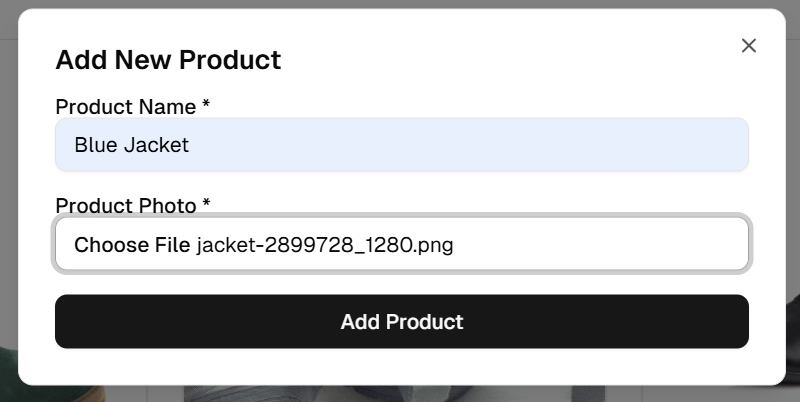
After a moment, the product is created successfully, meaning that it’s now findable. Let’s simply type ‘winter’ into the search bar and check the results.
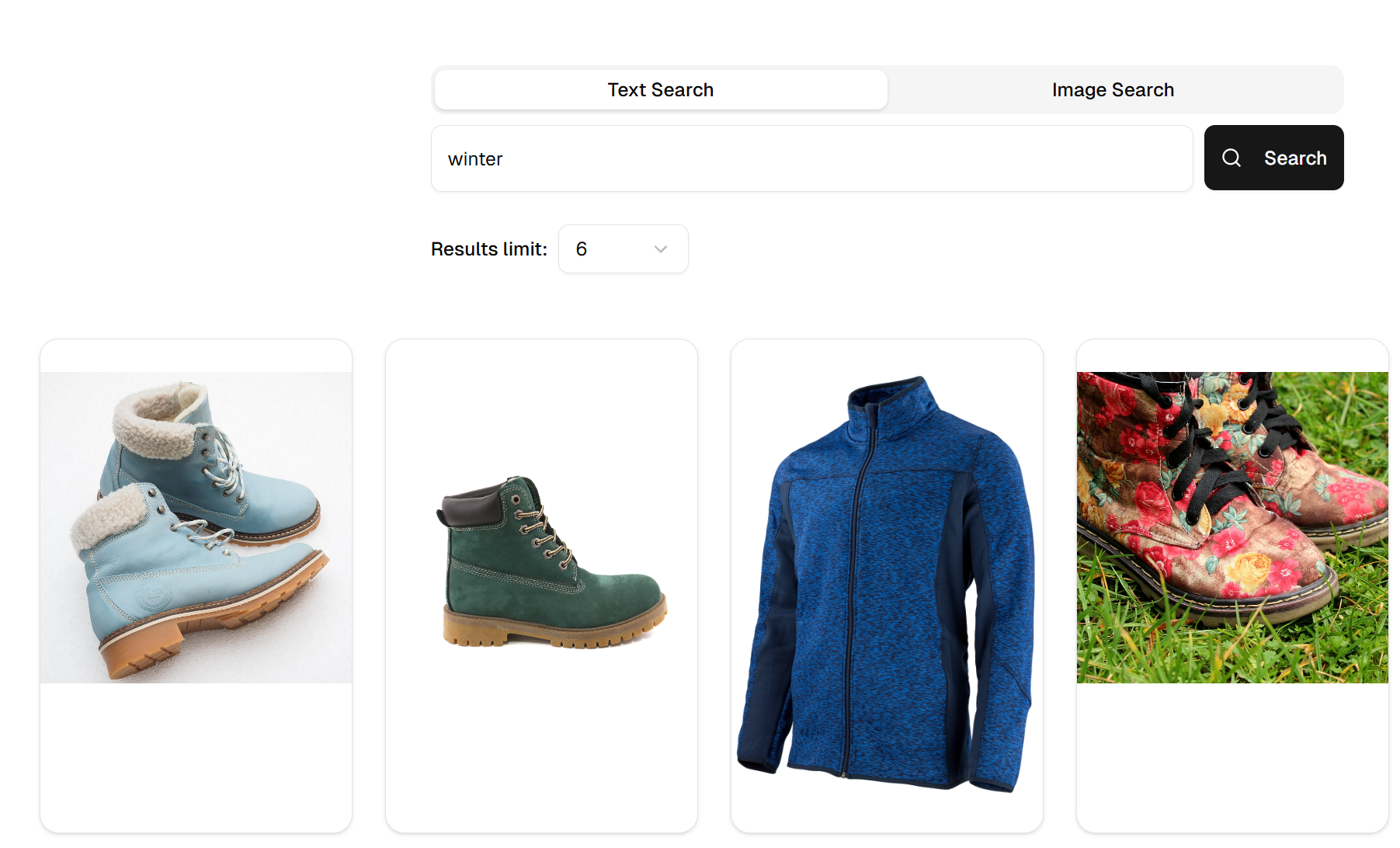
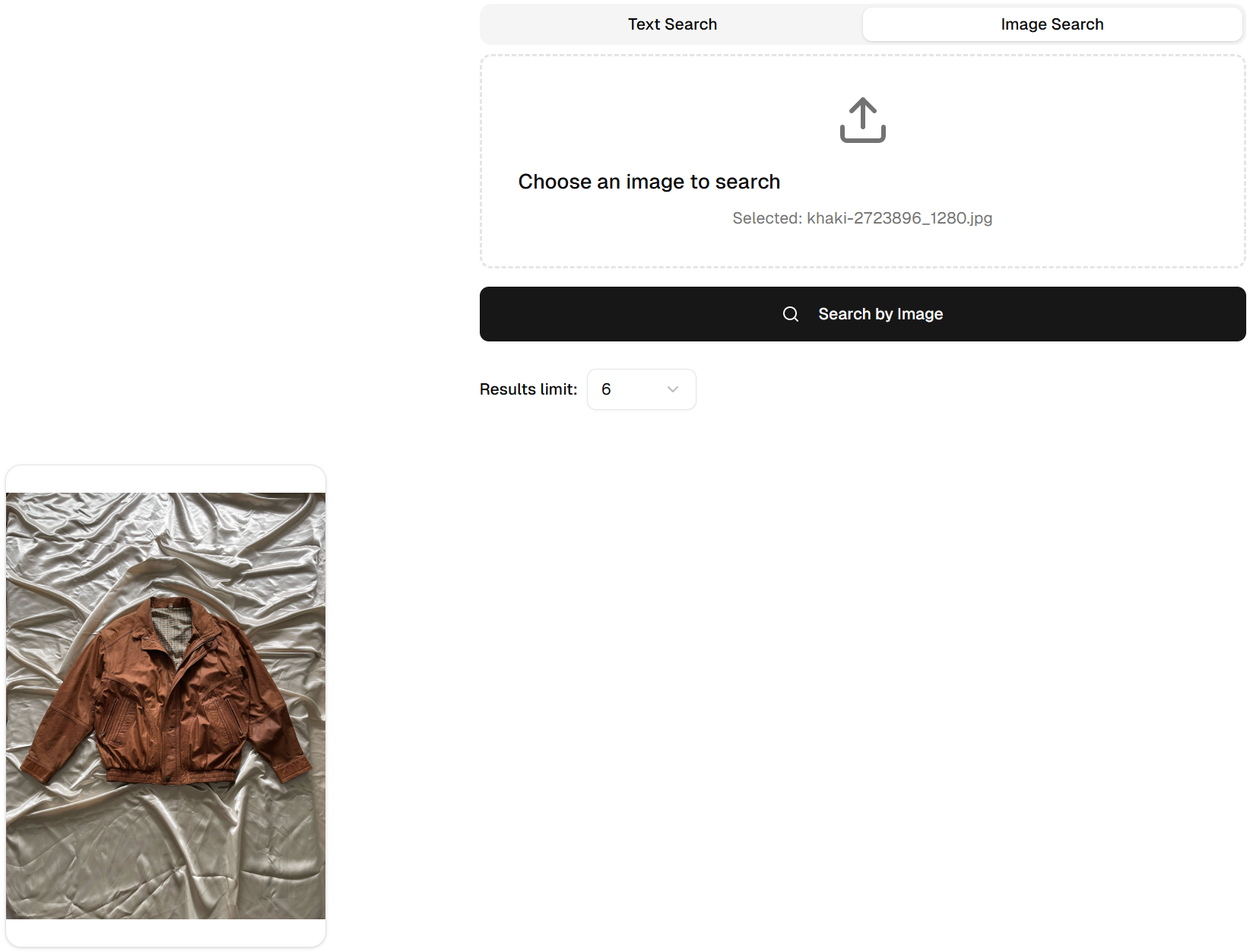
You can even search with an image. Let’s find a jacket similar to this one:
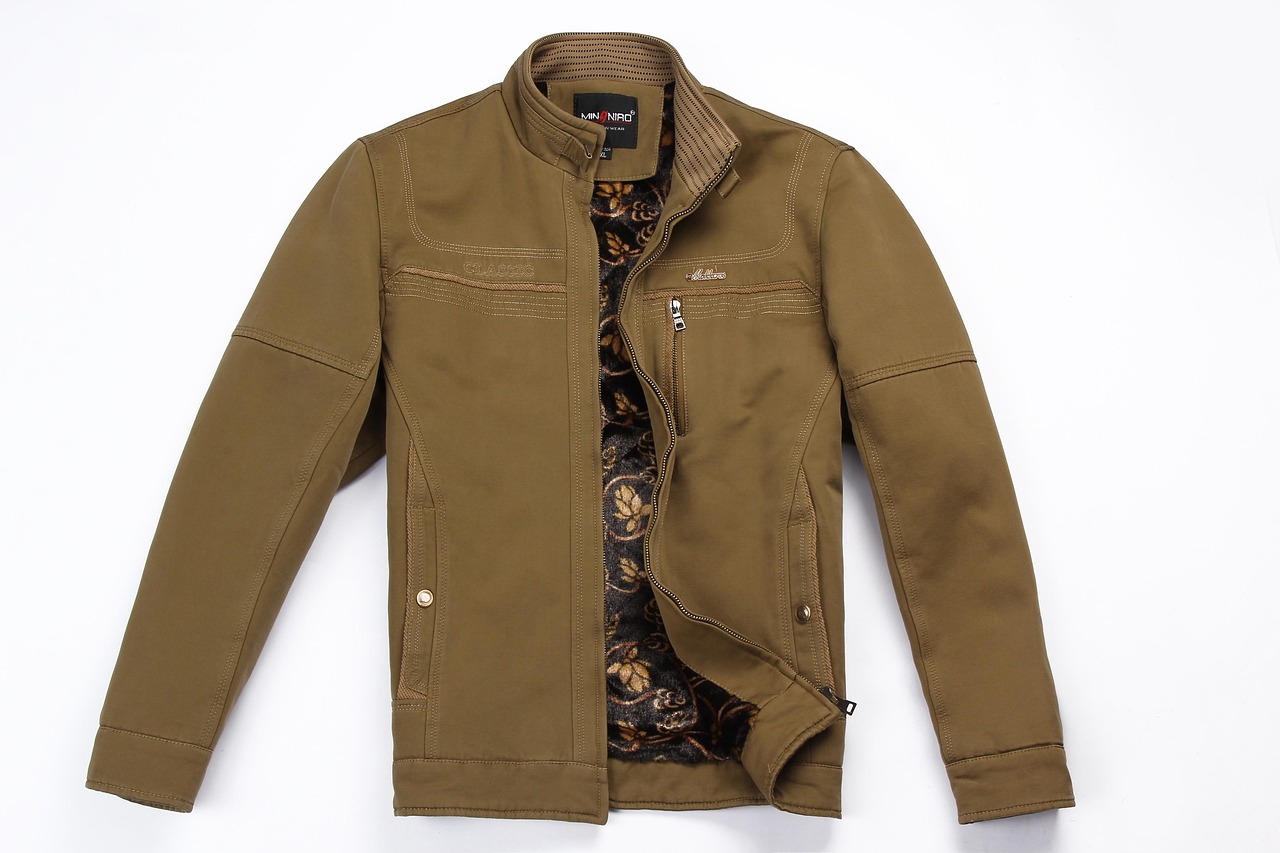
After inserting this photo into Image Search, we get:
But how does it work? Let’s see how RavenDB makes it simple!
Under the hood
The first step of our search engine’s magic is embedding: we take the input, whether text or image, and convert it into CLIP model vectors. What is CLIP? Fully called “clip-ViT-B-32”, is a model designed to work with both images and text, allowing us to find a ‘common language’ for both pictures and text.
But how to get those embeddings? We can use a simple Python method that fetches our images for CLIP and uses it to process the embeddings. Let’s look into it.
  def get_img_embedding(model: SentenceTransformer, img: bytes) -> List[float]:
      from PIL import Image
      import io

      with Image.open(io.BytesIO(img)) as img:
          embedding = model.encode(img)
      return embedding.tolist()
We load our image bytes and transform them using model.encode(img). Now that we have them, we use the session to store them in RavenDB. We also add the name, a random price, and the original image as an attachment. We do this with this endpoint.
  @app.post(
      "/products",
      response_class=JSONResponse,
      summary="Upload a product image and store it with its embedding",
  )
  async def upload_product(
      image: UploadFile = File(...),
      name: str = Form(..., min_length=1),
  ):
      model = get_model()
      with document_store.open_session() as session:
          doc = store_product_with_attachment(session, image, model, name)
          session.save_changes()
          return {"id": doc.Id, "name": doc.name, "price": doc.price}
And this function.
  def store_product_with_attachment(
      session, image: UploadFile, model: SentenceTransformer, name: str
  ) -> Product:
      """Store a product (image) and its embedding in RavenDB."""
      file_bytes = image.file.read()
      embedding = get_img_embedding(model, file_bytes)

      doc = Product(
          name=name.strip(),
          price=round(random.uniform(PRICE_MIN, PRICE_MAX), 2), # random price
          embedding=embedding,
          image_filename=image.filename,
      )

      session.store(doc)
      session.advanced.attachments.store(doc.Id, doc.image_filename, file_bytes)
      return doc
With embeddings (meaning vectors) inside the database, we now need to compare them with our search terms. But, we can’t really compare the text/image provided by the user with a vector, right? That doesn’t make any sense – it’s like comparing an apple to a truck.
We need to use our model again. Let’s use CLIP to generate search term embeddings on the fly. Now, depending on whether we are using image search or text search, we need to handle the case according to the data format. Both searches are similar, but let’s examine text search first:
  @app.get("/products", response_class=JSONResponse)
  async def search_products(query: str, limit: int):
      model = get_model()
      # Transforms it into an embedding
      qvec = compute_text_embedding(model, query)
      # Compares it with other embeddings in a database
      return vector_search_common(qvec, limit)
As you can see, this endpoint receives the query term, transforms it into an embedding, and compares it with other embeddings in a database. Vector search calculates vector similarity and returns the result to our Python code.
For this model, both images and text embeddings belong to the same vector space, allowing them to be searched for in all image-to-text, image-to-image, and text-to-image searches. This allows us to search for images using natural language. That makes the image search endpoint code very similar:
  @app.post(
      "/products/search-by-image",
      response_class=JSONResponse,
      summary="Find products similar to an uploaded image",
  )
  async def search_products_by_image(
      image: UploadFile = File(..., description="Uploaded image file"),
      limit: int = Query(1, ge=1, le=50, description="Maximum number of similar products to return"),
  ):
      model = get_model()
      file_bytes = image.file.read()
      # Transforms it into an embedding
      qvec = compute_image_embedding(model, file_bytes)
      # Compares it with other embeddings in a database
      return vector_search_common(qvec, limit)
As you can see in both endpoints, we utilize almost the same methods. It processes our inputs into embeddings with methods that utilize the CLIP model. Text and image methods are separate, but both produce embeddings in the same vector space.
To turn images into vectors, we use the following method:
  def get_img_embedding(model: SentenceTransformer, img: bytes) -> List[float]:
      from PIL import Image
      import io

      with Image.open(io.BytesIO(img)) as img:
          embedding = model.encode(img)
      return embedding.tolist()
And text is handled with this basic function:
  def get_txt_embedding(model: SentenceTransformer, txt: str) -> List[float]:
      return model.encode(txt).tolist()
Then, the vector_search_common method is used to perform a vector search on them. Let’s look at it.
  def vector_search_common(query_embedding: List[float], limit: int):
  # Open RavenDB session
     with document_store.open_session() as session:
          results = (
              session.query(object_type=Product)
  # Perform vector search on Product documents
              .vector_search("embedding", query_embedding)
              .take(limit)
          )
          products = list(results)
          if not products:
              raise HTTPException(status_code=404, detail="No products found")
          return products
The function vector_search_common takes a query embedding and a limit, opens a RavenDB session, and performs a vector search on Product documents using the embedding field.
The query returns product documents with the most similar image to the text/image we sent. Then we send the related product back to the browser.
In short, we:
- Generated embeddings for each product image.
- Stored both the image and its vector embedding in RavenDB (the image as an attachment, the embedding in a document).
- Query using vector search with a text prompt and return the closest match.
If you would like to view the entire code, you can do so here.
Summary
Vector search is a powerful feature that, when used with images, can significantly enhance the user experience. If you like vector search, GenAI might be your next stop. You can read about it here.
If you want to try RavenDB, you can download it here and give it a try. Want to hang out with the RavenDB team to chat about this feature and meet our community. Here is our Discord – RavenDB’s Developers Community server.
FAQs
What is image vector search in RavenDB?
Vector search is a feature that allows you to search for images by their “meaning” rather than relying on exact keyword tags. By generating vectors (embeddings) from images and storing them in documents, you can efficiently search your database using either a natural language text description or by providing a similar image.
How can image vector search improve an e-commerce application?
Image vector search dramatically reduces the time and effort users spend looking for products. Instead of struggling with exact keyword matches, users can simply describe what they want or upload a photo of a desired product. This provides a better user experience, better product positioning, less frustration, and ultimately increased sales.
How are the images and their vector data stored in the database?
When an image is uploaded, RavenDB stores the original image file as an attachment to the document, while the generated vector embedding is stored directly within the document itself.
Woah, already finished? 🤯
If you found the article interesting, don’t miss a chance to try our database solution – totally for free!