Connecting C# application to RavenDB Cloud
What you will learn
- How to connect to your RavenDB Cloud instance with C#
- How to confirm your connection is established
Introduction
RavenDB Cloud is a managed RavenDB service ready to launch in minutes. It serves as database hosting, management studio, and managed services of backing up data. All in one place. Connecting your C# console application to RavenDB Cloud is a simple process. By the end of this tutorial, we will connect your C# app to the RavenDB Cloud database and be ready to integrate it into your projects. Whether you’re new to using RavenDB or simply looking for a straightforward setup, this tutorial will guide you smoothly.
Prerequisites
What you will need:
- .NET SDK installed on your machine. This article uses 8.0.403
- RavenDB Cloud account and cluster with certificate
- Database in RavenDB Cloud
Let’s ensure that we have all the prerequisites to connect your application to the RavenDB Cloud instance. First is installing the .NET SDK, which in the case of this tutorial is in version 8.0.403. If you want to check your .NET version, open the terminal and run the following command:
dotnet --versionIf you see the .NET version in the output, it means the installation was successful. If this command doesn’t output your version, download the .NET SDK from the link above.
With your .NET environment set up, let’s turn our attention to the RavenDB Cloud. We’ll need a RavenDB Cloud instance and a certificate necessary to encrypt the connection between the database and your application. RavenDB Cloud generates the certificate automatically for your instance. If you’re new to RavenDB Cloud, don’t worry – in this guide, we will also cover how to get started with RavenDB Cloud and how to claim your free instance.
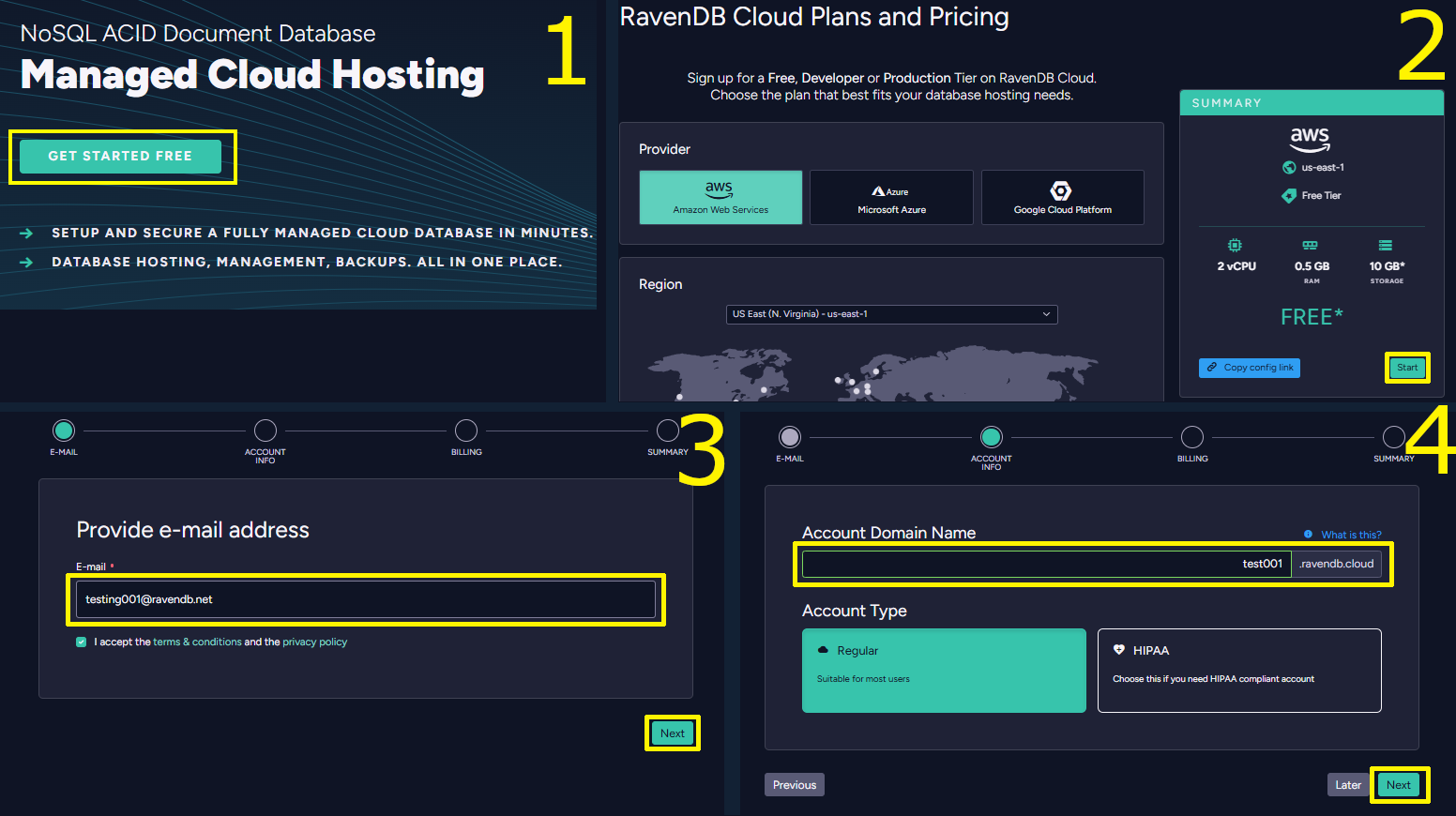
To create your account, start by clicking ‘Get Started Free’(1). If you’d like a free account, simply click ‘Start’(2) without making any changes. Next, select ‘Register Here’. Enter your email address(3) to proceed to the domain name registration step(4). Then, enter the domain name you want, and complete the billing. Review the summary to finish setting up your account. Then you get an activation link on your email address.
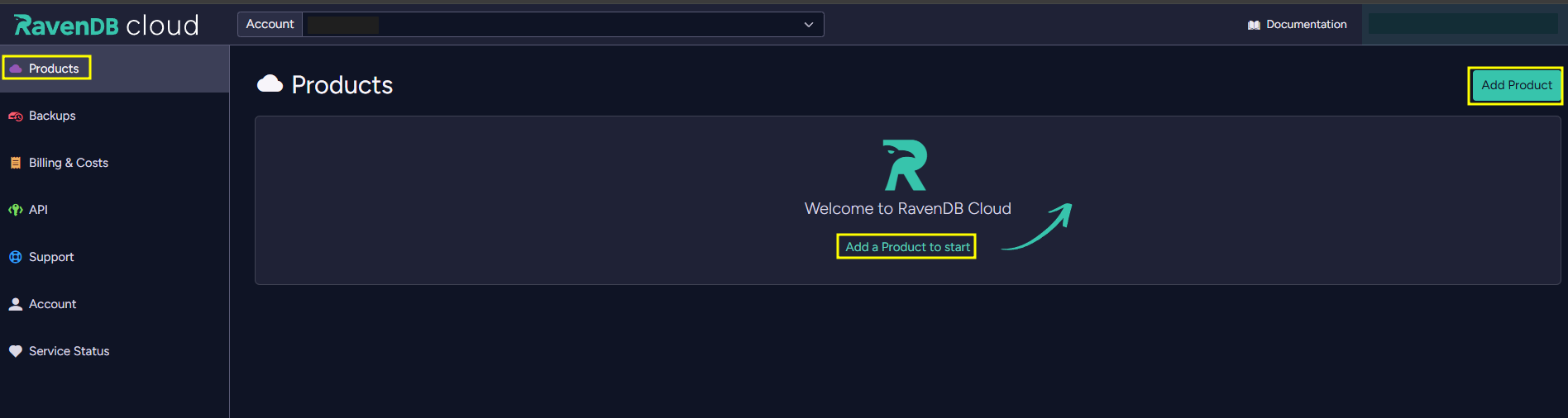
We’ve successfully created a RavenDB Cloud account. Now, let’s create a free instance. Instance is like your personal database server. RavenDB Cloud handles setup, maintenance, and other time-consuming tasks to let you focus on the code. To create an instance, click ‘Add Product’ on the right of the ‘Products’ page or just click ‘Add new product to start’ at the center of the page.
If you would like a free instance, don’t change anything – just scroll down and click ‘Next’(1). Enter your account information(2) and then go through billing. Next, you have a ‘Customize’ step(3), where you need to put in the display name of your instance. You also need to set the instance as open to the world (Leave 0.0.0.0/0 if you want it to be open to the world) or delete IP 0.0.0.0/0 and click ‘Add my IP’, to make this only accessible with your IP. You can also change it later so don’t be afraid to delete 0.0.0.0/0. If you want to learn more about CIDR notation, you can read more here. Then, just hit ‘Next’, review the summary and if all looks good, click ‘Create’. For more details on adding a new product, click here.
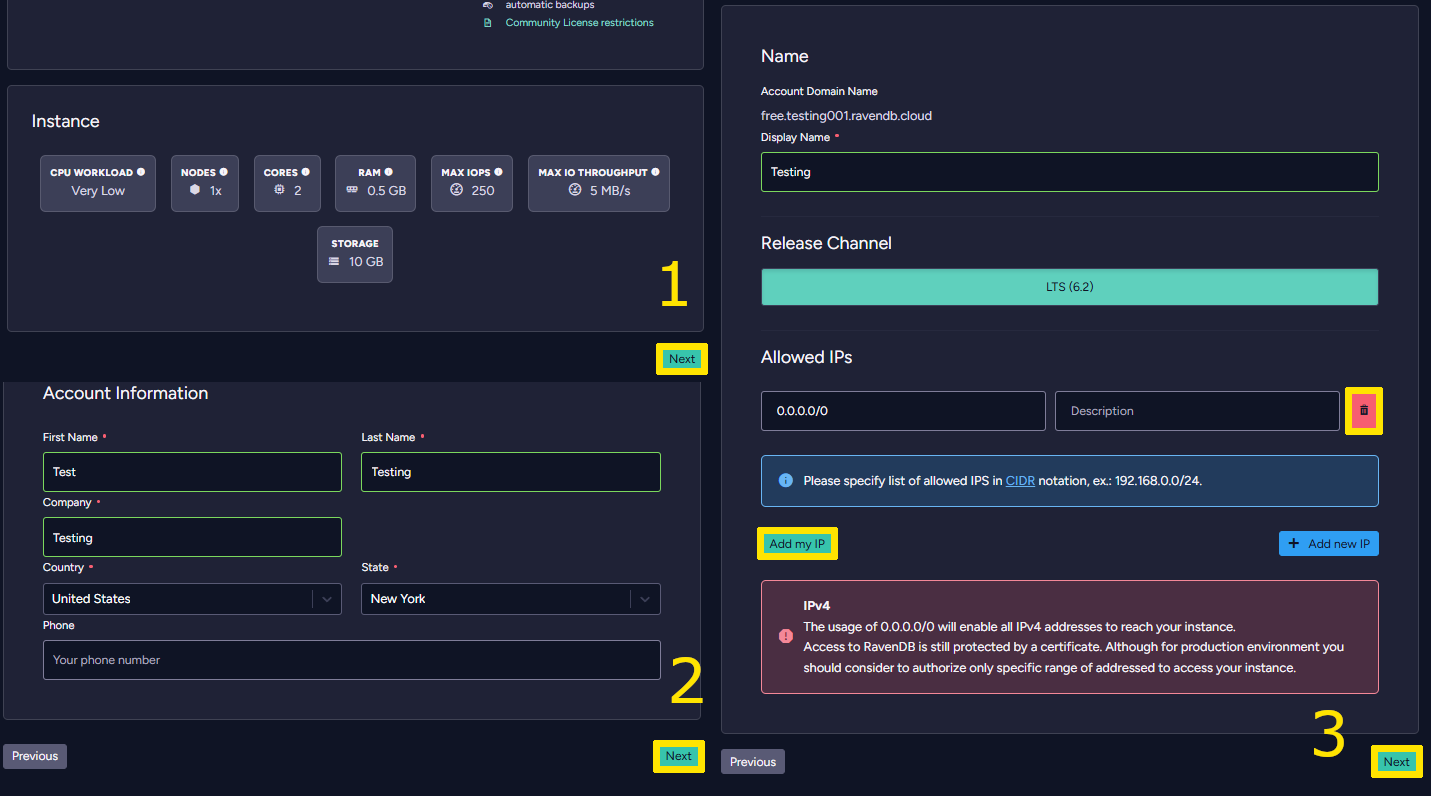
After configuring your product you will need to wait for the instance to complete the provisioning process before you can access your studio. You will also need a certificate installed.
For a secure connection with RavenDB Studio, let’s get a TLS certificate for your instance. We’ll also use it in our app later. You can download it by going to the ‘Products’ tab on the left bar. Then you select the green button ‘Download Certificate’ on your chosen instance and follow the instructions you get in the pop-up. This pop-up includes a certificate download button and instructions for installing certificates for both Windows and Linux. If you clicked too quickly and got an authentication error, please reload your browser and try again.
Remember to restart your browser after installing the certificate to ensure it recognizes the new certificate.

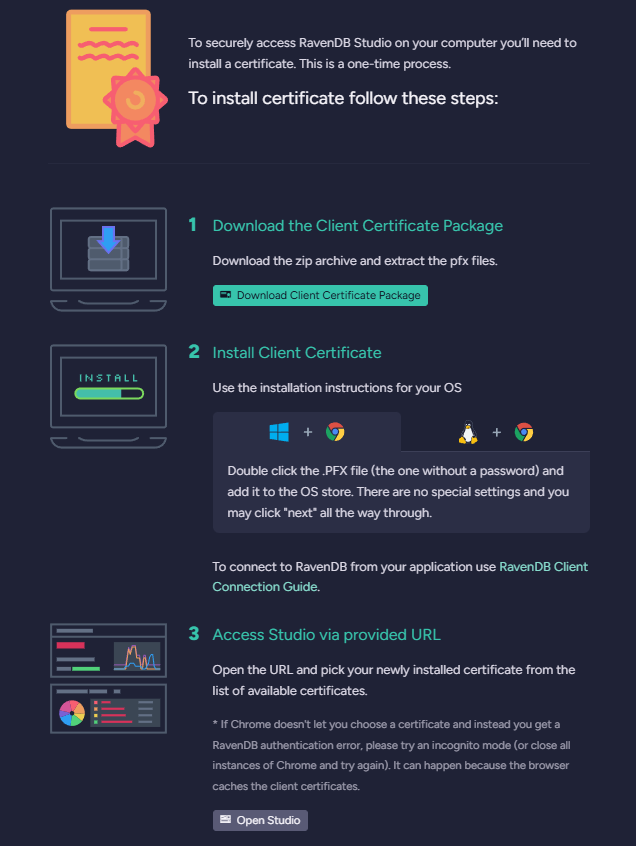
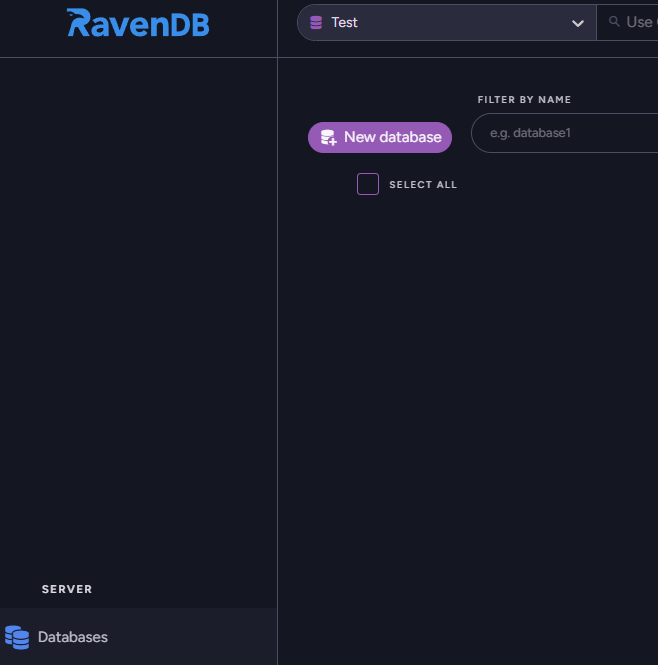
In order to access RavenDB Studio you require a working certificate. While using RavenDB Cloud, the RavenDB Studio is secured by default – you’ll need a certificate to access the server UI. You’ll also need it to connect to your database within the application code, so this step cannot be skipped. Use your certificate to authorize against RavenDB Studio. Just choose your certificate from the popup window that your browser will display. Once doing so, you should be able to see the UI. Now, let’s create a new database for your application. Select the ‘Databases’ tab and press ‘New database’ to create a new one.
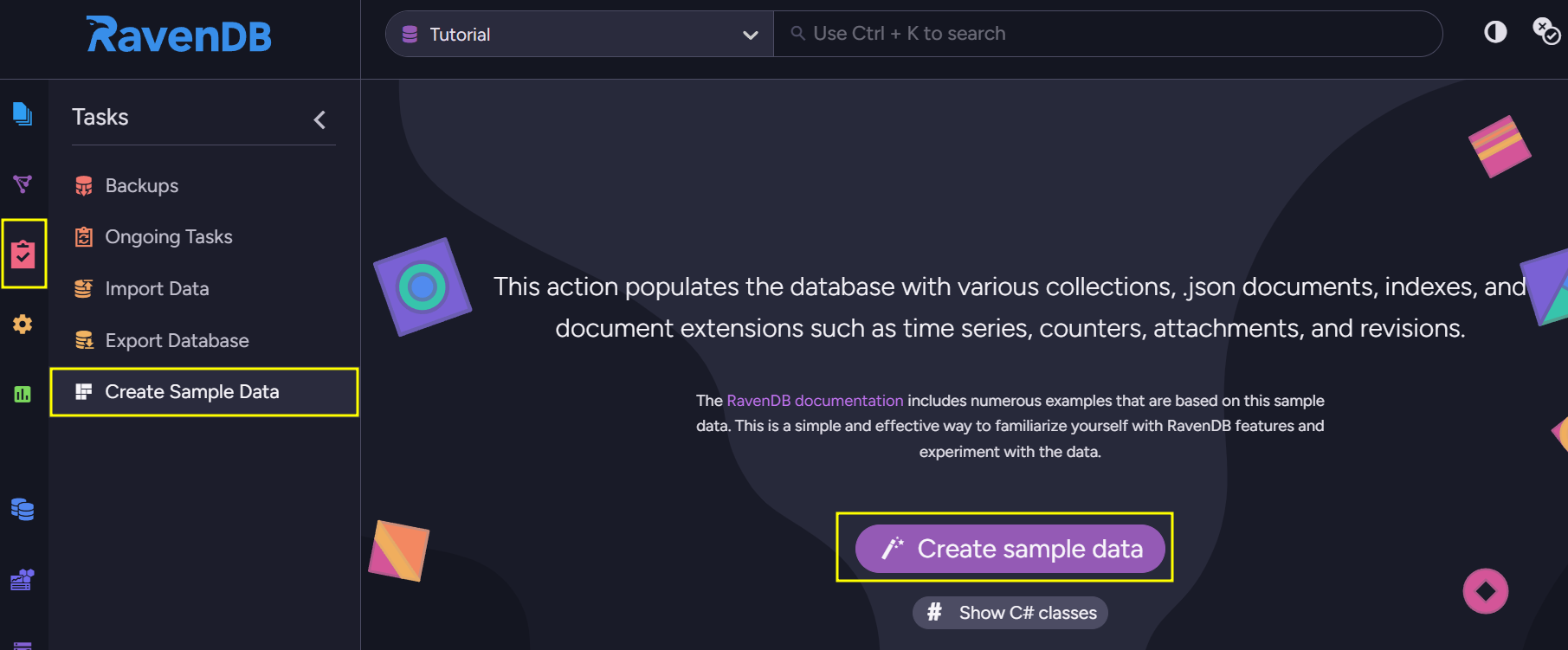
For the purpose of testing, you can also create Sample Data by clicking your database and selecting ‘Tasks’ on the left bar where you can find the option to create it. This data will come in handy later if you want to test the connection between your application and the database.
Setup
We’ve prepared everything you need: a functional .NET environment for building your app and a RavenDB database running on RavenDB Cloud to manage your application’s data. Let’s try to connect a test application to our instance. In this guide, we are going to create the app from scratch. First, we will create a new directory for the application. Next, we need to create your application file. You can do this by opening the terminal inside the previously created directory, and executing the following command:
dotnet new consoleNext, we’ll need the RavenDB Client package to communicate with our database within the code. You have to add it to your project by executing the following command:
dotnet add package RavenDB.ClientLet’s take a look inside our brand new Program.cs file. To establish the connection to your cloud server, we need to tell the client where it should connect, providing the database server address (URL), database name, and the certificate for it to be authorized. Just declare a few strings and write the connection code. Create an instance of X509Certificate that loads a path to your certificate file. Don’t worry, RavenDB will automatically dispose of it from your app conveniently when it won’t be needed. If you want to learn more about the security certificate you can check it in the documentation. You can see the example code for this section below:
string serverURL = "https://your_RavenDB_server_URL";
string databaseName = "your_database_name";
string certificatePath = @"C:\path_to_your_pfx_file\cert.pfx";

var x509Certificate = new X509Certificate2(certificatePath);

IDocumentStore documentStore = new DocumentStore
{
      Urls = new[] { serverURL },
      Database = databaseName,
      Certificate = x509Certificate
};
Ensure `using` statements for correct compilation, and spin up your DocumentStore by calling documentStore.Initialize() at the bottom to finish off the code. It’s a crucial part that connects to your database—without it, your code simply won’t work. DocumentStore is the base for all RavenDB actions. It communicates with your cluster and can handle multiple databases. It’s important to have a single instance of DocumentStore in place, to maintain a single connection definition to your database. You can learn more about DocumentStore here or here.
In the end, the code should look like this.
using System.Security.Cryptography.X509Certificates;
using Raven.Client;
using Raven.Client.Documents;

string serverURL = "https://your_RavenDB_server_URL";
string databaseName = "your_database_name";
string certificatePath = @"C:\path_to_your_pfx_file\cert.pfx";

var x509Certificate = new X509Certificate2(certificatePath);

IDocumentStore documentStore = new DocumentStore
{
      Urls = new[] { serverURL },
      Database = databaseName,
      Certificate = x509Certificate
};

documentStore.Initialize();
Let’s check the connection by loading a document from your database in the RavenDB Cloud. We will use DocumentSession to interact with document. Session is a basic mechanism that is used to modify, load, create, and keep track of documents. If you wish to learn more about Sessions you can read more in the documentation. In the RavenDB Studio choose one of the documents you want to use. For this example, let’s load a single Employee document and write its details in the console. Check the code below:
using (var session = documentStore.OpenSession())
{
      var employee = session.Load<Employee>("employees/1-A");
      Console.WriteLine(employee.Title);
      Console.WriteLine(employee.LastName);
}

class Employee
{
      public required string LastName { get; set; }
      public required string Title { get; set; }
}
After finishing all of the above steps, your application should look like this
using System.Security.Cryptography.X509Certificates;
using Raven.Client;
using Raven.Client.Documents;

string serverURL = "your_database_name";
string databaseName = "your_database_name";
string certificatePath = @"C:\path_to_your_pfx_file\cert.pfx";

var x509Certificate = new X509Certificate2(certificatePath);

IDocumentStore documentStore = new DocumentStore
{
      Urls = new[] { serverURL },
      Database = databaseName,
      Certificate = x509Certificate
};

documentStore.Initialize();

using (var session = documentStore.OpenSession())
{
      var employee = session.Load<Employee>("employees/1-A");
      Console.WriteLine(employee.Title);
      Console.WriteLine(employee.LastName);
}

class Employee
{
      public required string LastName { get; set; }
      public required string Title { get; set; }
}
Now using the terminal type dotnet run and wait a few seconds. In the case of using sample data and using this ID, you should receive both Sales Representative and Davolio. This indicates that our connection is set and we can hook it up to other code.

As an ending tip, I would like to remind you that if everything is working properly you should delete sample data from your database so it is clean and ready for your data, or just create a new one, dedicated for your app.
Summary
In this tutorial, we explained how to connect your C# applications to the RavenDB database hosted in the RavenDB Cloud. We used .NET with the RavenDB Client package to connect to our database. We also tested the basic connection using sample data.
Woah, already finished? 🤯
If you found the article interesting, don’t miss a chance to try our database solution – totally for free!