Master RavenDB: Troubleshoot & Fix High Memory Usage
What you will learn
- What can affect your memory and how RavenDB manages it
- How to check if your memory usage is high & identify the cause of it
- Good practices to avoid future problems
Introduction
Memory is a limited resource, so at RavenDB, we do our best to optimize its use, but it might also be influenced by your actions. In this article, we’ll do our best to find problems with your memory so you can resolve them. Sadly, some issues are too complex to help you with a simple guide, but we will show you how to gather helpful information so you can get your help sooner rather than later. Let’s work together to squeeze out your memory!
Areas to Check
Let’s start with some potential aspects that you should look at.
Queries
Our team’s experience shows that queries that use too many fields or even whole documents can slow your computer down. Queries can also show that your data model is far from ideal. Review your queries and do your best to optimize them.
Indexing
Indexing can also decrease performance. Heavy indexing, bad document data models, or overall bad indexes can threaten your database’s performance. Review your indexing definitions and optimize them.
Ongoing Tasks
Sometimes, integrations can cause problems. If you send a big pile of documents with ETL or have 50 running Ongoing Tasks, your memory can experience stress. Review your Ongoing Tasks and verify if they are not consuming too much.
Encryption
Sometimes, you just need to encrypt your databases. Of course, we have this option, but there are small chances you will turn it on in production without testing how it can affect your systems’ performance. Don’t do that. If you use encryption, test it beforehand because it can consume your memory.
Reminder: We are doing our best to offer you the best tools possible, but bugs sometimes happen in our or your code. If you are sure you encountered a bug, don’t be afraid to reach out to GitHub Community Discussion or our support team if your license supports that.
Memory in RavenDB
Memory-mapped files
Memory mapping is fundamental to the RavenDB systems. It’s a technique that utilizes both memory and disk to operate quickly and efficiently without overloading memory. Instead of keeping entire files in memory, we store data about the files and only retrieve the necessary parts as needed, resulting in faster access. The system doesn’t load complete files; it optimally loads only the required sections. Additionally, those sections remain loaded longer than just during file updates, allowing quicker access when needed again. There’s no need to worry about memory usage after loading files; the system automatically removes less frequently used sections from memory and will reload them if necessary. If the system requires more memory for other tasks, it can free up space from these less-used parts.
Managed and Unmanaged Memory
Another way we can differentiate memory is between managed and unmanaged. It’s a part of virtual memory, and managed memory cleaning is handled by .Net processes, while unmanaged memory cleaning is handled by an outside program—in our case, RavenDB. RavenDB uses both to ensure safe and clean memory usage while maintaining performance.
With managed memory, the main problems can surface when the GC, which is short for garbage collector, starts to work and stops other things. If we put a strain on the garbage collector, it will trigger more often and use memory more often, slowing overall performance.
Meanwhile, unmanaged memory, also known as native memory, is controlled by RavenDB and can leak, though it is very rare in RavenDB. It also manages the memory mapping mentioned before, which is extensively used in some situations. It often looks like Memory is used extensively, but most of the time, there is no reason to panic.
High memory usage is expected
RavenDB is not using all the memory it declares. It uses some but allocates more to take a more significant chunk if the process needs it. It is a standard procedure for RavenDB, so you don’t need to panic if you notice such a thing. But how do you see it? You will learn further in this article. It is worth mentioning our CEO created a short blog post about memory utilization.
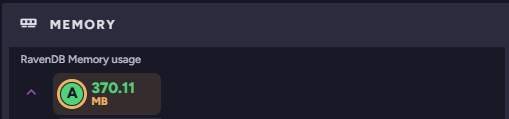
We would like to mention that RavenDB has low and extremely low modes. They trigger when you have limited memory and can’t allocate much memory. This may result in RavenDB creating smaller indexing batches and failing operations, such as backup tasks. You can notice that you are in low memory mode when your RavenDB’s Memory usage in the memory widget blinks yellow. Further down this article, you can learn to know if you are in low memory mode. If you are low on memory, don’t worry; we also tested on low memory.
If you are even more interested in more information about memory, you can read another post from the creator of RavenDB. Let’s go further and learn if you are in trouble.
Am I in trouble? – Looking if we have problems
So you don’t know if you are in trouble, let’s figure it out together. Depending on your operating system, you can use different tools.
Windows – Resource Monitor
On Windows, the resource monitor is the first place to check if something is wrong. If your machine seems to slow down whenever you have Raven running, this is the most accessible place. Just right-click on your taskbar in the free space and select ‘Task Manager’ to open it. Then go into the ‘Performance’ tab on the left bar. You click on the three dots at the top right side of the task manager and select ‘Resource Monitor’. Inside, you need to open the memory tab, and you can see all the memory used. Look at both ‘Commit’ and ‘Working Set’. If they are higher than expected, you might have a problem.
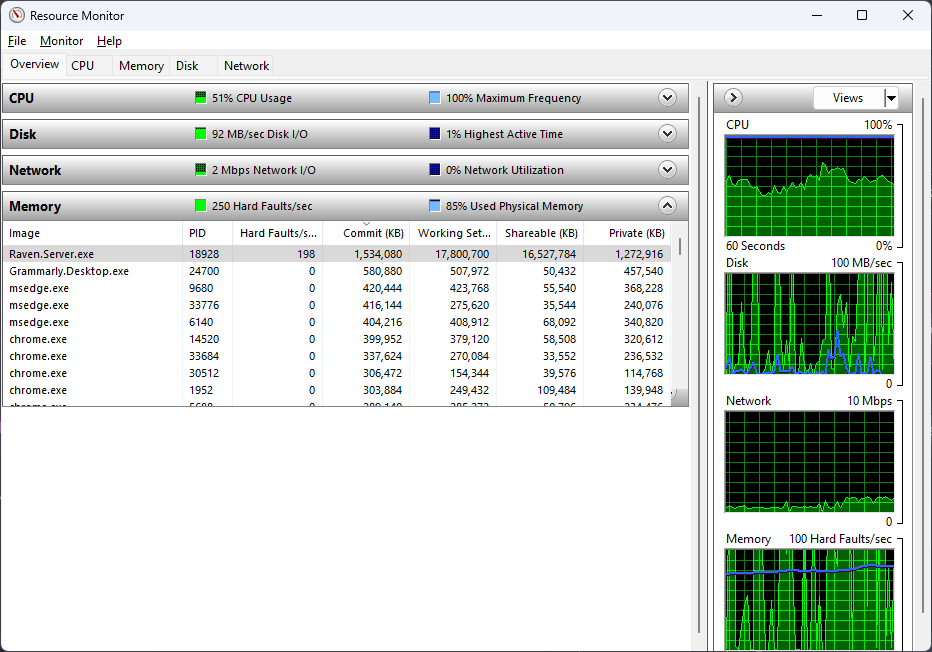
We know our systems and know that usage is mainly caused by indexing, and we recommend that you be an aware user, too. How about you? Did you check your memory, and is usage high? Then, let’s proceed further and find out “Why are you in trouble?”
Linux – Top
So your Linux slows down, or you are just curious about how much memory your RavenDB uses. To check that quickly, you can open your terminal, input top, and press shift+H. Before you click shift+H, you see processes; after pressing it, you see threads that are more precise if you need them. Of course, you can begin by just looking at Raven.Server and then proceeding further.
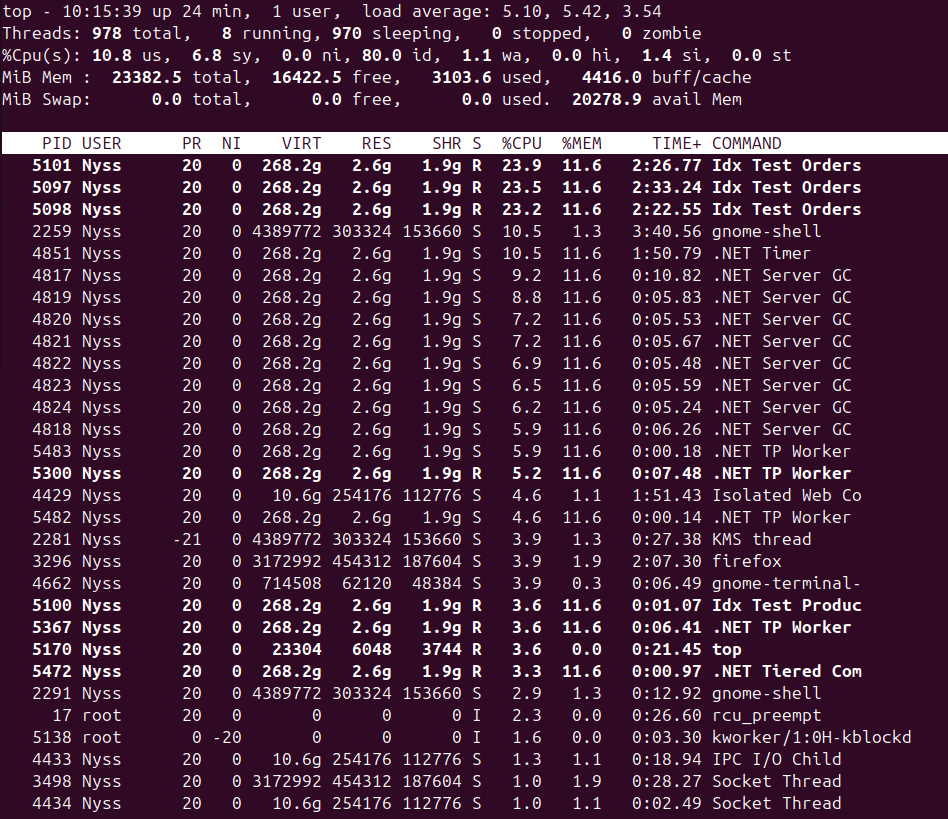
Look at the %MEM section; I know I’m stating obvious, but the higher the number, the more memory the application uses. In our case, RavenDB is eating a lot of memory, and if I check the thread, I notice the Index Test Worker. It indicates that indexing is eating my memory. There is also a .NET TP Worker that indicates User Requests. It’s good to remember that. If those numbers are higher than expected, your database might have encountered problems. To find who your troublemaker is, look into the ‘Why am I in trouble’ part of this article or check common causes.
RavenDB Dashboard
RavenDB can also tell you if you are using too much memory. Enter your RavenDB studio and, if needed, click the RavenDB logo at the top left of the page or simply press ‘Cluster Dashboard’ on the left bar. This will take you to all your widgets; among all other widgets, you have a memory widget.
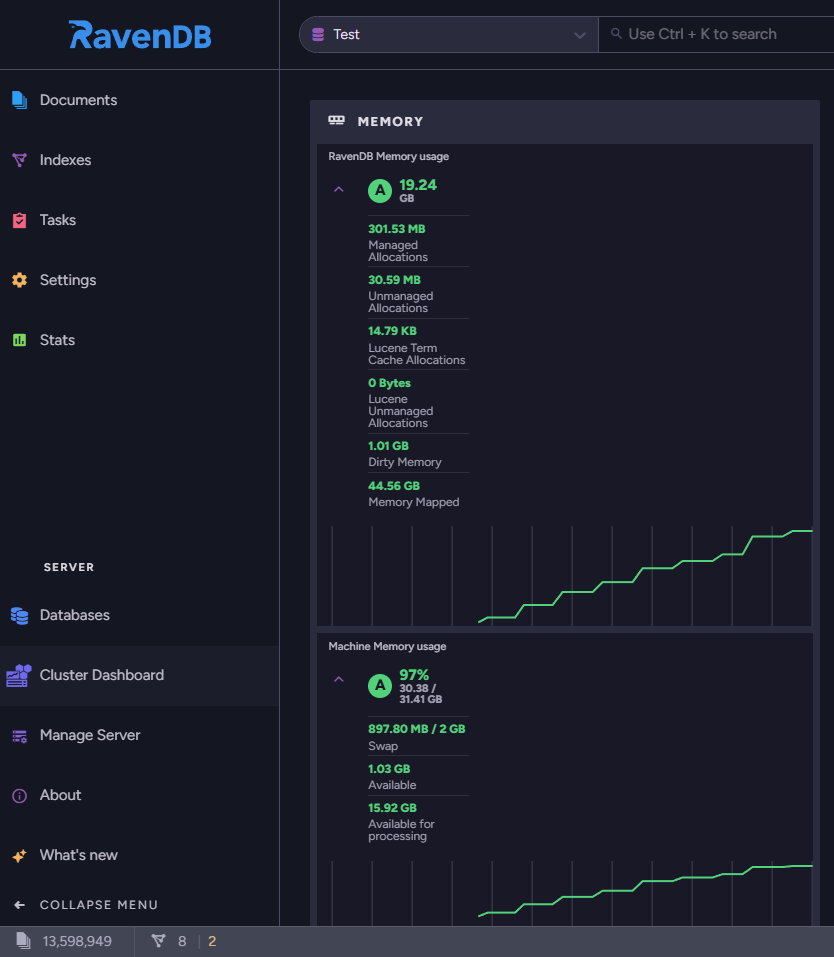
As you can see, you can take many pieces of information from here. Memory Mapped is pretty high, which affects RavenDB’s overall Memory usage. High dirty memory can also be worrying in some cases, depending on the machine and current operations. It should be your first alarm to investigate if you don’t know why it’s high and doesn’t match your database size.
Why am I in trouble? – Looking for clues
Now, this is the hard part. You either need to find out what is wrong or gather as much information as possible and ask someone for help. If you have support, that would be the first stop when you collect your data; if not, you can always rely on our community on GitHub Discussions. Please be aware that you might worsen the situation if you don’t know how to handle your database and tinker with it alone.
Admin Log and Advanced
The admin log is a nice way to check what your RavenDB is doing and why it might have problems. In your RavenDB studio, select ‘Manage Server’ on the left bar and click ‘Admin Logs’.
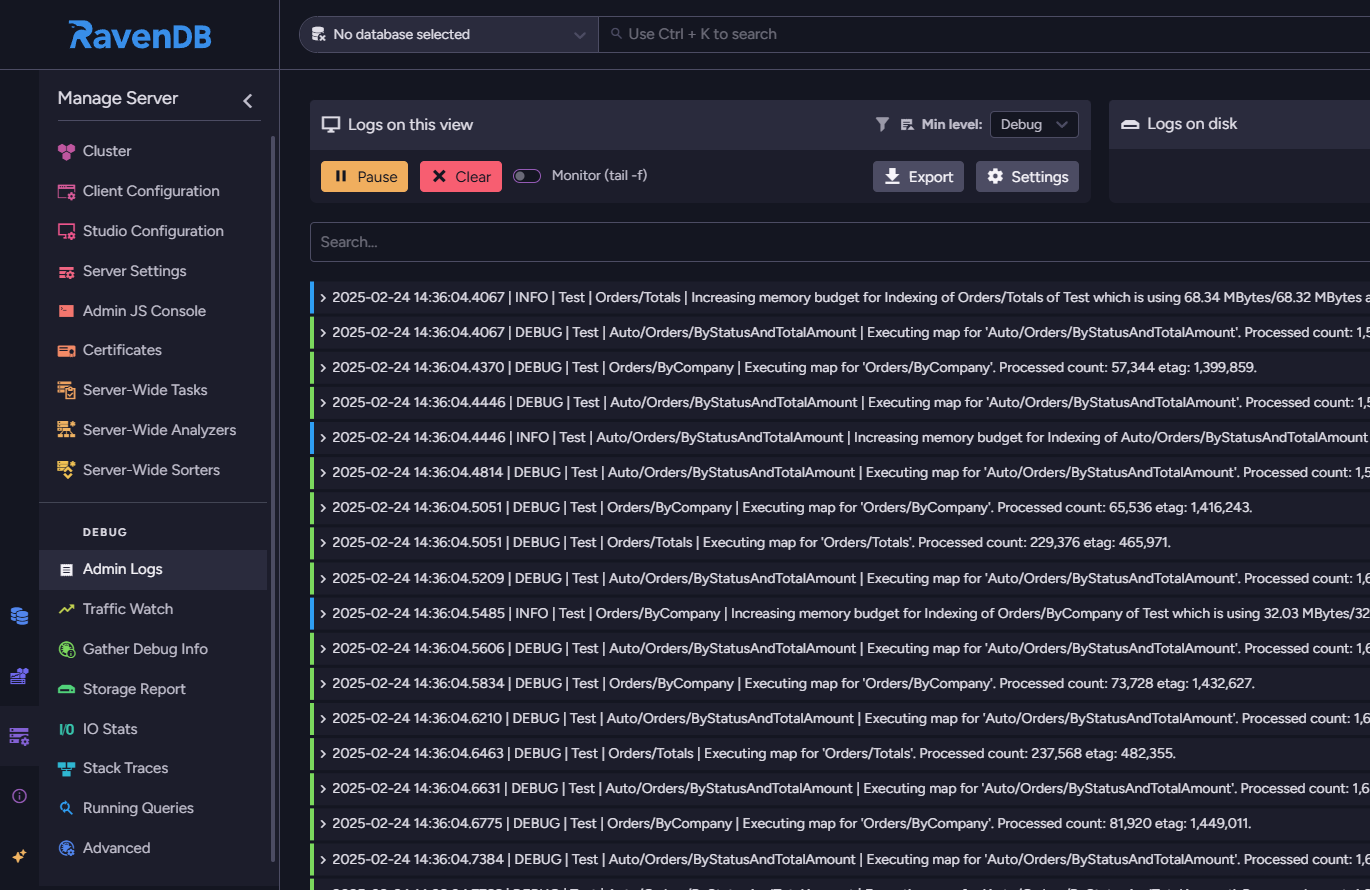
Here, you can see everything your RavenDB is doing. Using the example we used before, I may notice that RavenDB increased max memory usage to process indexing. This might allow me to look into how my indexing works; maybe there is a way to optimize it. Admin logs are a powerful tool to pinpoint problems to at least some extent. The more you dig, the more you will find. Use filters to find what you need faster. If you want to learn more about new Admin Logs in 7.0, you can do that here.
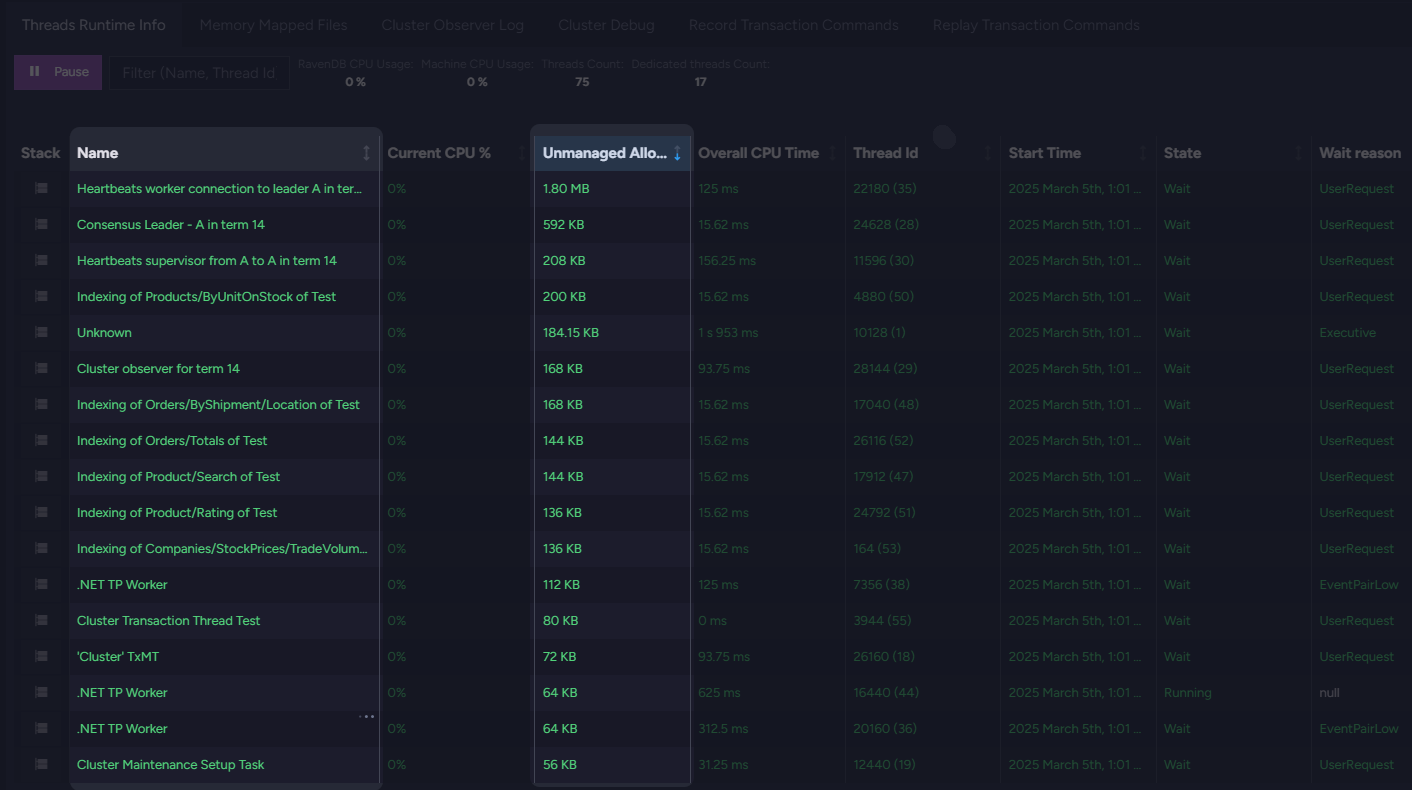
You can also look into a tool similar to Admin Logs in the same menu, but it’s just a bit lower. Advanced is the tab where you can check all threads in your RavenDB. You can check every thread and see every unmanaged allocation, which can help you find exact threads that might be problematic.
Indexing Performance
If you have problems with indexes, you should investigate them further. To find more information about them, go to your database, to the ‘Indexes’ section, and to ‘Indexing Performance’.
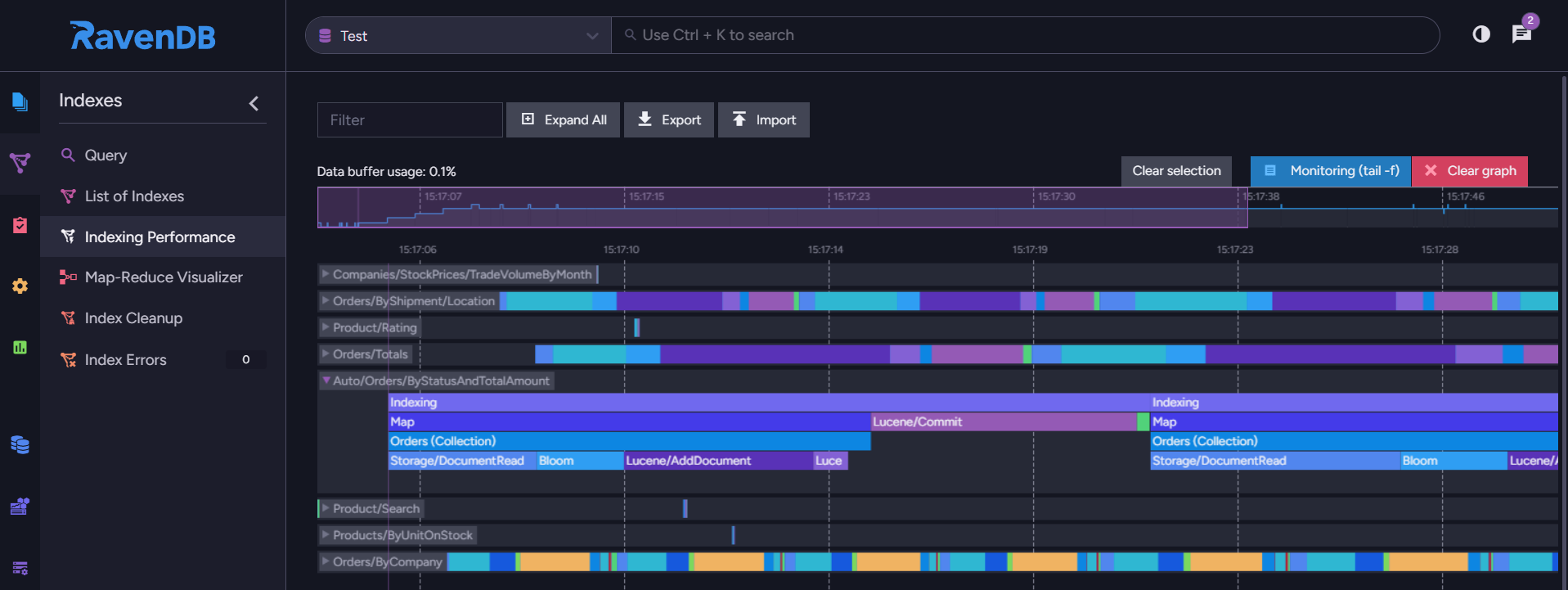
In this view, hovering your mouse over those colored lines will reveal information about your current indexing. If you are having trouble determining whether your indexing is suspiciously too impactful for your machine, then looking here can uncover some truth. You can visually see what parts of indexing take more resources or what is precisely part of more complex things. Also, it can be wise to monitor your execution time or batch sizes. Additionally, you can check the exact numbers for managed and unmanaged allocations for indexing here. It can be a real help when it comes to indexing.
Endpoints
Another tool that can point us in the right direction is debug endpoints. Those useful URLs can give you some insight into what is happening. To access them on your local machine, use http://127.0.0.1:8080/admin/debug/memory/stats. If you need to access them somewhere else, just paste /admin/debug/memory/stats instead of /studio and whatever is behind it. Remember that for ease of reading, you can press pretty-print on the top left side of the page.
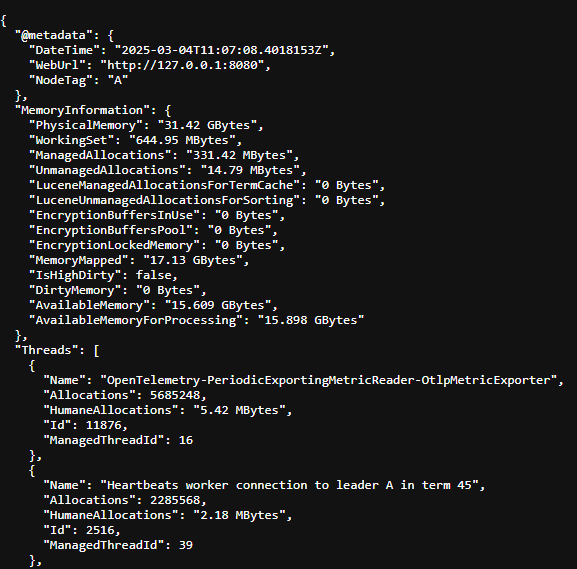
Inside this endpoint, you will find valuable information, such as “EncryptionBuffersInUse”, “EncryptionBuffersPool”, and “EncryptionLockedMemory”, which can tell you if your encryption is using too much memory. AvaiableMemory and AvailabieMemoryForProcessing if you haven’t looked those up on the widget.
Another functional endpoint is /admin/debug/memory/allocations, which helps you pinpoint what is eating your memory. You should look for abnormalities there—anything that is a higher order of magnitude than others can be a good lead.
Endpoints can also be used to get a dmp file of your database. This file might be helpful if you are getting help from someone and need to look into the memory used by .Net processes. The endpoint that will download it -/admin/debug/dump?type=Mini. But that’s not all. You can customize how much information you download into the file. All options are as follows:
|
Mini |
small dump containing module lists, thread lists, exception information, and all stacks. |
|---|---|
|
Heap |
An extensive and relatively comprehensive dump containing module lists, thread lists, all stacks, exception information, handle information, and all memory except for mapped images. |
|
Triage |
Same as Mini, but it removes personal user information, such as paths and passwords. |
|
Full |
The largest dump containing all memory, including the module images. |
After putting this endpoint in the URL, you will download the dmp file. Then, you can analyze it yourself if you know how, or you can ask for help from someone who knows what to do with this.
Dotnet Dump
When you get your dmp file from the endpoint, you can look inside for a moment. Even if you are not skilled, you may find something troubling. This tool allows you to look into the Dotnet processes, which can be a good source of information for RavenDB. First, you need to install dotnet dump from this site, then open the terminal in the file folder. Just remember to swap out <dumpfile> with the name of your actual file. To load your file, just use the following command:
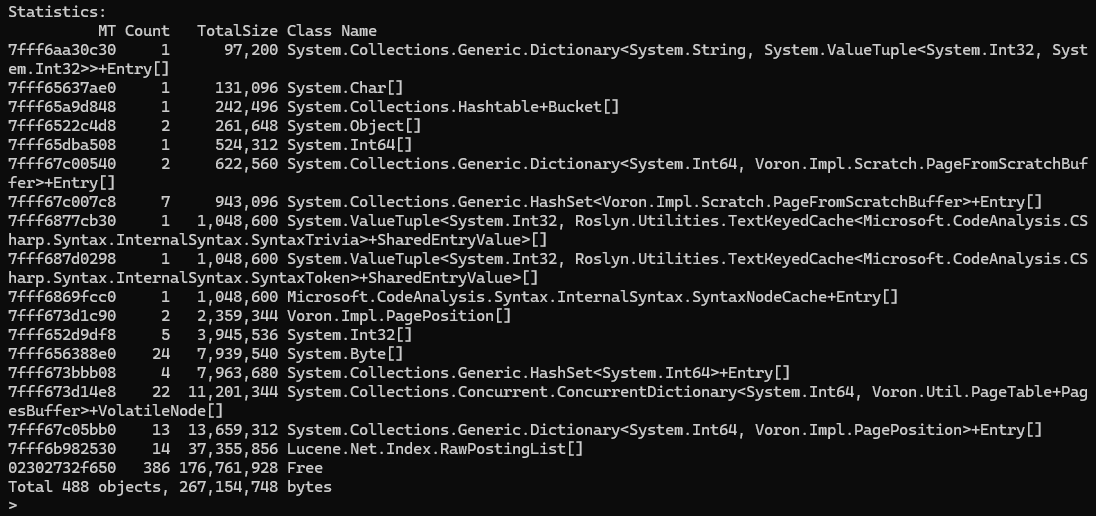
dotnet dump analyze <dumpfile>Now that you have loaded your file, let’s check what is devouring our memory. Put the following command in your terminal when in analysis mode.
dumpheap -min 85000This will show you all objects larger than 85KB. With some experience, you can look at them and deduce what is causing your database to slow down. As we said before, in the end, without expertise or more research, you will not find any specific information that will help you. You can also use this file to get help from a more experienced person. This file can contain valuable information, so don’t be intimidated to try capturing one dmp file.
Can I know sooner? – Monitoring
Yes, you can know sooner if something is going wrong. Not that you can foretell that your memory will break in a week, but we can monitor what is happening with your base and react before your machine slows to a snail’s pace. You can send your RavenDB and/or logs to Grafana Cloud or use Zabbix. What you use is unimportant, but you use it if it works. Monitoring will let you sleep calmly at night, knowing that if something happens, you will know what happened and where to look. You can even place some early email warnings or different notifications if needed.
Conclusion
Memory management can be a real challenge, and we are trying to make RavenDB as efficient as possible. However, even with our best efforts, you can encounter unexpected challenges. We gave you tools to examine your system, but as we said, monitoring and early actions can lower or negate the danger of some unforeseen situations. Use your skills smartly and use your memory efficiently. Set up monitoring to know before everything breaks, and if anything goes wrong, don’t be afraid to ask for help. Memory is an extensive topic, and getting a handle on it can be difficult.
Frequently Asked Questions
Why does RavenDB appear to be using so much memory, and is it a problem?
High memory usage is often expected because RavenDB utilizes memory-mapped files to operate quickly, allocating memory to take a significant chunk if the process needs it. This is managed via native (unmanaged) memory.
There is usually no reason to panic because the system will automatically free up space by removing less frequently used sections when other tasks require memory.
What common application areas should I check if my memory usage becomes problematic?
You should investigate four main areas:
- Queries: Fetching whole documents or too many fields can slow systems down.
- Indexing: Heavy indexing or poorly designed data models can threaten performance.
- Ongoing Tasks: Massive ETL integrations or having too many tasks running simultaneously can stress memory.
- Encryption: Turning on database encryption in production without prior testing can heavily consume memory.
How does RavenDB react when it actually runs out of memory?
RavenDB will enter a “low memory mode”, which forces it to create smaller indexing batches and can cause operations like backup tasks to fail. You can identify that you are in this mode if the Memory usage indicator in the RavenDB Studio memory widget blinks yellow.
Woah, already finished? 🤯
If you found the article interesting, don’t miss a chance to try our database solution – totally for free!