


New in 7.0: NLog Logging System
Introduction
With the release of 7.0, we revamped our logging system. It uses the NLog logging platform, making it easier to analyze your logs thanks to the standardized system. NLog also allows you to connect your logs to any other tool that has integration available — it is a great opportunity to integrate RavenDB logs into your logging aggregators, monitoring, and alerting. Those already familiar with NLog will feel right at home.
Breaking Changes in the New System
NLog is our new and shiny logging system. We planned the integration long ago while still relying on our own logging system — but NLog finally got fast enough that we can properly use it now. It has a user-friendly reputation while still being performance-oriented, allowing a high degree of customization. This new logging system is perfect for simplifying logging and error fixing. NLog is faster, ensuring your logs will be there when you need them.
Breaking changes in the new logging system were necessary to adapt to NLog. It drives the changes for the main settings configuration file, so we added the NLog.config file. It will be used to control the same functions and the new capabilities.
If you had a default settings file — no worries — it will be automatically updated. In other cases, please verify your configuration against the tables below:
| <7.0 | 7.0+ | Description |
| Logs.Mode | Logs.MinLevel | Replaced to work with new NLog levels. Check later parts of the article or NLog documentation. |
| Logs.UseUtcTime | Removed | It is now the default — customization is available by using custom NLog.config |
| Logs.MaxFileSizeInMb | Logs.ArchiveAboveSizeInMb | Replaced. Above the limit you set, it will start a new file and (if on) compress the previous one. |
| Logs.RetentionTimeInHrs | Logs.MaxArchiveDays | Replaced. Configuration value is now a number of days instead of hours. |
| Logs.RetentionSizeInMb | Logs.MaxArchiveFiles | Replaced -o works similarly to the previous one but deletes files after a certain number of logs. |
| Logs.Compress | Logs.EnableArchiveFileCompression | Direct replacement. Thanks to backward compatibility, don’t need to worry about this one. |
The changes also affect Audit Log configuration (Link to documentation after it’s updated):
| <7.0 | 7.0+ |
| Security.AuditLog.MaxFileSizeInMb | Security.AuditLog.ArchiveAboveSizeInMb |
| Security.AuditLog.RetentionTimeInHrs | Security.AuditLog.MaxArchiveDays |
| Security.AuditLog.RetentionSizeInMb | Security.AuditLog.MaxArchiveFiles |
| Security.AuditLog.Compress | Security.AuditLog.EnableArchiveFileCompression |
New logging system basics
NLog is rich in features, making it a tool for all of your logging needs. It also allows us to customize your experience, making it very helpful when you need to dig through piles of logs.
The first noticeable thing is the new UI in the RavenDB Studio. Before, it was a way to quickly peek your admin logs; now it has become a more precise tool that is easier to understand and work with. If you want to check it out, load your 7.0 server or try it on a live test. Navigate to ‘Manage Server’ and then ‘Admin Logs’. We revamped the design, making it easier to manage. You can see a ‘Clear’ button and a ‘Monitor (tail -f)’ switch that auto scrolls your logs to the most recent one. Of course, there is also an ‘Export’ button and ‘Settings’.
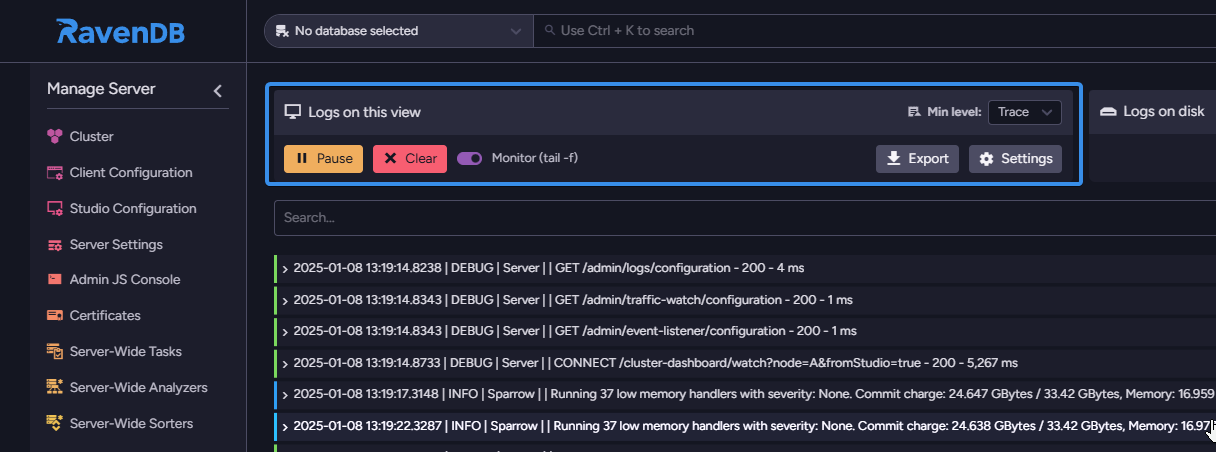
Changes in the studio will not affect the logs written on your disk. On the top right of the ‘Logs on this view’ menu, you can notice the ‘Min level:’ option. As the name suggests, this list allows you to choose the minimum level of logs that appear below. This option was added because, in RavenDB 6.2 and below, we had only 2 logging levels (Operations and Info), but now in RavenDB 7.0+, we match NLog levels. Since RavenDB 7.0+ there are 6 levels, making it easier to find desired information.
RavenDB 7.0 logging levels
|
0 |
Trace |
Most verbose level. Used for development and seldom enabled in production. |
|
1 |
Debug |
Debugging the application behavior from internal events of interest. |
|
2 |
Info |
Information that highlights progress or application lifetime events. |
|
3 |
Warn |
Warnings about validation issues or temporary failures that can be recovered. |
|
4 |
Error |
Errors where functionality has failed, or Exception have been caught. |
|
5 |
Fatal |
Most critical level. Application is about to abort. |
There are also options for logs saved on your storage. They use the same levels and are primarily configured in the settings.json or a custom NLog.config file. You can make adjustments here as well. Their default location is in your RavenDB folder under …/Server/Logs directory. You can modify some options in the ‘Settings’ menu next to the ‘Download’ button.
NLog in files
All aspects of NLog logging can also be configured in your config file. A lot of options require you to use the NLog.config file. As mentioned before, there is a template file in your main server directory called NLog.template.config, which can serve as a base for your own NLog.config. Inside you can find which data is sent where and later use this file for integration with other systems. Again, options configured in the file don’t interact with those in Studio’s Admin Logs.
New logs filtering system
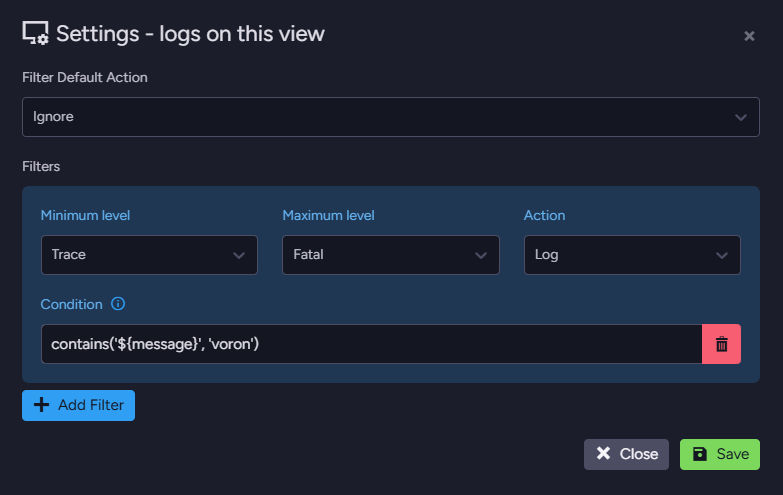
Consequently, we have a new filtering system that follows NLog principles. Now, settings in ‘Logs on this view’ allow you to add new filters easily. Those filters now use the NLog system too. If you’d like to, take a look at them on NLog’s GitHub by clicking here. For example, let’s create a basic filter. Click ‘Add filter’, then choose ‘Trace’ and ‘Fatal’ for ‘Minimum level’ and ‘Maximum level’. Add condition ‘contains(‘${message}’, ‘voron’)’. This way, we can decide to either ignore or log all logs containing Voron in their message. Select a desired action from the ‘Action’ list. Available actions are described on NLog’s website and are as follows:
|
Ignore |
The message should not be logged. |
|
IgnoreFinal |
The message should not be logged, and ignore any following logging-rules. |
|
Log |
The message should be logged. |
|
LogFinal |
The message should be logged, and ignore any following logging-rules. |
|
Neutral |
The filter doesn’t want to decide whether to log or discard the message. |
There are some concerns about string-based filters, even though NLog is doing its best to parse expressions properly to improve performance.
The next thing possible in the system is filtering by Resources or Components. In general, resources can be: Server, Cluster, Voron, or database. Meanwhile, components can be: specific index, NodeTag, RemoteConnection, ServerStore, Configuration, or TCP. They are hierarchical, so resources can contain components. By putting this condition into the filter …
|
Resource |
Server |
|
Cluster |
|
|
Voron |
|
|
Database (name) |
|
|
Component |
TCP |
|
Configuration |
|
|
ServerStore |
|
|
RemoteConnection |
|
|
NodeTag |
|
|
Index(name) |
contains('${event-properties:item=Resource}', 'Test')… you can filter everything that doesn’t belong to a database called Test by just choosing ignore in the menu. This can be quite useful to get the right amount of logs to analyze.
Alternatively, we can use the NLog.config file to edit what should be saved in your logs that you store locally. You can edit targets or rules connected to Raven_Default_Target of your NLog.template.config file.
New Config file
As mentioned before, NLog.template.config file that will appear in your directory with version 7.0 will be able to do some heavy lifting for you. This is useful for advanced scenarios like connecting a 3rd party logging provider such as Grafana Loki (link to article) or getting full control over all aspects of logging such as writing target buffer sizes, etc
It needs to be copied and renamed to e.g., NLog.config and then attached to your database using “Logs.ConfigPath”: “NLog.config” in your settings.json file. This leads to a full override of default log settings, so be careful. This file you created now lets you control NLog behavior. You can choose what levels to save into a file or connect it to integrations already prepared. More about it in the integrations part of this article.
NLog Integrations
NLog has many useful integrations including mail generation and others. Let’s set it up – the process is straightforward, and it starts with NuGets handled by RavenDB.
Thanks to those new NuGets settings, we can manage the packages required for integrations. They are supposed to be placed in settings.config and can do the following things:
|
Logs.NuGet.PackagesPath |
Sets the location of NuGet packages cache |
|
Logs.NuGet.PackageSourceUrl |
Sets default NuGet source URL |
|
Logs.NuGet.AllowPreReleasePackages |
Allow installation of NuGet prerelease packages |
|
Logs.NuGet.AdditionalPackages |
Download the new packages you request. |
If NLog supports the applications you’re using, connecting them is seamless. You can even set it up to send you email alerts for Fatal errors. For the complete list of NLog integrations, just click here. Simply adjust the settings, download any required NuGet packages, and configure your desired log target. Here’s a prime example of a NuGet NLog plugin configuration:
"Logs.NuGet.AdditionalPackages": { "NLog.Targets.Loki": "2.2.0" },The new NLog.template.config file is a starting point for most NLog options, which you can connect to your server by using the following command in ‘settings.json’:
"Logs.ConfigPath": "NLog.config",As mentioned before, it overrides the default logs settings – other configuration options are not effective from now on – so keep that in mind. Please also note we are creating a new NLog.config file and not NLog.template.config, so remember to create a copy of the template and rename it. This file lets us configure some debugging options, change what kind of logs we want to save to a file, and control other useful things like integrations. You can connect your logs to many useful tools like Grafana Cloud.
You can find more information on how to connect your database server to your logging solution in this article.
NLog debugging
A key tool for troubleshooting your NLog is the `Logs.ThrowConfigExceptions` option. When set in the ‘settings.json’ file, it generates an internal log file to help identify issues.
You can change the file location with the NLog.config file mentioned before in the integrations part of the article. Use internalLogFile="Path_To_File” in nlog xmlns to change it. Alternatively, you can do this using Logs.Internal.Path in your settings.json file.
Another helpful feature is also Logs.Internal.LogToStandardOutput and Logs.Internal.LogToStandardError that sends internal NLog logs to RavenDB standard output.
Summary
The NLog system introduced in 7.0 has many exciting features that will help you in the maintenance of your RavenDB cluster. Gone are the days when database errors slipped by unnoticed. With all new filters, levels, and integrations, you can find problems or get help from support smoothly and efficiently.
Woah, already finished? 🤯
If you found the article interesting, don’t miss a chance to try our database solution – totally for free!


