


Sending your RavenDB 7.0 logs to Grafana Cloud
What you will learn
- How to change the configuration of NLog.config
- How to connect your logs to Grafana Cloud
Introduction
With RavenDB 7.0, we’ve introduced the NLog system, bringing log management and monitoring to a whole new level. This upgrade unlocks new and useful NLog integrations, now compatible with RavenDB. In this guide, we will leverage that upgrade, and show you how to connect RavenDB logs to Grafana Cloud using Grafana Loki. You can also use this guide as a reference for connecting your database to other integrations.
Prerequisites
What you will need:
- Grafana Cloud account
- RavenDB cluster with database
RavenDB
Before connecting RavenDB to Grafana, ensure your RavenDB cluster is running. If you don’t have it – let’s show you how to get started.
- Download RavenDB from our website, selecting ‘Download on-premise’ for your OS.
- Then extract the files and run
run.ps1orrun.shin the terminal. - Set up a new cluster.
- Choose your desired security level (this guide uses ‘Unsecured’ for simplicity, be aware that for production systems running Unsecured setup is… Unsecure) and complete rest of the setup.
If you encounter any problems or need help, please refer to this setup wizard & cluster creation guide.
Grafana Cloud
If you have your RavenDB server running, but you lack a Grafana Cloud instance, let’s also show how to get it. Visit the Grafana website, create an account, and activate it. Next, choose a stack URL and deployment region that are geographically close to your RavenDB server to begin configuring Grafana. To speed up the setup you can skip the onboarding part that Grafana is offering and just click on “I’m already familiar with Grafana. Skip Setup” button to move on.
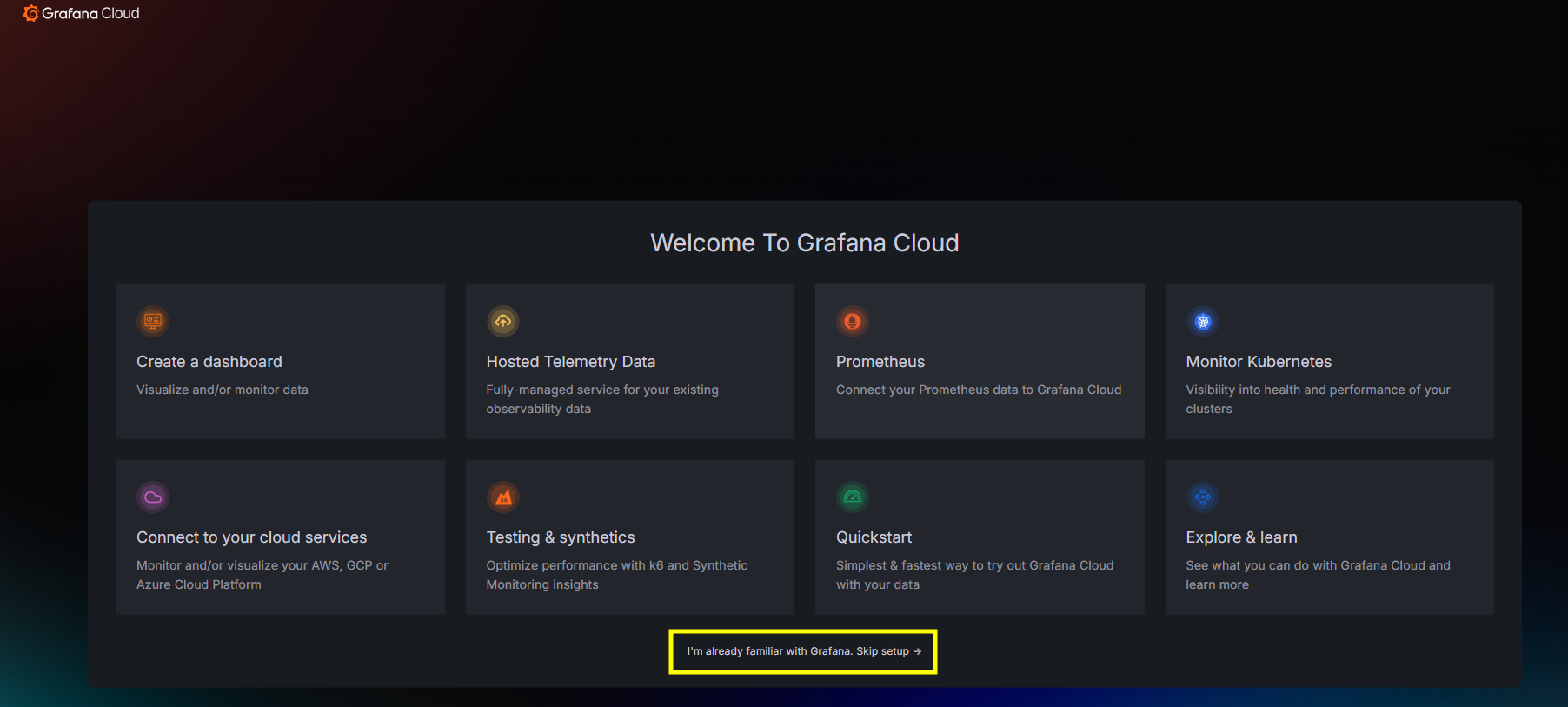
If you encounter any difficulties, please refer to the Grafana guide.
Setup
Now that you have prepared – a Grafana Cloud account and a RavenDB server – it’s time to connect them. Start by selecting ‘Stacks’ on your Grafana home page, which will take you to the Grafana Cloud panel where you get all the options you need. On the left side, under Grafana Cloud, click on your stack name you want to connect. There, you need to click ‘Send Logs’ under the Loki category.
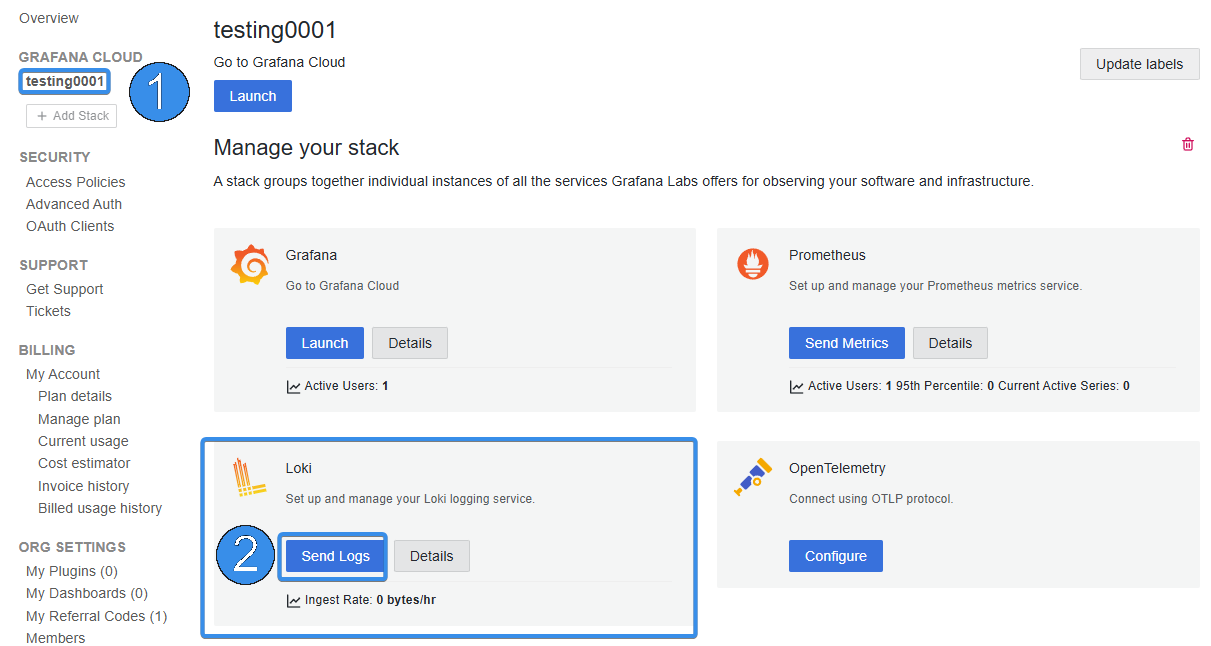
You may ask – “What even Loki is”? It’s a log aggregation system developed by the Grafana team for managing and querying logs. As a part of the Grafana ecosystem, it is a great way to connect your logs with it.
Step 1
Let’s get back on the topic of setting up connection. We already have most of the stuff we need from Grafana Cloud, but before we can make it work, let’s head back to the RavenDB Server directory. You need to copy the NLog.template.config file, and rename the copy to NLog.config. Next, open the settings.json file and add the following settings (if they aren’t already there):
  {
   // rest of the settings on top
   // ...
    "Logs.NuGet.AdditionalPackages": { "NLog.Targets.Loki": "2.2.0" },
    "Logs.ConfigPath": "NLog.config"
  }
It will provide you the required package (This article is using the 2.2.0 version. Please check if there is a newer version. The latest version is available here.) and reroute your NLog settings into a newly created file. The first one is downloading a NuGet package that lets us connect NLog with Loki, while the second one overrides NLog config path. Keep in mind that RavenDB needs an internet connection to handle everything for you.
Step 2
Now, after directing control over NLog to NLog.config file, let’s customize it. Open it with your preferred text editor and let’s get it started. Start a new line under “<nlog>” root XML node on the top of the file, paste the following code:
        <extensions>
  		<add assembly="NLog.Loki" />
  	</extensions>
Step 3
Next, we need to add a new target into the already existing <targets> XML node. This will connect our database to the Grafana Cloud that we define. Insert extra target markup code inside the <targets> node, ideally at the end after other targets for convenience. This piece of code will define how to send our logs to Grafana Cloud:
  <target
  name="loki"
  xsi:type="loki"
  batchSize="200"
  taskDelayMilliseconds="500"
  endpoint="https://logs-YOUR_ENDPOINT.grafana.net"
  username="YOUR_USERNAME"
  password="YOUR_GRAFANA_CLOUD_LOKI_SECURITY_TOKEN"
  orderWrites="true"
  compressionLevel="noCompression"
  eventPropertiesAsLabels="false"

  layout="${longdate}|${level:uppercase=true}|${event-properties:item=Resource}|${event-properties:item=Component}|${logger}|${message:withexception=true}|${event-properties:item=Data}"
        tenant="grafanacloud-Your_Domain_Name-logs">
  		<label name="app" layout="YOUR_RAVENDB_SERVER_NAME" />
  		<label name="Level" layout="${level}" />
                <label name="Component"
        layout="${event-properties:item=Component}" />
                <label name="Resource" layout="${event-properties:item=Resource}"
        />
  	</target>
Of course, you need to adjust a few parts of this code, but we’ll cover this later when we will have all the code pieces in place.
Step 4
The final part of XML code is adding a new rule that will direct selected data from loggers to your target. This will not disable writing logs to a file, we simply add another destination. Find the ‘rules’ section and add the following markup code.
<logger ruleName="Raven_Loki" name="*" levels="Info,Warn,Error,Fatal" writeTo="loki" />Step 5
We’ve configured the integration properly. Now, the only thing left is to point Grafana Loki to its target Grafana account. Head back to Grafana and copy the necessary account information.
In short, what you need to set is:
- endpoint=”https://logs-YOUR_ENDPOINT.grafana.net”
- username=”YOUR_USERNAME”
- tenant=”grafanacloud-Your_Domain_Name-logs”>
- password=”YOUR_GRAFANA_CLOUD_LOKI_SECURITY_TOKEN”
- layout=”YOUR_RAVENDB_SERVER_NAME” />
Let’s grab your Grafana URL, that’ll substitute the “https://logs-YOUR_ENDPOINT.grafana.net” value. You can find this value in your Grafana Loki configuration panel as a URL.
Now copy your Name and paste it as a “tenant” value. Copy “User” that is a set of numbers and paste it as a username. Please, remember to change your domain name in layout just under tenant.
For password (which is a generated token) and generate a new token with write permissions. At the moment, ‘Generate now’ at the top has only read permission. Don’t forget to copy it before closing the window to not lose it.Paste it as a password value in your config file, and you’re all set.
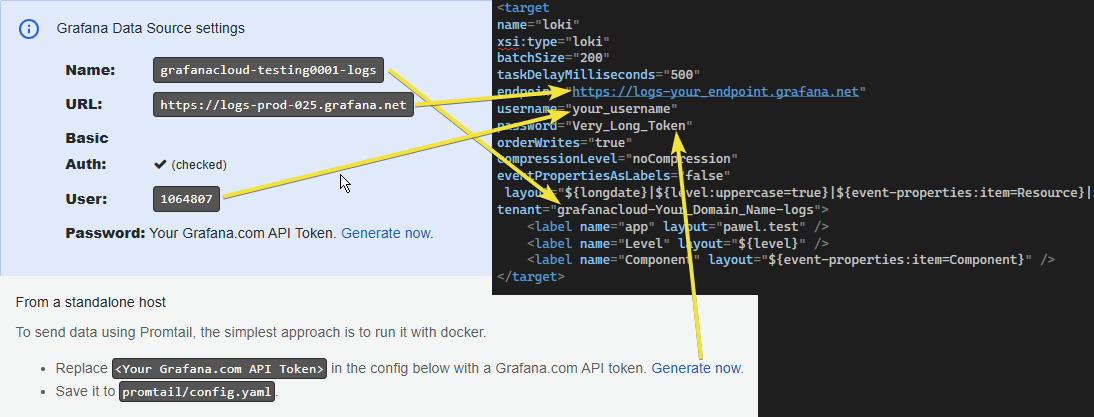
Once you added all of it, save your NLog.config and then start your RavenDB server again to make RavenDB refresh new data.
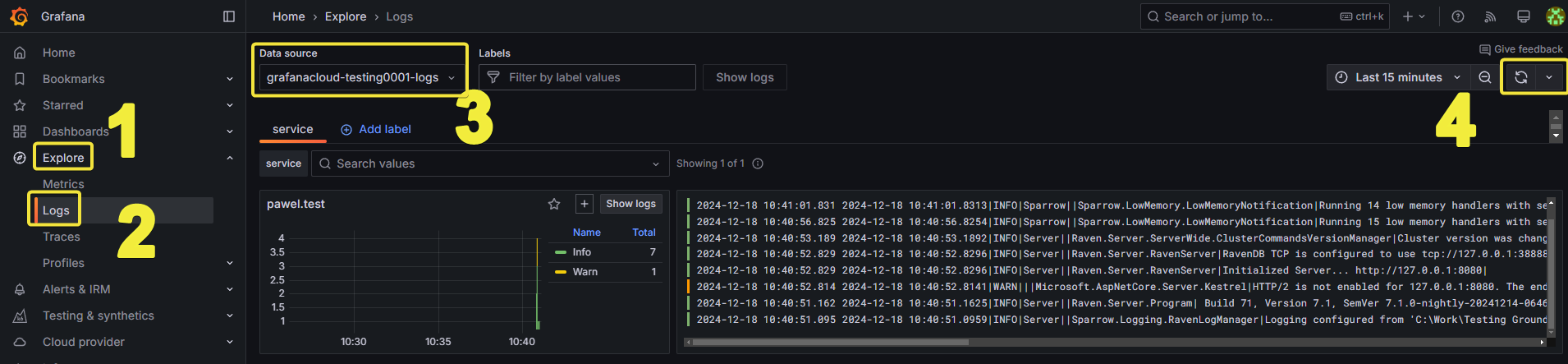
When it’s all set, the last thing to do is checking if this works. In your Grafana Cloud stack management, click ‘Launch’ under the Grafana section. On the left sidebar find the ‘Explore’(1) category, expand it to find the ‘Logs’(2) page. There, you select your tenant name from a list under the name ‘Data Source’(3). Next thing to do is just to refresh with the button (4) on the right.
Logs should appear – if they do, it means you successfully connected your logs to Grafana!
We may want to adjust what is sent to Loki too – in your NLog config, check the rules at the bottom. The rule you added with writeTo=”loki” allows you to customize your output using levels=. For example, we can add “Debug” level to also have Debug logs sent to Loki.
After such adjustment, your rule would look like this:
<logger ruleName="Raven_Loki" name="*" levels="Debug,Info,Warn,Error,Fatal" writeTo="loki" />This change should provide more detailed logs in your Grafana whenever you need it. Of course, you can remove Debug and Info levels, if you want only Warn level logs and above displayed. There are also many other customisation options for your filtering needs. Most of these advanced filtering can be set, for example, in labels in <target>.
Summary
Here is the gist for the whole config file.
Again, all you need to change in file is:
- endpoint=”https://logs-YOUR_ENDPOINT.grafana.net”
- username=”YOUR_USERNAME”
- tenant=”grafanacloud-Your_Domain_Name-logs”>
- password=”YOUR_GRAFANA_CLOUD_LOKI_SECURITY_TOKEN”
- layout=”YOUR_RAVENDB_SERVER_NAME” />
In settings.json add NuGet package and switch control to nlog.config.
We explained how to leverage the new logging system, and set up an integration between RavenDB logs and Grafana Cloud through Loki. To do so, we changed settings.config file to force NLog to use NLog.config config file, which instructed it to send logs data right to the Grafana. Now you can enjoy all Grafana features, including dashboards, alerting, or set up your own, different integration.
Woah, already finished? 🤯
If you found the article interesting, don’t miss a chance to try our database solution – totally for free!


