Enable AI Search in your web app in 5 minutes
Highlights
- Add an AI-powered search to a web app without building a custom embeddings pipeline.
- Use RavenDB AI Tasks to generate embeddings for product data automatically.
- Query by meaning with RavenDB vector search, even when users search in another language.
As AI becomes increasingly intelligent, why not use it to enhance your apps? One of the use cases is improving your app’s search functionality with AI-driven search. This nifty feature utilizes AI-generated embeddings to find the items that are most similar to your input.
You might be encouraged to implement an AI search for your web app right here and now. Then you start to look deeper and deeper, and it begins to seem like it’s creating challenge after challenge, and you become discouraged. You need to create embeddings somehow, then store them somewhere, and then load or query them efficiently, strategize it out, write tests, then maintain, fix bugs – the list of required tasks goes on and on.
But do not surrender just now. With RavenDB, it’s almost like using a regular search API. It takes just connecting your AI integration with a simple process and then creating nearly the same query as when you are making a normal query. Awesome right?
Especially that it’s not that hard to implement, let’s look at this simple app created with NextJS. You just enter what you need in the field, and you get matching products you are looking for. If you would like to examine this app yourself, a GitHub link is available. Are you curious what is happening underneath this UI? Then let’s go further and look inside.
How it works
Let’s see how our example app works and learn how to implement AI search. Let’s start by quickly describing how our app works.
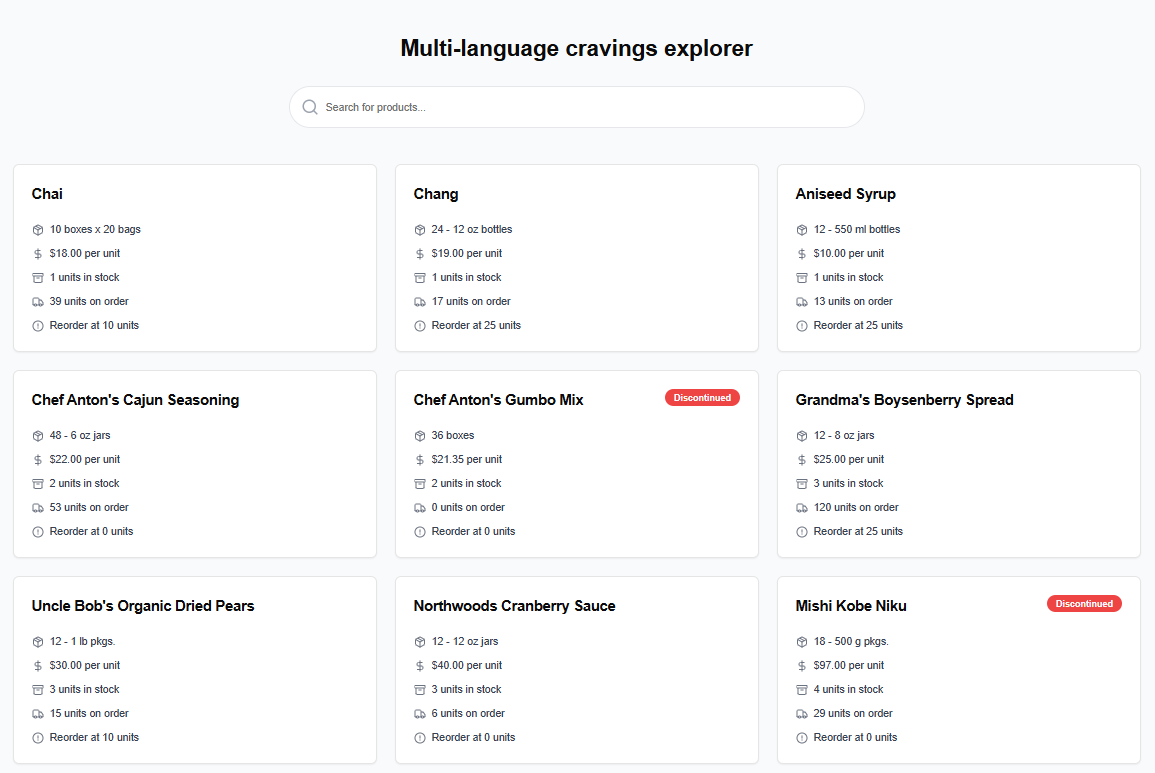
Search Bar
Whenever we type something in the search bar, the URL parameter (`q`) changes. On that change, we’re querying RavenDB and re-rendering the products list with new results.
  export function SearchInput() {
      const router = useRouter();
      const searchParams = useSearchParams();
      // create a new state variable within this component, to hold the search term, with default value from the URL
      const [queryState, setQueryState] = useState(searchParams.get("q") || "");

      // on queryState change, update the URL in the browser without refreshing the page
      useEffect(() => {
          const params = new URLSearchParams(searchParams.toString());
          if (queryState) {
              params.set("q", queryState);
          } else {
              params.delete("q");
          }
          router.replace(`?${params.toString()}`);
      }, [queryState]);

      // function to bind to the onChange input field - this will update the state variable
      function handleSearch(term: string) {
          setQueryState(term);
      }
As mentioned earlier, creating an AI search bar for your app is more complicated than it may seem at first glance. Let’s compare the approaches:
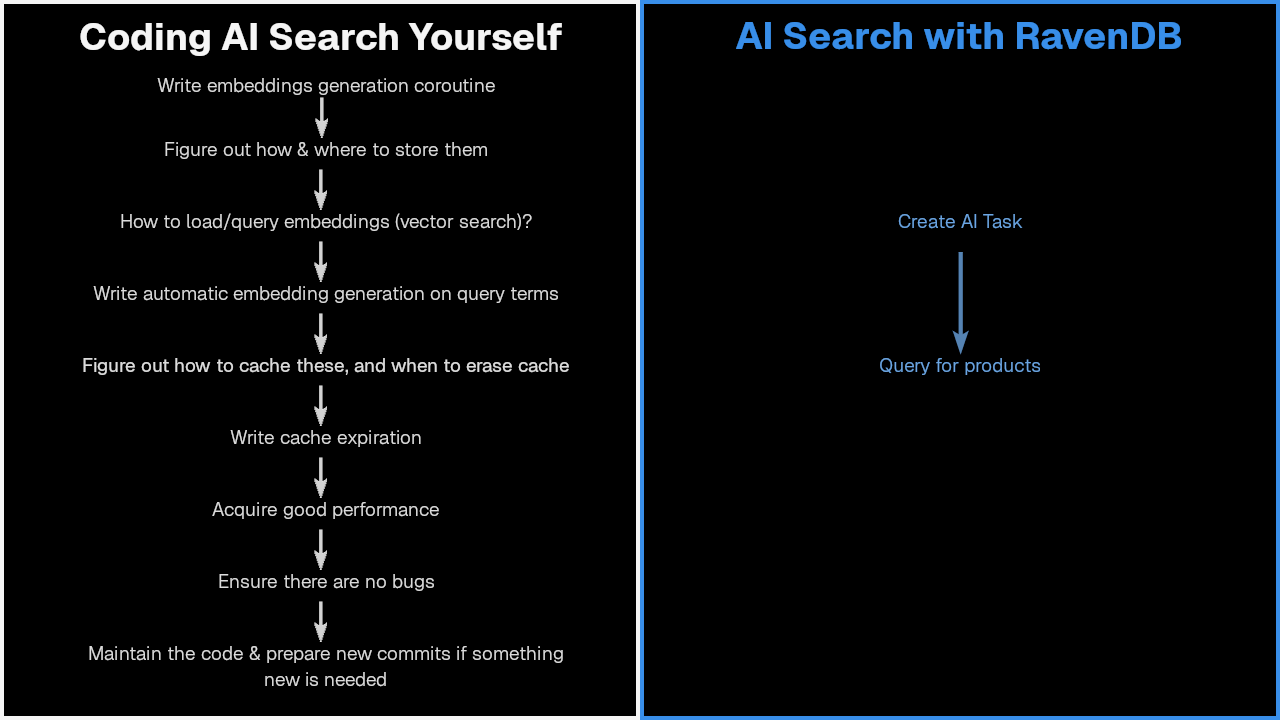
Or in short:
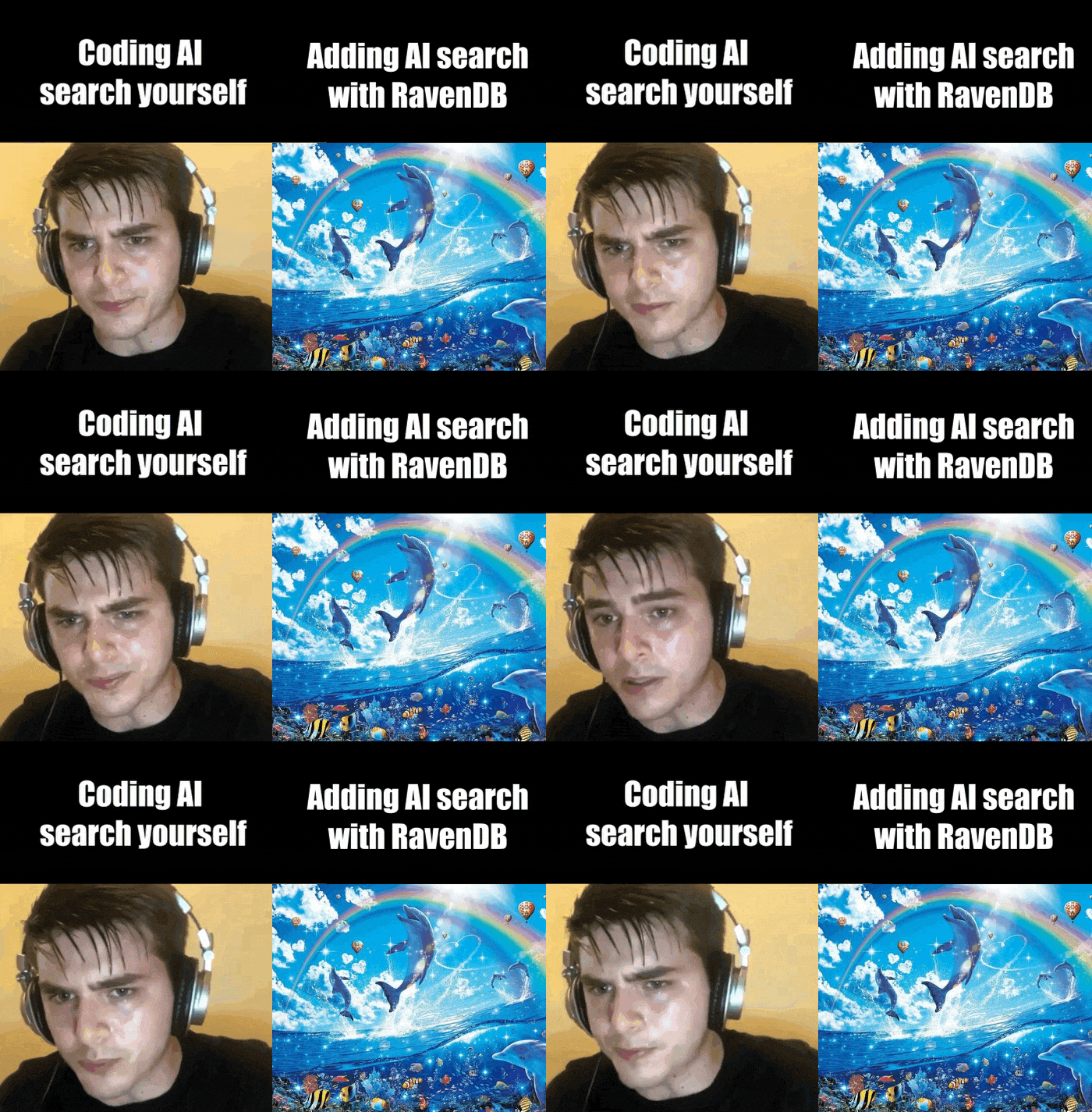
As you can see, using RavenDB for AI search makes your life much easier. If you are interested in seeing how this works, grab your RavenDB developer license, collect OpenAI API key, and test it yourself. On GitHub, you can read instructions on how to launch it. It is easy to set up and might help you grasp the concept. In case you missed it – the link to the app repo.
How to prepare such an app?
Preparing the database – AI Task
Starting with our data – to query our products by meaning, we needed embeddings, so we set up an AI Task that handles everything for us, making it much more manageable, quicker, and skipping headaches related to AI connection. Here’s how to do it…
Connecting your RavenDB database to AI is described in this article, but let’s quickly cover how to spin it up:
- Connecting OpenAI to RavenDB requires you to use RavenDB 7.0.1+. Enter the new ‘AI hub’ section in your database. Go to the AI connection string option and create a new connection string.
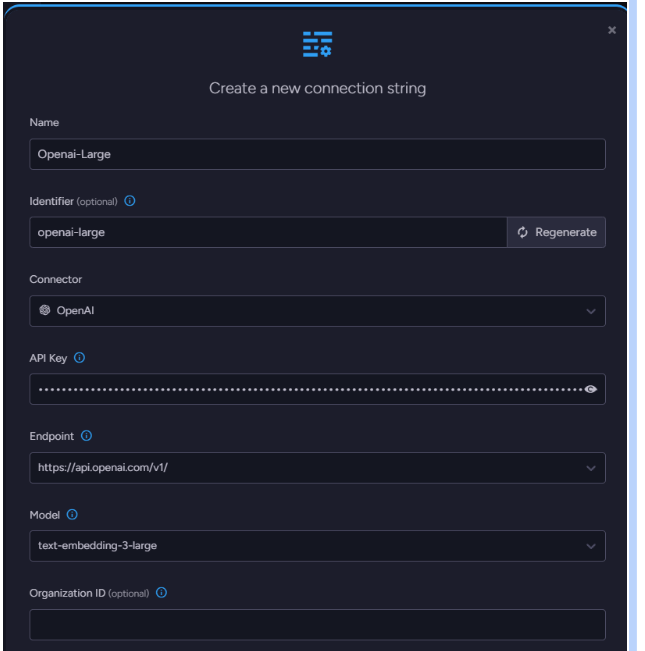
- Name it, paste the API key, and then select OpenAI.
- Select ‘text-embedding-3-large’, optionally test the connection, and then save it.
- Then you need to go into an ‘AI task’ section and create an AI task. Name it ‘openai-large’ and select your created connection string.
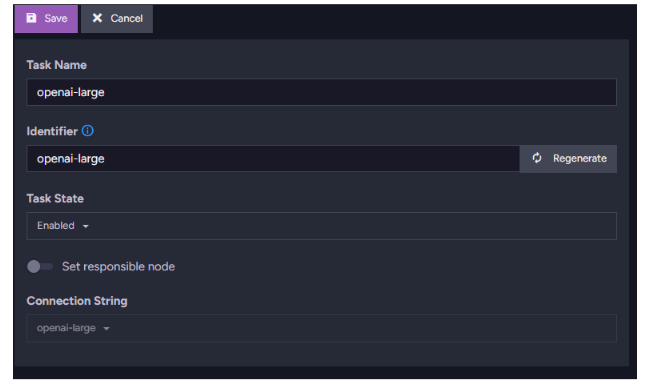
- Select ‘Products’ collection (generated with sample data) and in Path configuration type Name. Then you save your task, and you are ready to go.
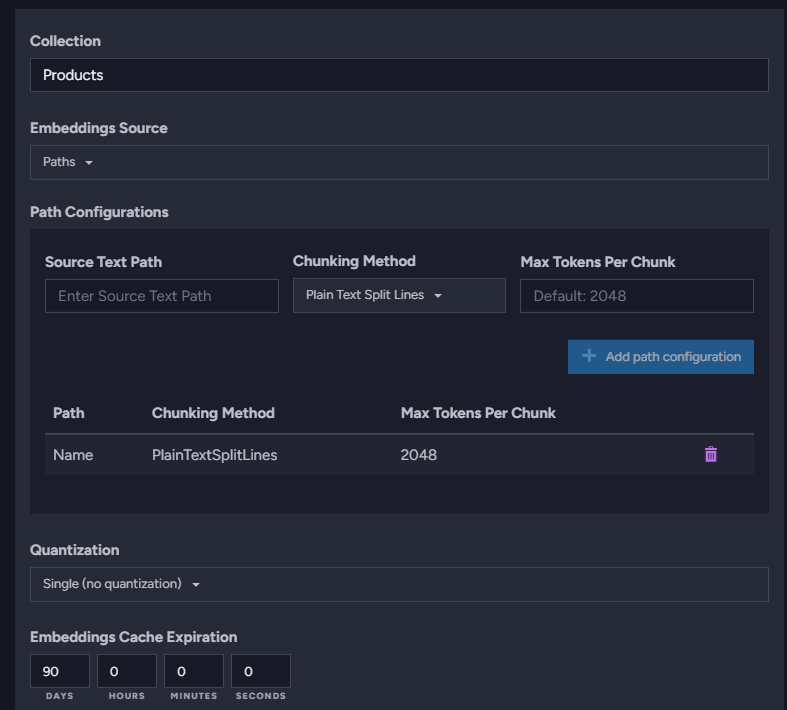
Now, we will be able to query RavenDB, like we’d use a regular search feature.
Let’s dive into the application code.
Creating a new Next.js app
To create a new application with Next.js, navigate to your directory and open the console. Then you can use the following command to create a new app:
npx create-next-app@latest yet-another-one --typescriptNow, you can either write your own application or simply copy it from our repository. As we mentioned earlier, we will need the parameter q. It is created in search-input.tsx file, and that’s also the location of our search bar that is connected to this parameter as state. As mentioned before, it changes the URL and allows for search in other parts of the app. This search input is from the React library, and in our app, it looks like this:
  export function SearchInput() {
      const router = useRouter();
      const searchParams = useSearchParams();
      const [queryState, setQueryState] = useState(searchParams.get("q") || "");

      useEffect(() => {
          const params = new URLSearchParams(searchParams.toString());

          if (queryState) {
              params.set("q", queryState);
          } else {
              params.delete("q");
          }

          router.replace(`?${params.toString()}`);
      }, [queryState]);

      function handleSearch(term: string) {
          setQueryState(term);
      }
Connecting RavenDB and your app
Remember to install the Node.js RavenDB SDK in your project using:
npm install --save ravendbWe made a separate file where we set up DocumentStore, connecting us to the database:
  import {
      DocumentStore,
      GetDatabaseNamesOperation,
      CreateDatabaseOperation
  } from "ravendb";

  const databaseName = "my-product-search-app";
  const store = new DocumentStore("http://127.0.0.1:8080", databaseName);
  store.conventions.disableTopologyUpdates = true;
  store.initialize();

  export { store };
Remember to adjust the database name to your needs.
App core
Let’s move to the `page.tsx` file, the heart of your app, which defines your UI and parts of your app’s logic. Here, we’re running a vector search query. Here’s the part of the code responsible for that:
export default async function Home({searchParams}: {searchParams: { [key: string]: string | string[] | undefined }})
  {
      const searchTerm = typeof searchParams.q === "string" ? searchParams.q : "";

      const session = store.openSession();

      let products: Product[];

      if (searchTerm) {
          const rawQuery = `
              from Products
              where vector.search(embedding.text(Name, ai.task('openai-large')), $searchTerm, 0.60)
          `;

          products = await session.advanced
              .rawQuery<Product>(rawQuery)
              .addParameter("searchTerm", searchTerm)
              .waitForNonStaleResults()
              .all();
      } else {
          products = await session
              .query<Product>({ collection: "Products" })
              .all();
      }
  }
The ‘Home’ method will render the main page. Inside, we read our `q` state from the URL parameters (using ‘searchParams’ argument).
After extracting the text from the search bar by accessing the URL parameter, we would like to query for that – we open a RavenDB session and query using vector search, using a ‘rawQuery’ feature that allows sending our query language, RQL, to the server.
Querying the database
This piece of code is on a page.tsx file and will be rerendered every time the parameter q changes. The query itself is defined here:
      if (searchTerm) {
          const rawQuery = `
              from Products
              where vector.search(embedding.text(Name, ai.task('openai-large')), $searchTerm, 0.60)
          `;
That’s it, easy right?
Results
Let’s see what we can do with that. First, let’s check if our q changes and appears where it should. Put anything you want in the search bar, and we will look for ‘coffee’.
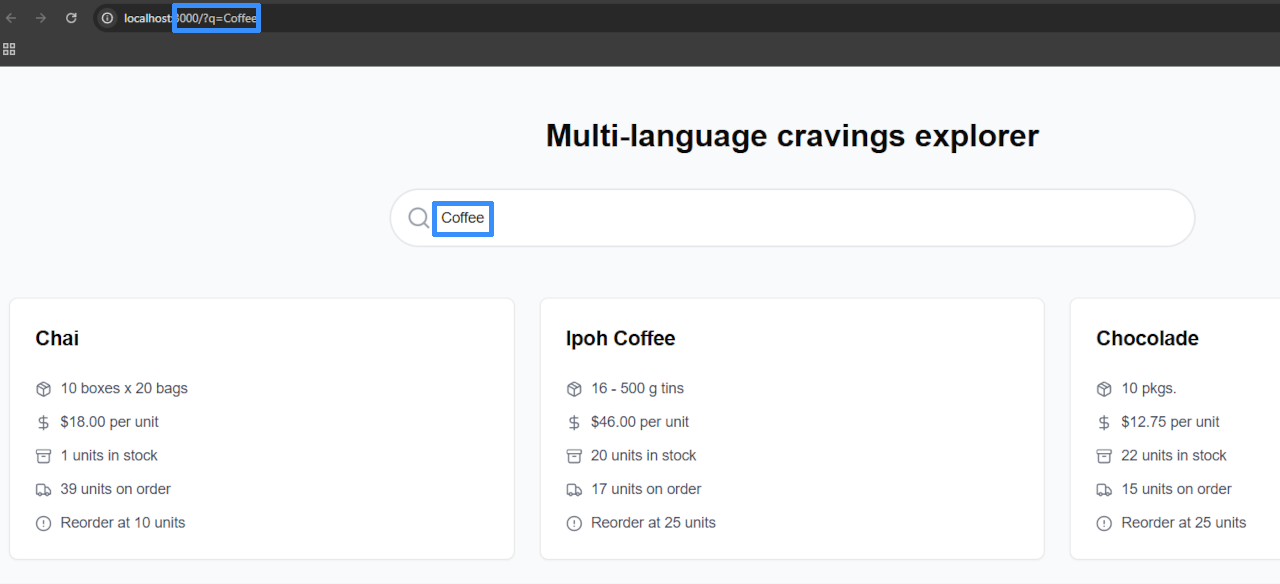
As you can see on the URL bar, our parameter is present and responding to changes in our search bar. It even found things similar to coffee, such as tea that you may prefer, and chocolate that you can enjoy during a coffee break with your friends.
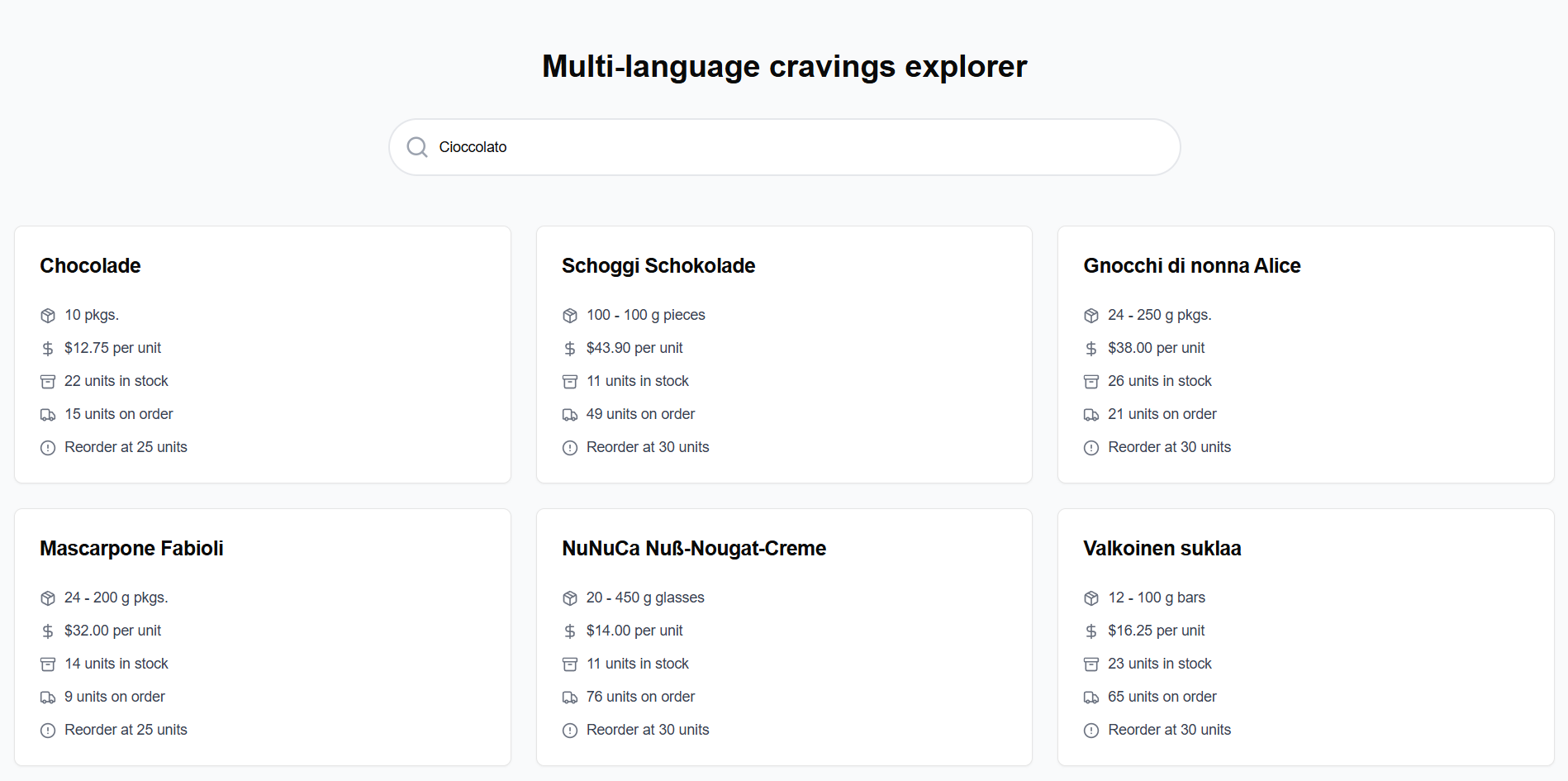
Now let’s try to do it in a different language. Let’s try looking for chocolate, but in Italian. We get the following results:
We can also search for less obvious items. Let’s say we want to eat ‘Something soft for dinner’. What weird results will AI come up with?
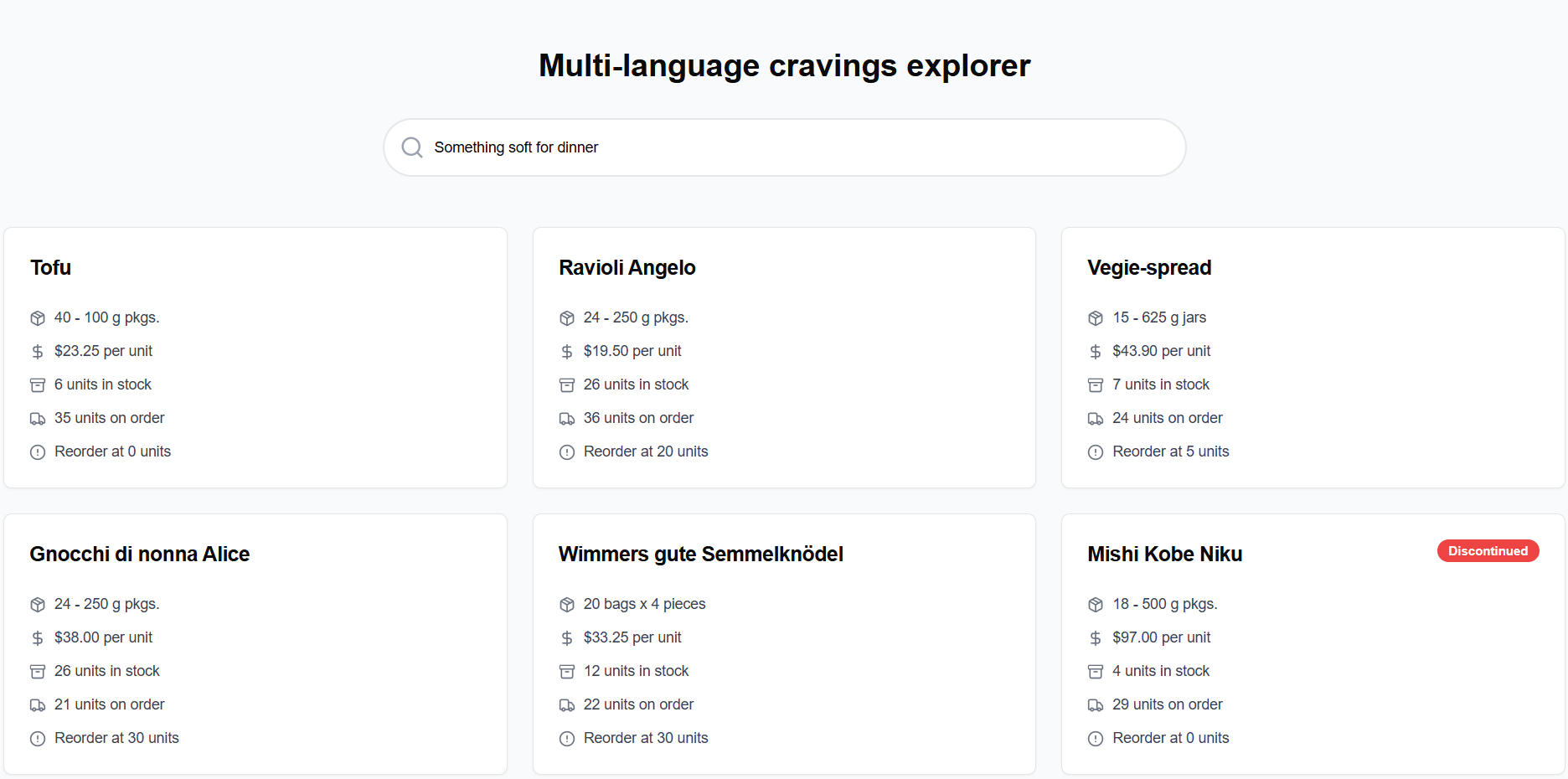
What is best is that they make sense in different ways, and if we are unsatisfied with the results, we can go back to the query and tune it a bit until it works perfectly for us.
Summary
Easy right? If you want to read more about AI Integration, check out this article.
Check out our Discord server to discuss it with us on #ravendb and meet other devs, including the RavenDB Core Team. See you there! 🍻
Frequently Asked Questions
How does RavenDB simplify the implementation of AI search?
RavenDB handles the embedding generation and connection logic entirely on the database side. By using an AI Task, it manages everything for you, making AI search almost like using a regular search API without the headaches related to manual AI integration.
How do I prepare my RavenDB database to support AI search?
In RavenDB 7.0.1+, you simply go to the AI Hub and create an AI connection string with your API key (such as for OpenAI). Then, you create an AI Task that points to your chosen collection and field, like the ‘Name’ field in your ‘Products’ collection.
Can this AI search handle multiple languages or abstract concepts?
Yes, because AI search relies on vector embeddings that capture “meaning,” you can search using different languages (such as searching for chocolate in Italian) or even abstract phrases (like “Something soft for dinner”) and still receive highly relevant product results.
Woah, already finished? 🤯
If you found the article interesting, don’t miss a chance to try our database solution – totally for free!