Highlights
- Use RavenDB GenAI to automate reasoning-based tasks directly inside the database.
- Control exactly what document data is sent to the AI model with ai.genContext.
- Prevent repeated AI processing with built-in GenAI hashes that track already processed content.
RavenDB’s mission has been clear since the very beginning: to take the hard work off your shoulders and let you focus on your application (instead of worrying about the database).
With RavenDB 7.1, we introduce the GenAI feature. For the first time in history, we can extend our mission outside the data layer to simplify your processes, let you skip the manual work, and focus on things that matter to you most instead.
In many industries, there are cases of spending hours on boring manual tasks to keep everything working. We want to give you more tools that will allow you to drop those, letting you and your team focus on growing.
GenAI feature helps implement solutions for tasks requiring reasoning. This easy-to-set-up integration will make your work easier and faster — just connect to your chosen AI operator and let RavenDB handle all the logistics for you.
What’s that?
GenAI isn’t just an AI connector. It’s a whole process that comes with a ready-to-use template. It reads, processes, and updates your documents in an automated and intelligent manner. Connection is easy, tasks lead you step by step, and generated hashes guard from processing the same document. We cover all the logistics of shipping AI capabilities to your database.
This way, you don’t need to use AI manually, nor prepare your pipelines to route the data flow. With GenAI, you can focus on more important stuff than data logistics.
What can it do?
You know that ChatGPT can flag comments as spam or unsafe, but going from pasting “is this spam?” in the browser to have it do that for all new comments from now on is a huge task, even with the AI. RavenDB Gen AI Integration allows you to automate that task, so you get a moderator for free. We’ll show you how easy it is to implement that in this article.
Similarly, you might have many support tickets waiting to be resolved. Some might be urgent, and some might have a lower priority. While you could sit down with ChatGPT to manually assess and prioritize each one, there’s a better way. Using RavenDB paired with Gen AI Integration, this task can be automated easily with one ongoing task. This way, you’ll always have your tickets prioritized by default, with the configured GenAI handling that.
We can give you many more examples of where leveraging generative AI on your data would be really useful. The limiting factor is just the ergonomics of actually building these sorts of pipelines.
Your imagination in solving these problems is the only limit here. Let’s try to implement that sort of behavior.
Connecting the LLM
First, we need LLM to do the “reasoning” part of this solution. We will use OpenAI, but you can use whatever you have (e.g., Mistral, Gemini, Ollama). Let’s create an AI Connection String to LLM.
You might be familiar with this if you’ve set up AI Integration before (article). To set this up, you need to:
1. Enter the new ‘AI hub’ section in your database. Go to the AI connection string option and create a new connection string.
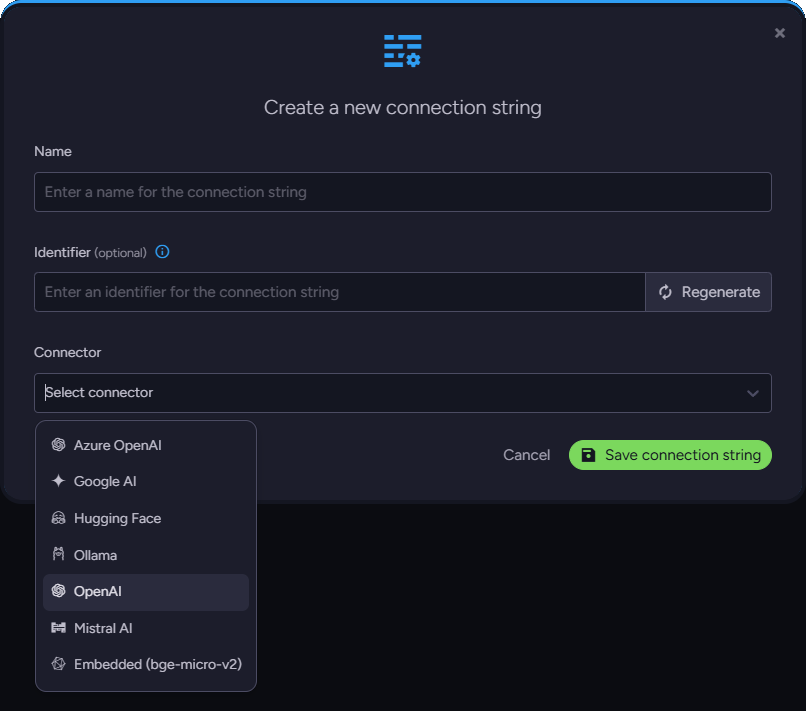
2. Name it, then select OpenAI and paste your API key taken from your OpenAI account.
3. Select ‘gpt-4o-mini’ model, optionally test the connection, and then save it.
4. Then you must go into an ‘AI task’ section and create a new GenAI task.
GenAI setup
Now, let’s talk about our example, which we will try to fix. As mentioned earlier, we will use spam detection as an example. We will create a simple GenAI task that will scan our posts looking for spam and block it without the need for real human actions.
|
Remember that every response from LLM requires tokens, so be aware of your system. Errors in your applications might be expensive. RavenDB reduces this risk by adding hashes that prevent repetitive processing, but the danger still exists. |
|---|
Step 1
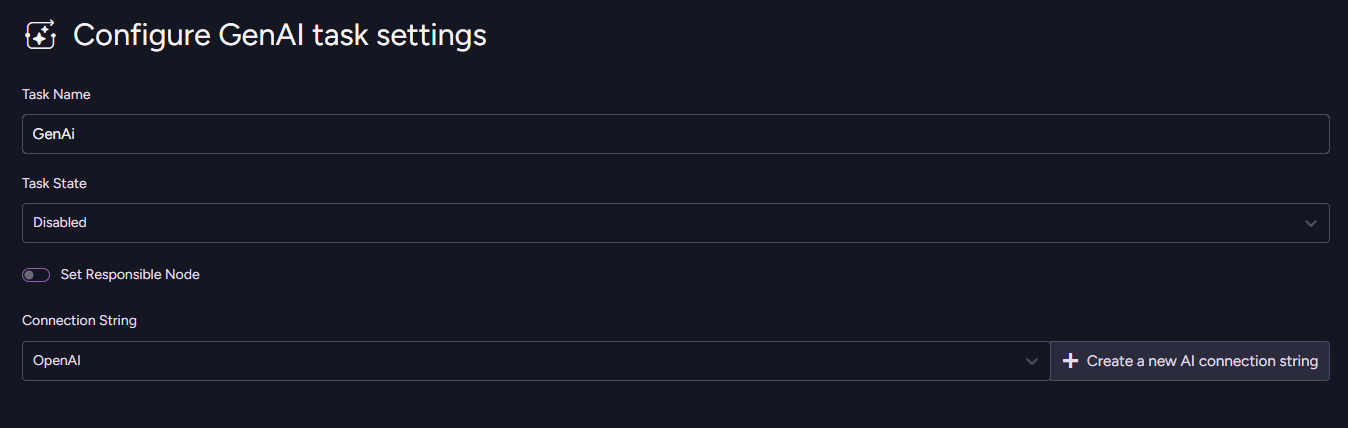
Select a name and choose the connection string we connected in the GenAI task. After selecting that, press ‘Next’.
Step 2
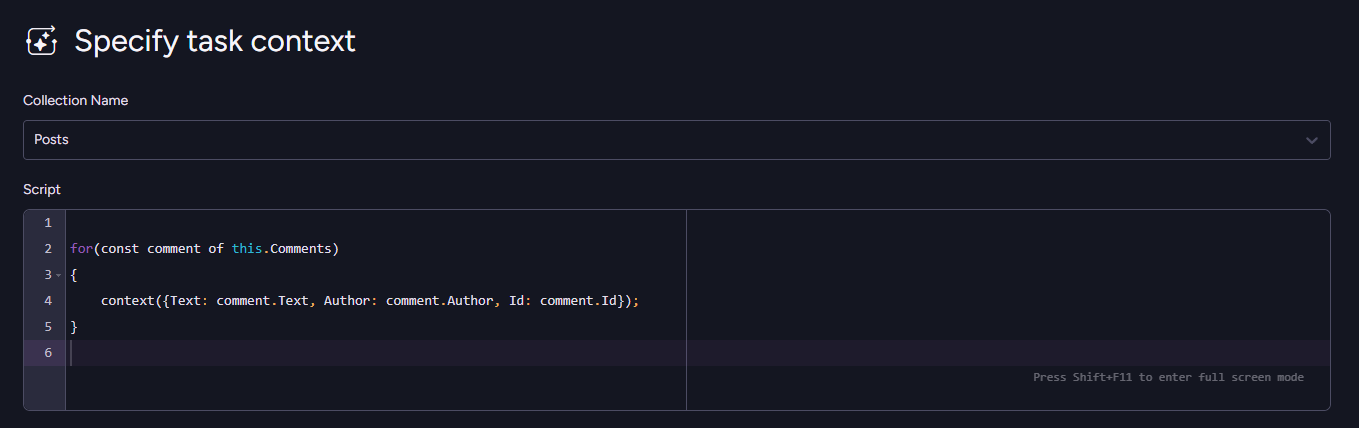
Select the collection at the top and then prepare your script. This is the place where you select which parts of the document you want AI to operate on.
In the script, we’ll need to use a new and very important ai.genContext function.
For a document like this
  {
      "Title": "I, pencil",
      "Body": "A B52 pencil...",
      "Comments": [
          {
              "Text": "Probably... That piece of code was written (and never looked at) in 2017, IIRC It wasn't a real issue (since it is cached) except for this particular scenario.",
              "Author": "Ghy",
              "Id": "b19035ed-0770-4449-8cc7-8fcfd1e68a20"
          },
  	  {
              "Text": "Join my stream now. Greatest giveaway ever!",
              "Author": "Aldrun",
              "Id": "g192145ed-0770-3567-8cc2-8fcfd1e68a20"
          }
      ],

      "@metadata": {
          "@collection": "Posts"
      }
  }
We will use the script below:
  for(const comment of this.Comments)
  {
      context({Text: comment.Text, Author: comment.Author, Id: comment.Id});
  }
The “ai.genContext” function sends information to the AI model. It was designed so you can select exactly what data will be sent to AI, allowing it to receive only the most relevant fields. This saves tokens and helps AI focus on what’s important. It also ensures that you are in control over what the AI model can see.
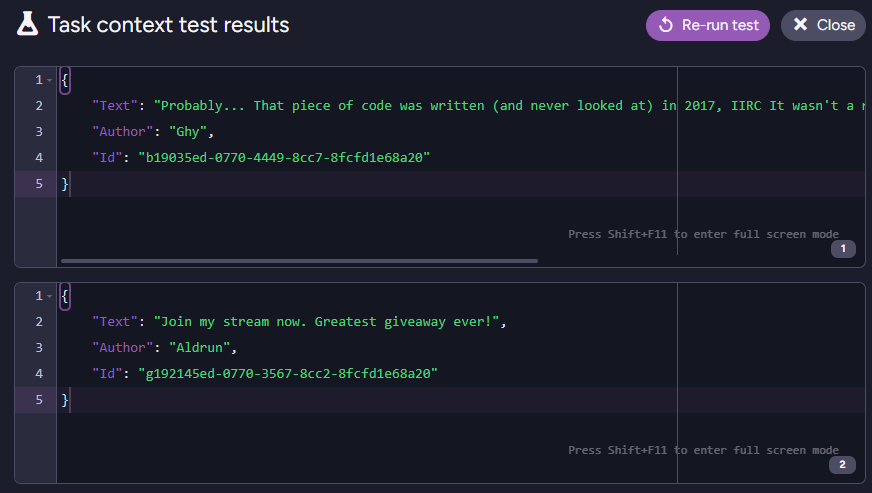
This script will take Text, Author, and Id from every comment. To test the script you’ve prepared, select your document in the ” Playground ” bottom window. Test results should appear on the right bar. After you’re sure it works, proceed by pressing ‘Next’.
Step 3
Now you need to tell what you want LLM to do and what response you expect. In the prompt window, we can put simple text. In our case, we will use:
Check if the following blog post comment is spam or not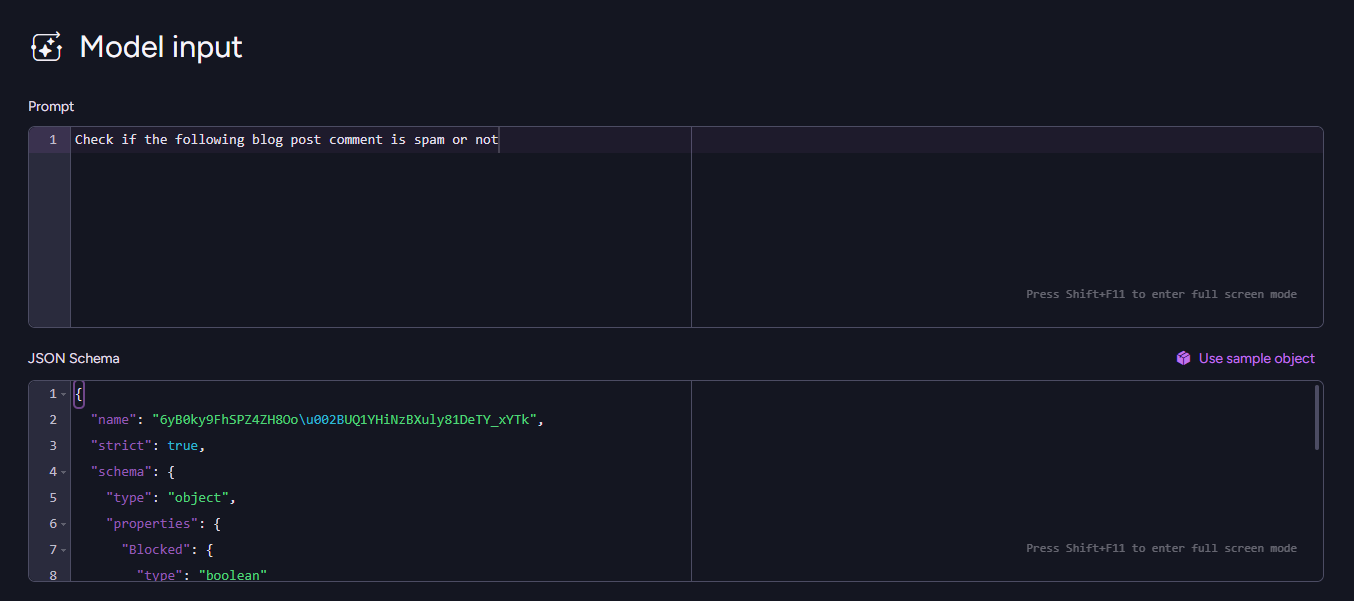
Then, in the lower window, you must choose what form AI should respond with. You can provide a sample object or manually create a JSON schema. A sample object is an easier and more natural way to explain your AI operator in the form you expect it to respond with while JSON schema is a more precise, but more demanding way to do it.
Sample object we can use
  {
     "Blocked":true,
     "Reason":"Concise reason for why this comment was marked as spam or not"
  }
The JSON Schema we can use
  {
    "name": "6yB0ky9FhSPZ4ZH8Oo\u002BUQ1YHiNzBXuly81DeTY_xYTk",
    "strict": true,
    "schema": {
      "type": "object",
      "properties": {
        "Blocked": {
          "type": "boolean"
        },
        "Reason": {
          "type": "string",
          "description": "Concise reason for why this comment was marked as spam or not"
        }
      },
      "required": [
        "Blocked",
        "Reason"
      ],
      "additionalProperties": false
    }
  }
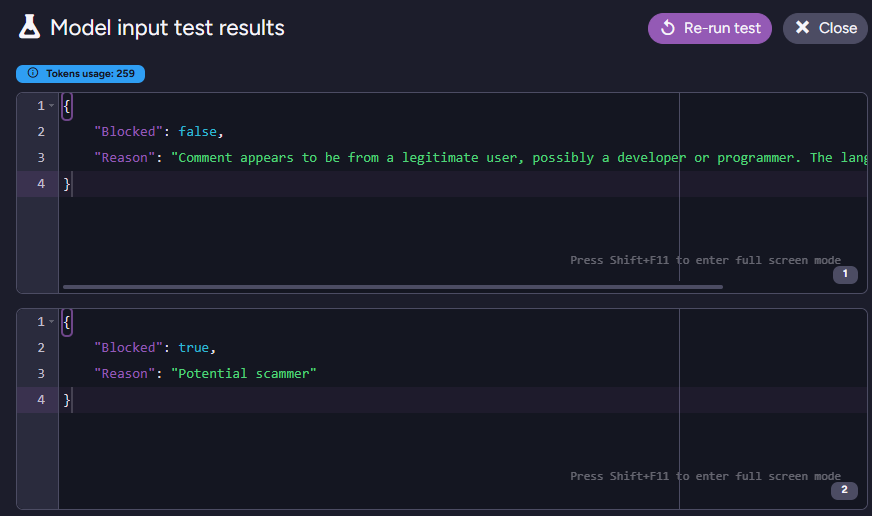
Like all other steps, you can test it, and in response, you will get what LLM generated for you. In our example, it will be whether it was blocked and the reason.
Step 4
Last step in configuration is telling RavenDB what you want to do with the response. We will use an update script that will change our files by deleting the spam comments.
  if($output.Blocked === false)
       return; // nothing to do

  const idx = this.Comments.findIndex(c => c.Id == $input.Id);

  // Comment with given Id couldn't be found in the processed post document
  if (idx == -1)
  	return;

  this.Comments.splice(idx, 1); // remove
This will take the ‘Id’ from $input ($input being what we give to ai.genContext()), find this document, and remove this comment from the array if $output (our LLM’s response) contained ‘Blocked: true’.
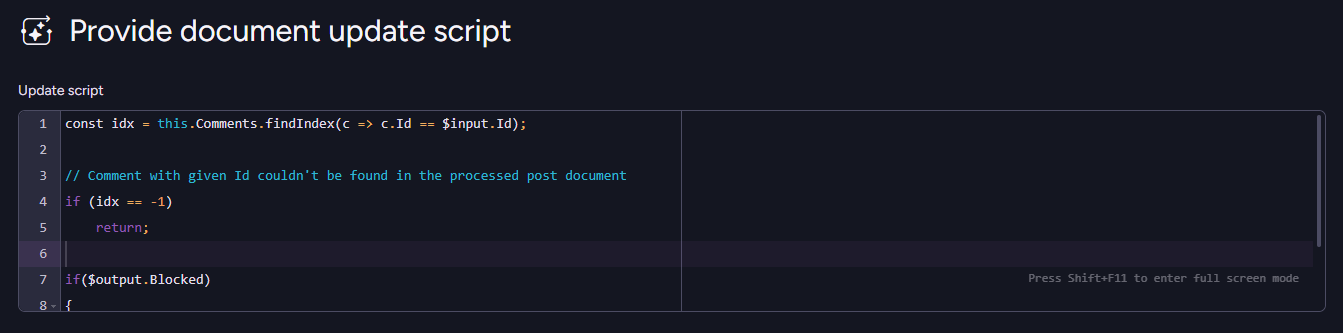
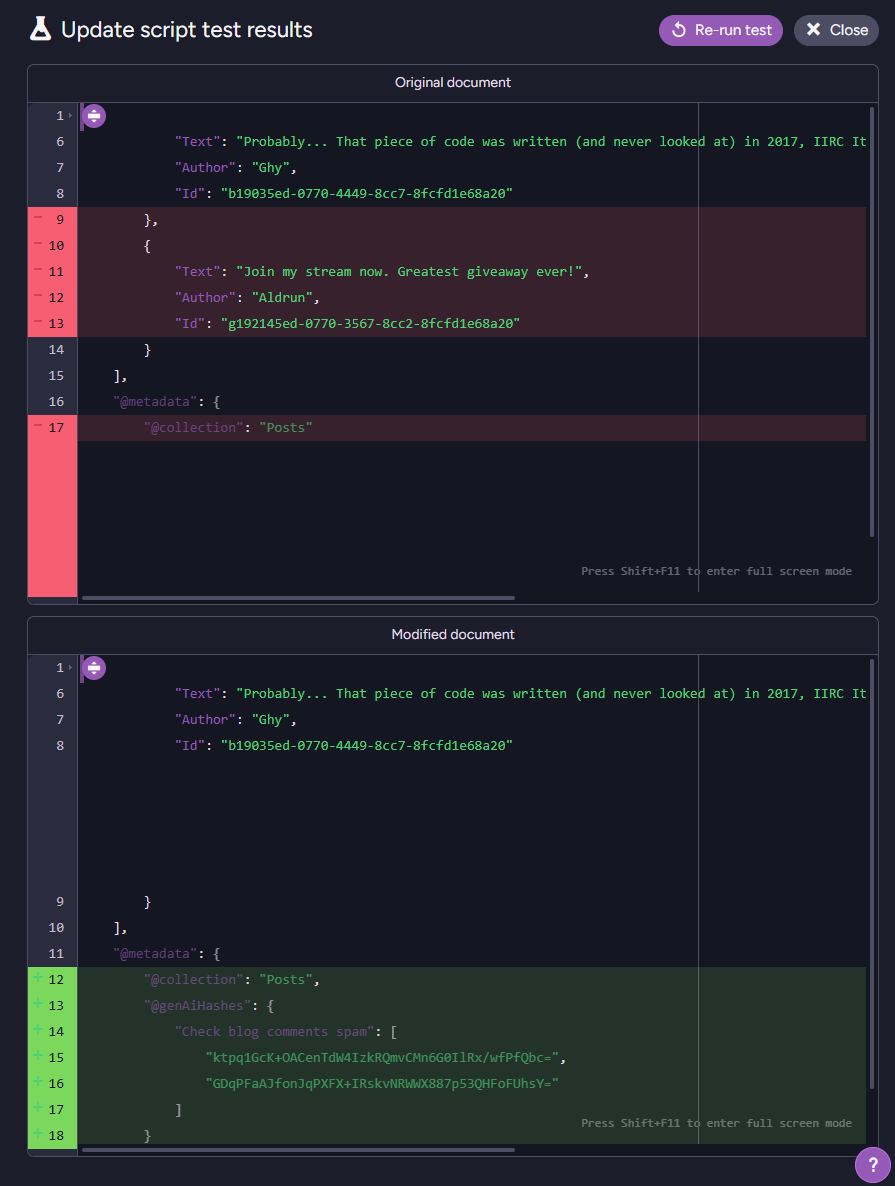
You can test again to see the results. You may have noticed that a part called @genAIHashes was added to the document metadata. Those hashes exist so your RavenDB will not let the model process the same data repeatedly; it will simply skip those that were already processed.
Step 5
The last step is checking the summary of your task to ensure everything is fine.
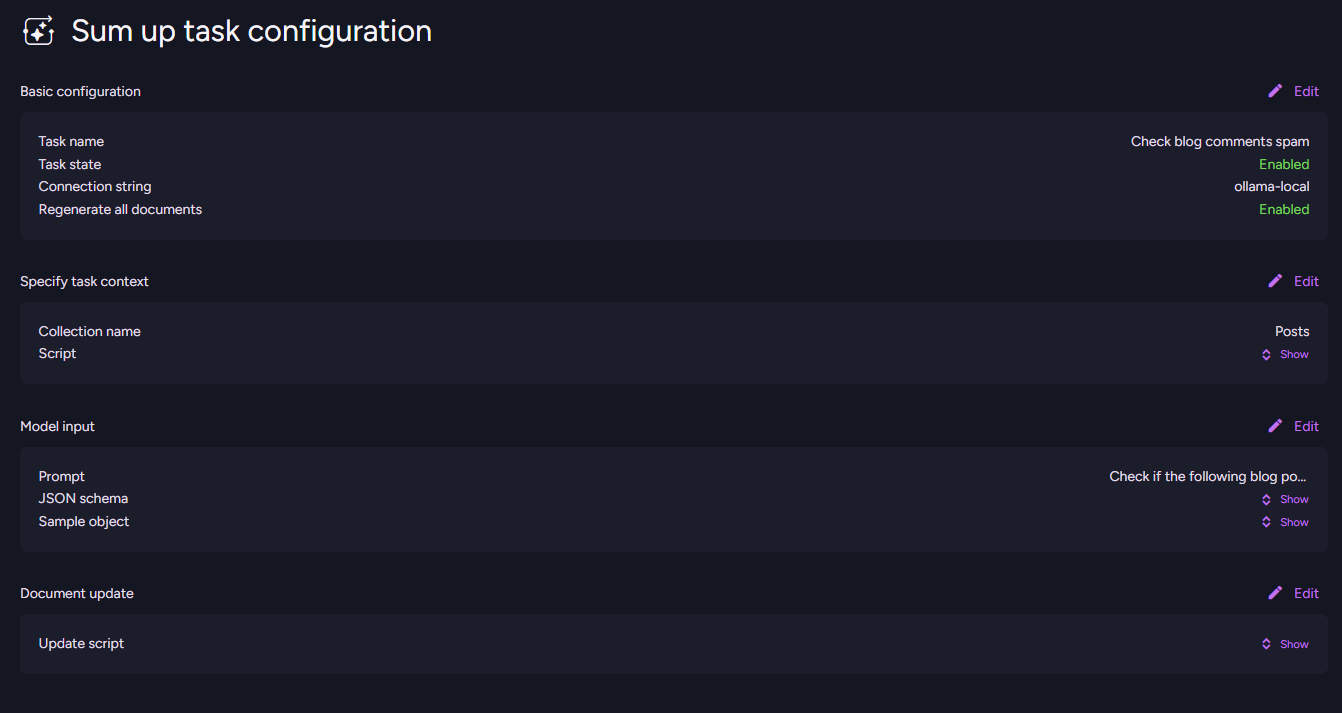
That way, we created a simple task to automatically clear comments from spam. If you do not trust AI enough, you can always change the script from step 4 to flag potential spam to speed up moderation. Now you choose how much you want to do manually, instead of being forced to do all of it.
Summary
As you can see, this is an easy way to reduce the necessary manual work to the degree you desire. Because setup is swift and not complicated, you can experiment to find the best solution for your own problems, and the playground will allow you to make sure your results are accurate.
Please look into our GitHub discussions or Discord server if you have questions about this or other features.
FAQs
What is the main goal of the GenAI feature introduced in RavenDB 7.1?
The GenAI feature is designed to automate manual data tasks that require reasoning, such as flagging spam comments or prioritizing support tickets. It allows your team to focus on growing the application instead of performing boring manual work.
Do I need to build complex pipelines to connect my data to an AI model?
No, RavenDB handles all the AI data logistics for you out of the box. It provides a ready-to-use template that automatically reads, processes, and updates your documents. This means you don’t need to manually route data flows or write complex connection code.
How do I control what data gets sent to the AI to save on token costs?
You can use the ai.gen Context function in your task script to explicitly select only the relevant document fields you want the AI to see. By sending only essential data (like a comment’s text and author), you save on expensive tokens and help the AI focus on what is important.
Woah, already finished? 🤯
If you found the article interesting, don’t miss a chance to try our database solution – totally for free!