Master RavenDB: Projections & Performance
When working with larger data models, you might not be interested in the whole document. If you want to select a few specific fields, you can use projections. Projections are a flexible and high-performance tool that allows you to choose a few fields without fetching the full document. Let’s take a look at projections and learn how they work.
Highlights
- Use projections to return only selected fields instead of loading full documents.
- Store projection fields in static indexes when you need faster reads.
- Choose projection behavior to control whether RavenDB reads from the index or document.
How projections work
Using projections doesn’t require any setup; you can use them immediately. When creating a query, instead of using the standard method, use the ‘select’ keyword to display only specific fields. For example:
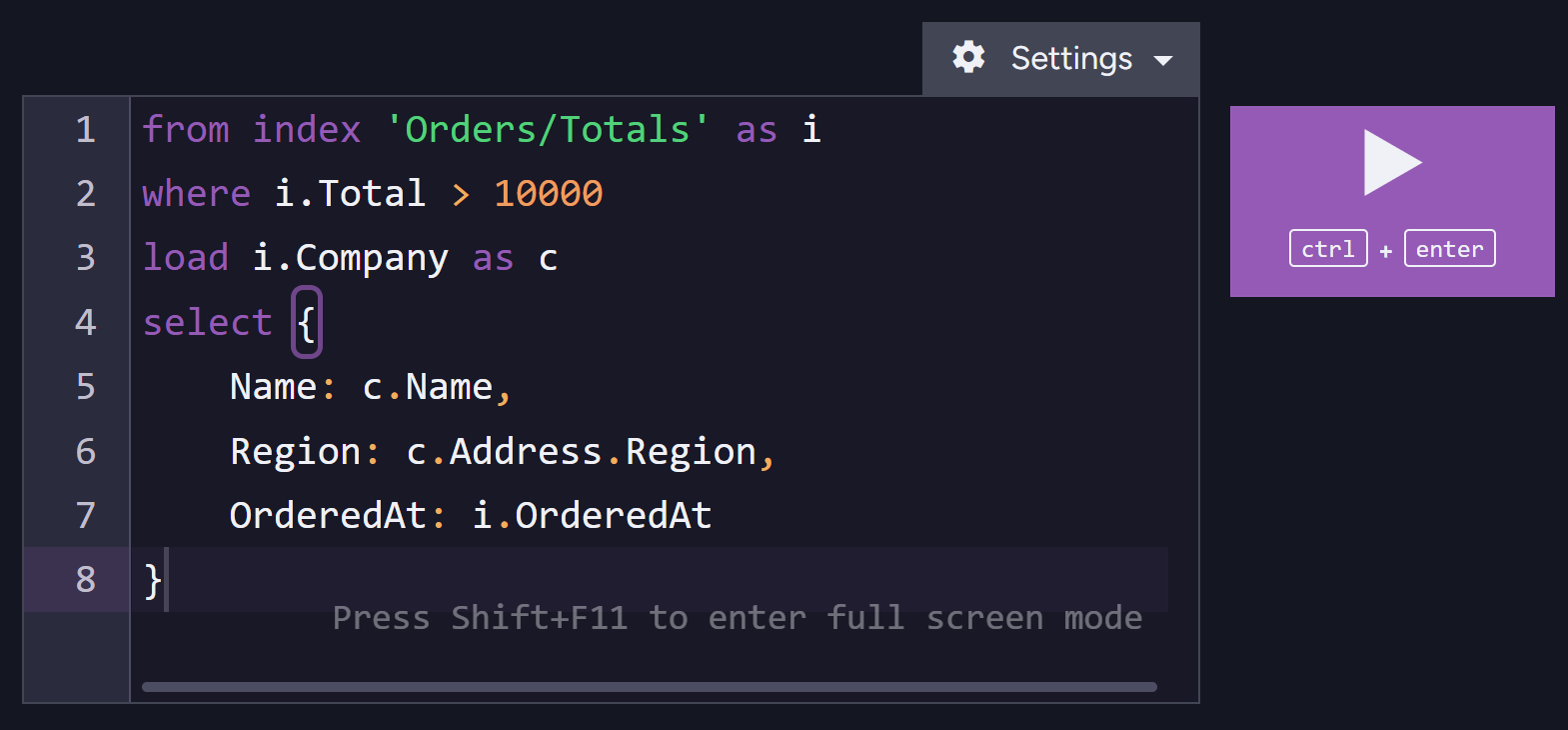
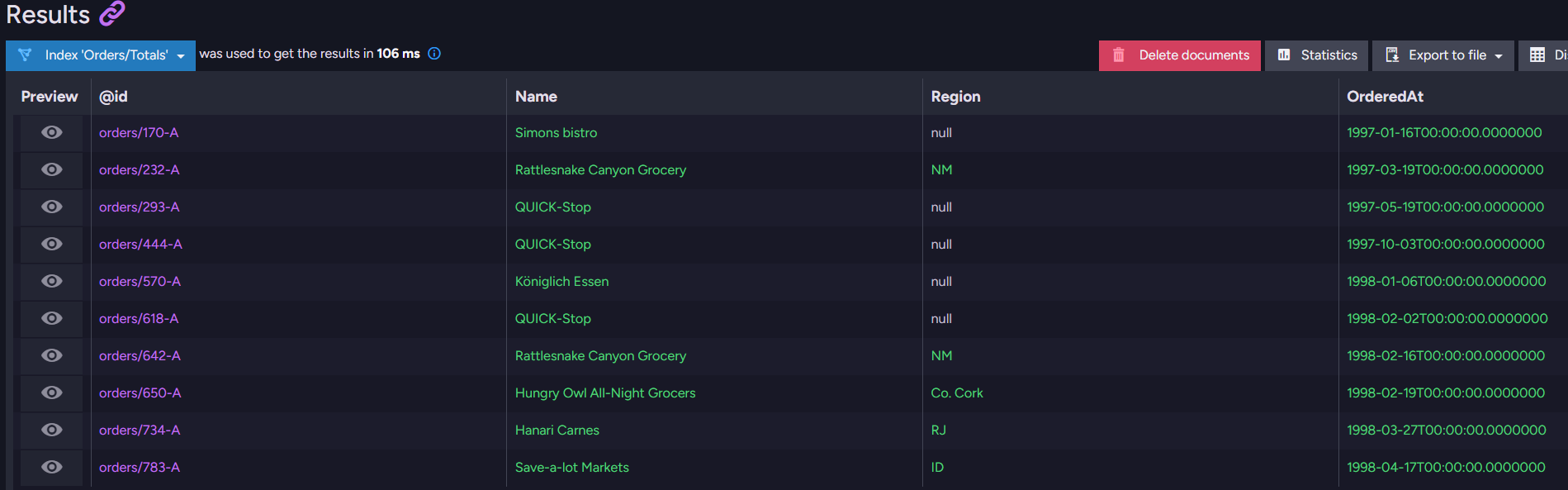
As you can see, the query returned only selected fields. It is worth noting that projections are the last step in making a query. They are applied after all has been processed, filtered, sorted, and paged. This allows projections to be created only from results, not from all unfiltered documents, saving a lot of performance and letting you filter out unnecessary data. But how does it work, and what can we set up? Let’s dive in and see what we can learn.
Behind the curtain
One crucial fact about projections is that they, by default, do not originate from indexes. By default, queries do not return indexed data directly as query results; they use them to find documents faster, and then they work directly with documents, returning the whole file. This approach ensures that all data remains accessible to the user.
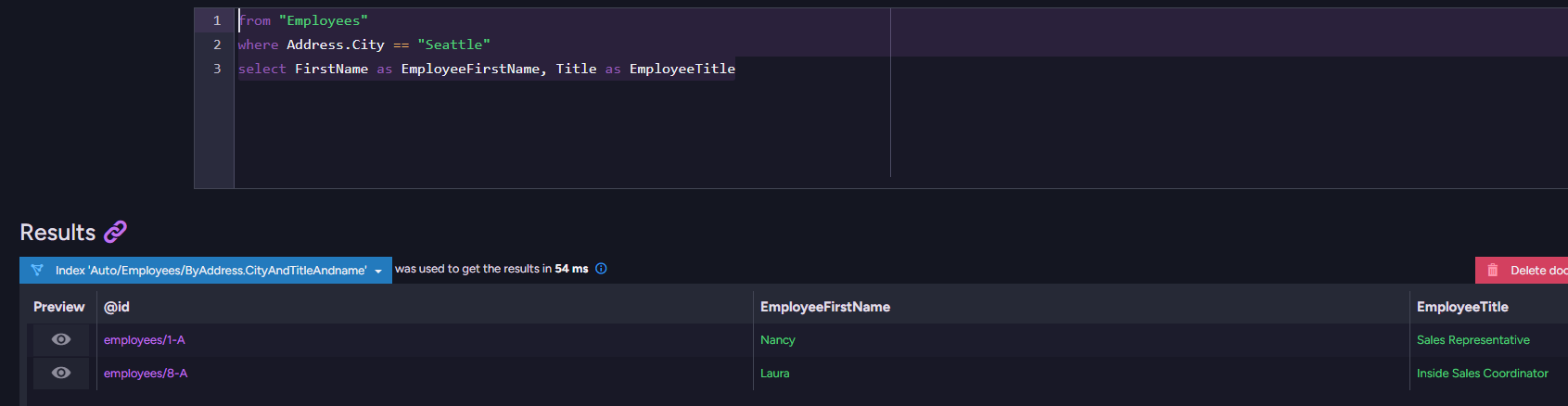
Because we work with whole documents, not only indexed fields, we can query using different fields that you select, not just the fields that are part of the index. The index should contain only the fields that you care about when filtering or searching the data. Once RavenDB finds index entries that match your criteria, it fetches the documents that these entries represent, where you have all document fields. That might not be so obvious for people still learning RavenDB. For example, a query like this:
  from index "EmployeesIndex"
  where Address_City == "Seattle"
Will initially work on an index with entries that contain only the document ID and “City” field, so you won’t make a full table scan while searching for correct documents matching the query. Index looking like this:
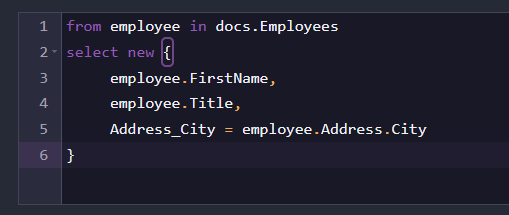
After obtaining the IDs of matching documents, by default, the context moves to the documents, letting you choose different fields from it. For example:
select FirstName as EmployeeFirstName, Title as EmployeeTitleAnd it will still return our data because RavenDB retrieves it from the document, not the index entries.
Some users often get confused about the fact that fields do not come from the index.
This confusion arises because when you query an index, it seems intuitive to assume that all the data returned comes directly from the index entries themselves. But in reality, the index just helps locate which documents match the query faster; the complete data is still stored and loaded from the documents in the database by default.
That doesn’t mean you can’t retrieve data directly from the index. In fact, it’s usually faster to do so, and this behavior can be configured – more on that in the behavior section of this article. The trade-off is that storing data in the index can increase its size, and if done wrong, slow down performance. In short, you can choose between faster reads from the index or reading data from the document itself without increasing the index size. To get those fields from index, you need to store your fields.
Storing projection fields in the index
There will be cases when you need an index that allows you to query your data as quickly as possible, but on the other hand, there will also be cases when you want your index to be as lightweight as possible (e.g., IoT).
Storing projection fields in the index will increase the index size, but shorten the time to get your projected results. To achieve this, you need to use a static index to gain complete control over it. You can set that either in the studio or in code.
In code, you just use Stores.Add after fields. For example:
  public class Employees_ByFirstAndLastName : AbstractIndexCreationTask<Employee>
  {
      public Employees_ByFirstAndLastName()
      {
          Map = employees => from employee in employees
                             select new
                             {
                                 employee.FirstName,
                                 employee.LastName
                             };
          Stores.Add(x => x.FirstName, FieldStorage.Yes);
          Stores.Add(x => x.LastName, FieldStorage.Yes);
      }
  }
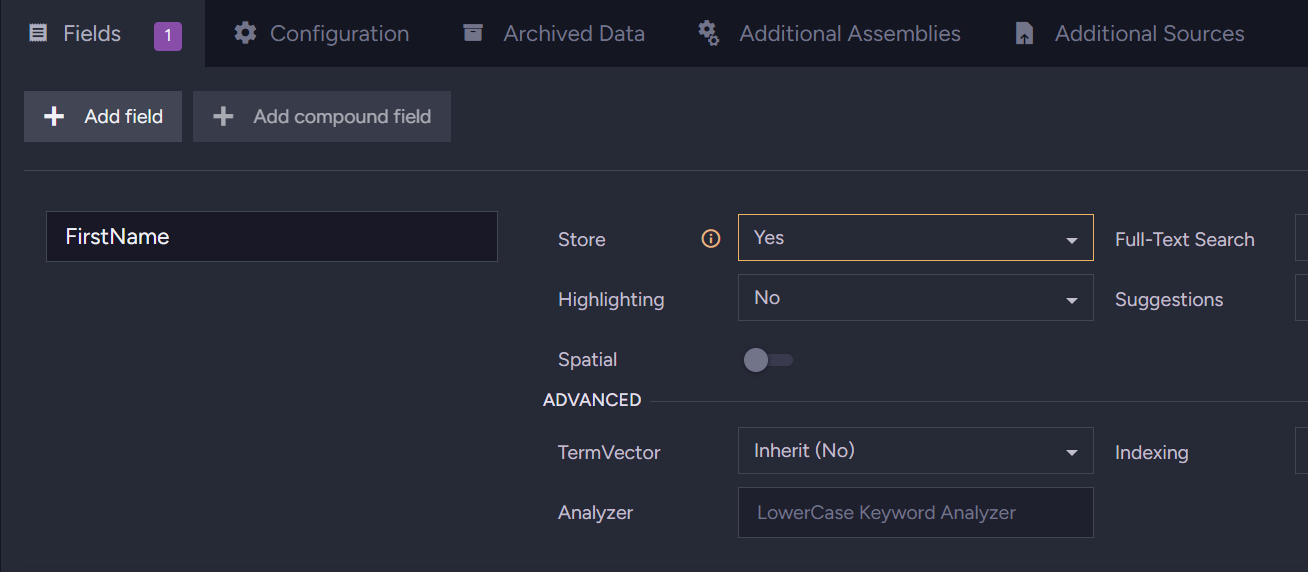
You can also use our Studio. Go to your index and at the bottom, add a field. Specify which fields you want to store:
Storing computed values for projections
You can use stored computed values in your index to get those in your projection in a query. For example, let’s say your index puts together FirstName and LastName into one field called FullName.
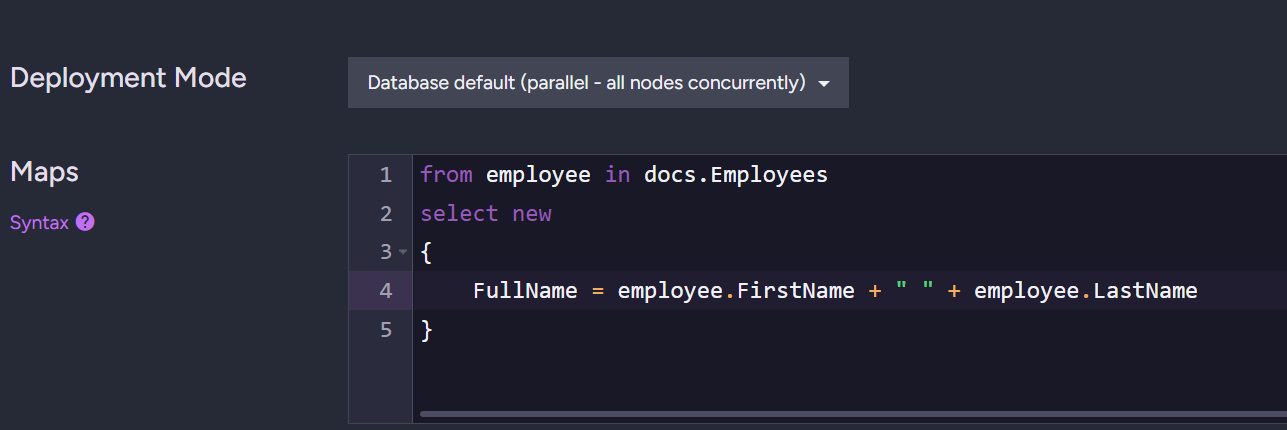
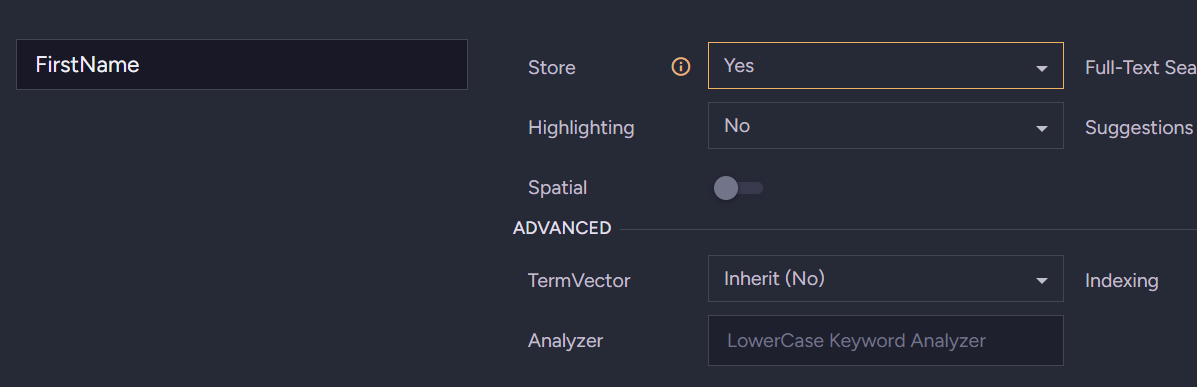
If you want to retrieve the ready-made FullName when querying, you simply need to store it in the index as mentioned above.
Projections Behavior
You can customize how projection queries to this index are handled by adjusting the projection behavior in the top-right settings of your query menu. This lets you control whether results are pulled directly from the index or include data from the associated documents.
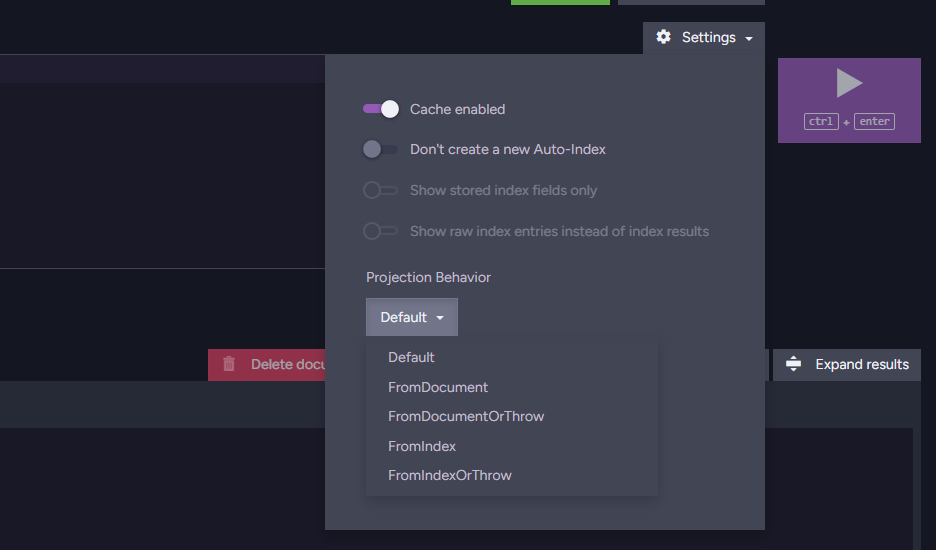
Or, in code, it can be done as shown in this example.
  var projectedResults = session
      .Query<Employees_ByNameAndTitleWithStoredFields.IndexEntry,
          Employees_ByNameAndTitleWithStoredFields>()
       // Call 'Customize'
       // Pass the requested projection behavior to the 'Projection' method
      .Customize(x => x.Projection(ProjectionBehavior.FromIndexOrThrow))
       // Select the fields that will be returned by the projection
      .Select(x => new EmployeeDetails
      {
          FirstName = x.FirstName,
          Title = x.Title
      })
      .ToList();
For more information, please visit here.
Projection Behavior options
Default
- Retrieve values from the stored index fields when available.
- If fields are not stored, then get values from the document; a field that is not found in the document is skipped.
FromIndex
- Retrieve values from the stored index fields when available.
- A field that is not stored in the index is skipped.
FromIndexOrThrow
- Retrieve values from the stored index fields when available.
- An exception is thrown if the index does not store the requested field.
FromDocument
- Retrieve values directly from the documents.
- A field that is not found in the document is skipped.
FromDocumentOrThrow
- Retrieve values directly from the documents store.
- An exception is thrown if the document does not contain the requested field.
If you want to learn how to do it in code, check our documentation here.
Fetching nested fields from the index in the code
If you’re storing a nested field (e.g., Address.City) in your static index, and want to use projection to fetch it. For example, index like this:
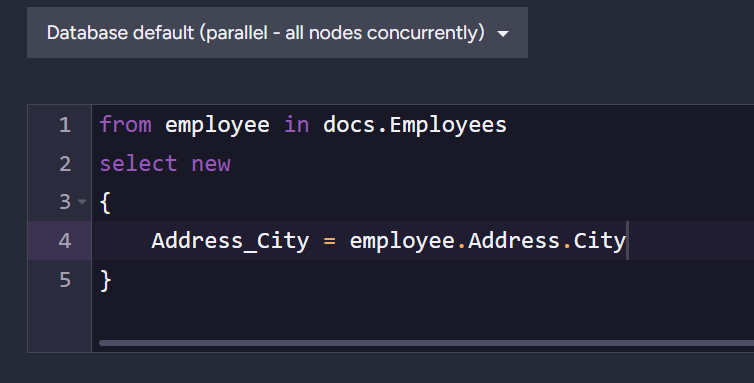
Typically, when using nested fields, we divide parts of field names with underscores (_). We need the same type in fields on the client side. For example, Address.City in your document might be stored as Address_City in the index. This difference can cause issues when projecting fields.
To handle this, you can use a convention to automatically translate property names when querying. By default, static indexes replace dots (.) in nested field names with underscores (_). You set this convention when initializing your DocumentStore. Use this convention to customize this:
store.Conventions.FindPropertyNameForIndex = (indexedType, indexName, path, prop) =>
      (path + prop).Replace(",", "_").Replace(".", "_"),
This ensures your application’s projection paths match how fields are stored in your static indexes.
Summary
In summary, projections are a simple way to get only the fields you need, but the performance technicalities may not be the simplest. Projection performance is configurable in many ways, offering a range of options tailored to your specific development needs.
If you want to learn more about projections, ask some questions, or chat with us, select our Discord community server and come talk with our core team and community. See you in the chat!
FAQs
What are projections in RavenDB, and why should I use them?
Projections are a flexible, high-performance tool that allows you to select and retrieve only specific fields from your data model instead of fetching the entire document. This allows you to filter out unnecessary data and save performance.
At what stage of a query are projections applied?
Projections are the last step in making a query. They are applied only after all the data has been processed, filtered, sorted, and paged, which ensures they are created from your specific results rather than all unfiltered documents.
Do projected fields come directly from my indexes by default?
No. By default, queries use indexes to find matching documents faster, but they retrieve the actual projection fields directly from the full documents. This is a common point of confusion, but it ensures all data remains accessible even if it isn’t explicitly indexed.
Woah, already finished? 🤯
If you found the article interesting, don’t miss a chance to try our database solution – totally for free!