Set up RavenDB Server using AWS Marketplace
Highlights
- Launch RavenDB fast using AWS Marketplace with full control over your environment
- Secure your instance by limiting inbound rules to your IP during setup
- Use SSH port forwarding to connect locally to your RavenDB server
There are many ways to run and manage RavenDB. Every one of them has different characteristics and might be perfect for you depending on your needs. In this guide, we’ll focus specifically on how to run RavenDB using AWS Marketplace. This approach is ideal if you already rely on AWS services and want more control over the servers that run your database.
What is AWS?
With AWS Marketplace, you can quickly provision RavenDB on cloud servers hosted in AWS. You select the instance type, configure your environment, and bring your own RavenDB license. AWS will take care of managing its servers and network.
With this guide, we will walk you through getting started with your instance on AWS Marketplace and the options available to you.
Prerequisites
Before we begin, make sure you have:
- AWS account
- RavenDB license, you can get on our page
Setup
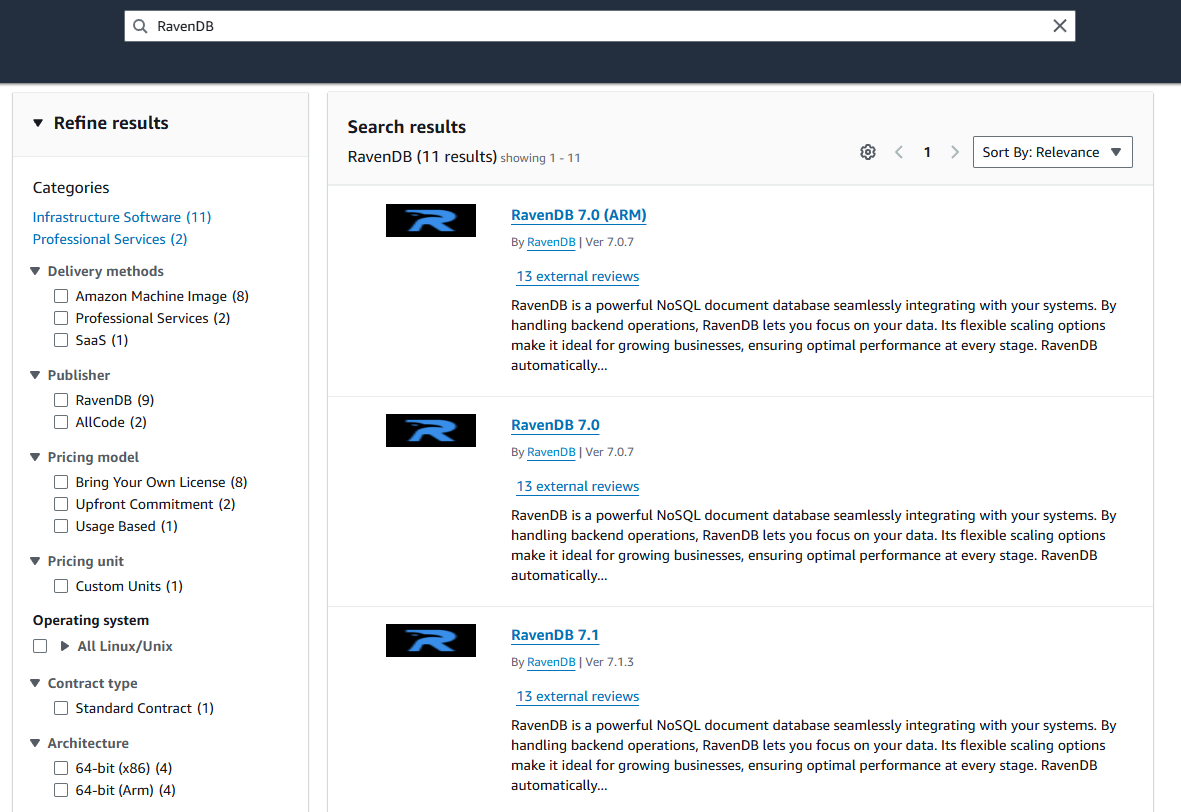
To begin the deployment, log in to AWS Marketplace, which you can access by clicking this link, and search for RavenDB. We will use version 7.1
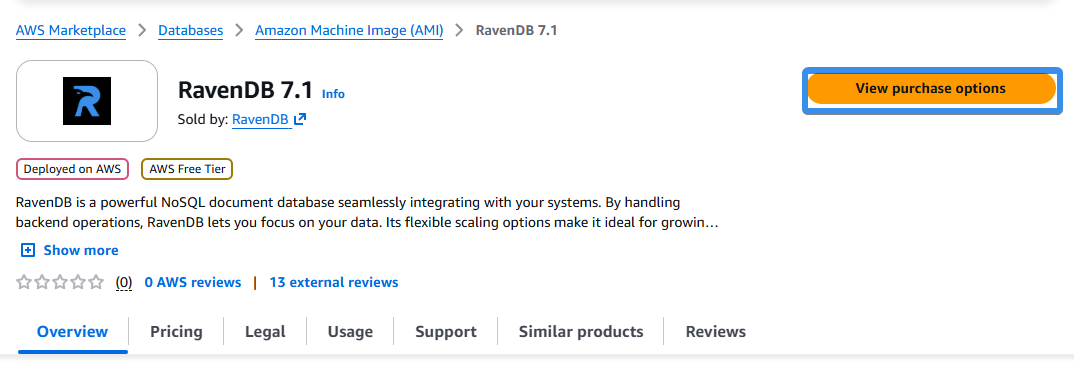
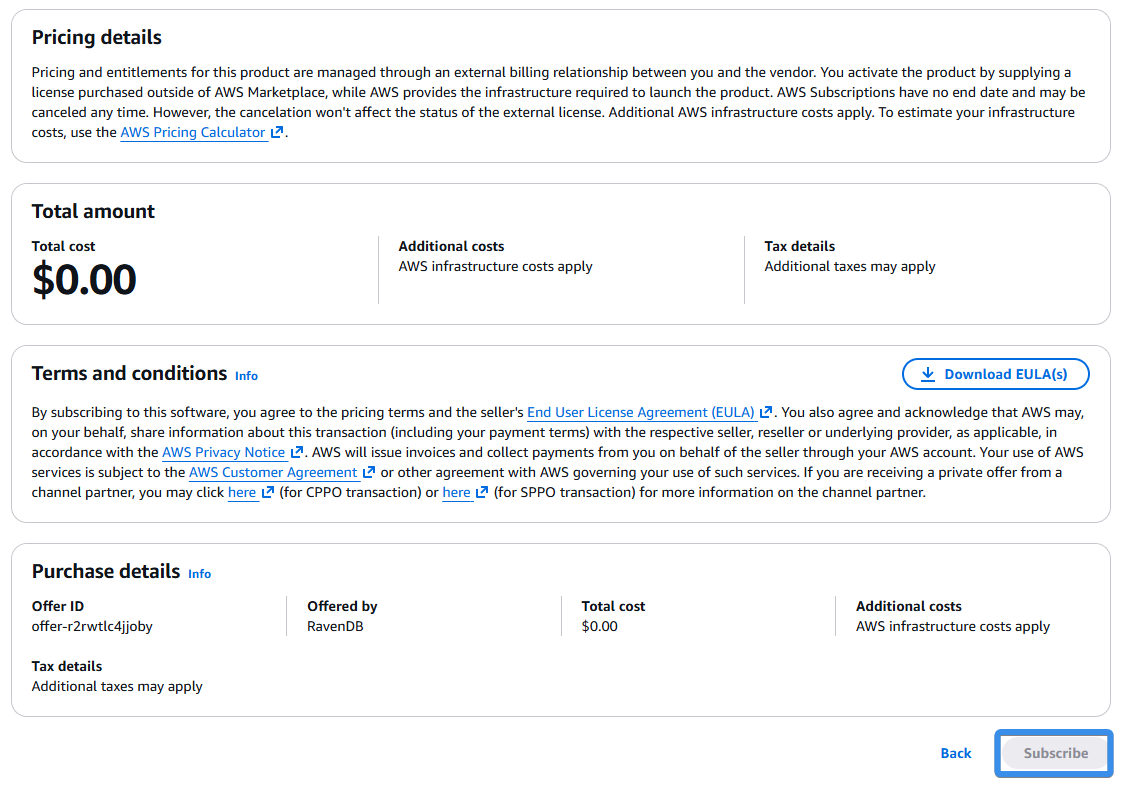
Then, find the orange button ‘View purchase options’ and under the Purchase Details section, click the ‘Subscribe’ (for you it will be orange) button.
After pressing Subscribe you will need to wait for processing. After it has been processed on top of the page you will find the ‘Launch your software’ button. In the new window we will choose ‘Launch from EC2 Console’. We also choose our version and region here.
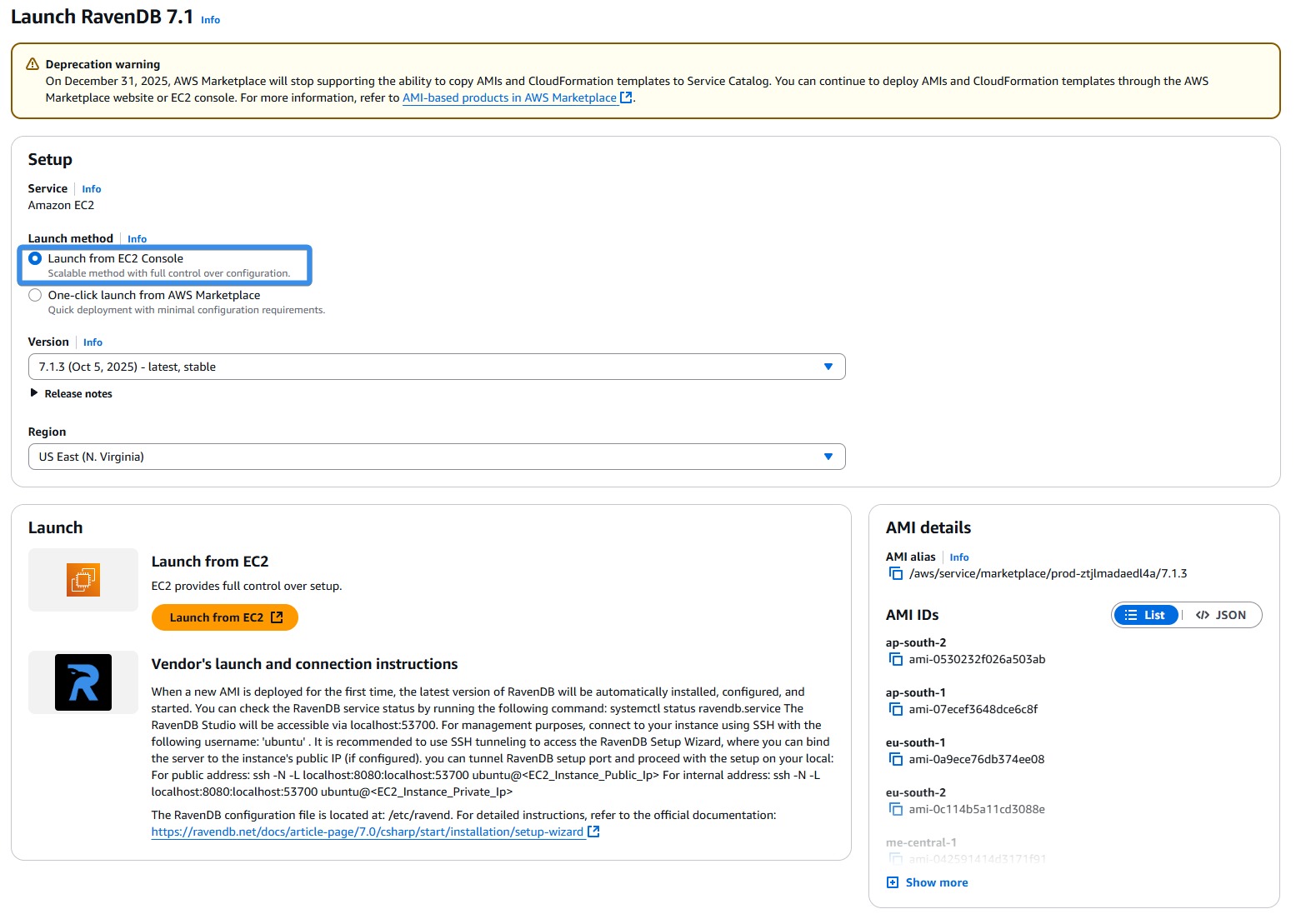
Once you’ve chosen your options, click the orange ‘Launch from EC2’. In the following menu, we configure more. We choose the server name, select the instance type, create a new key pair (it will be automatically downloaded to your machine after creation), select a security group, and whatever else you are interested in.
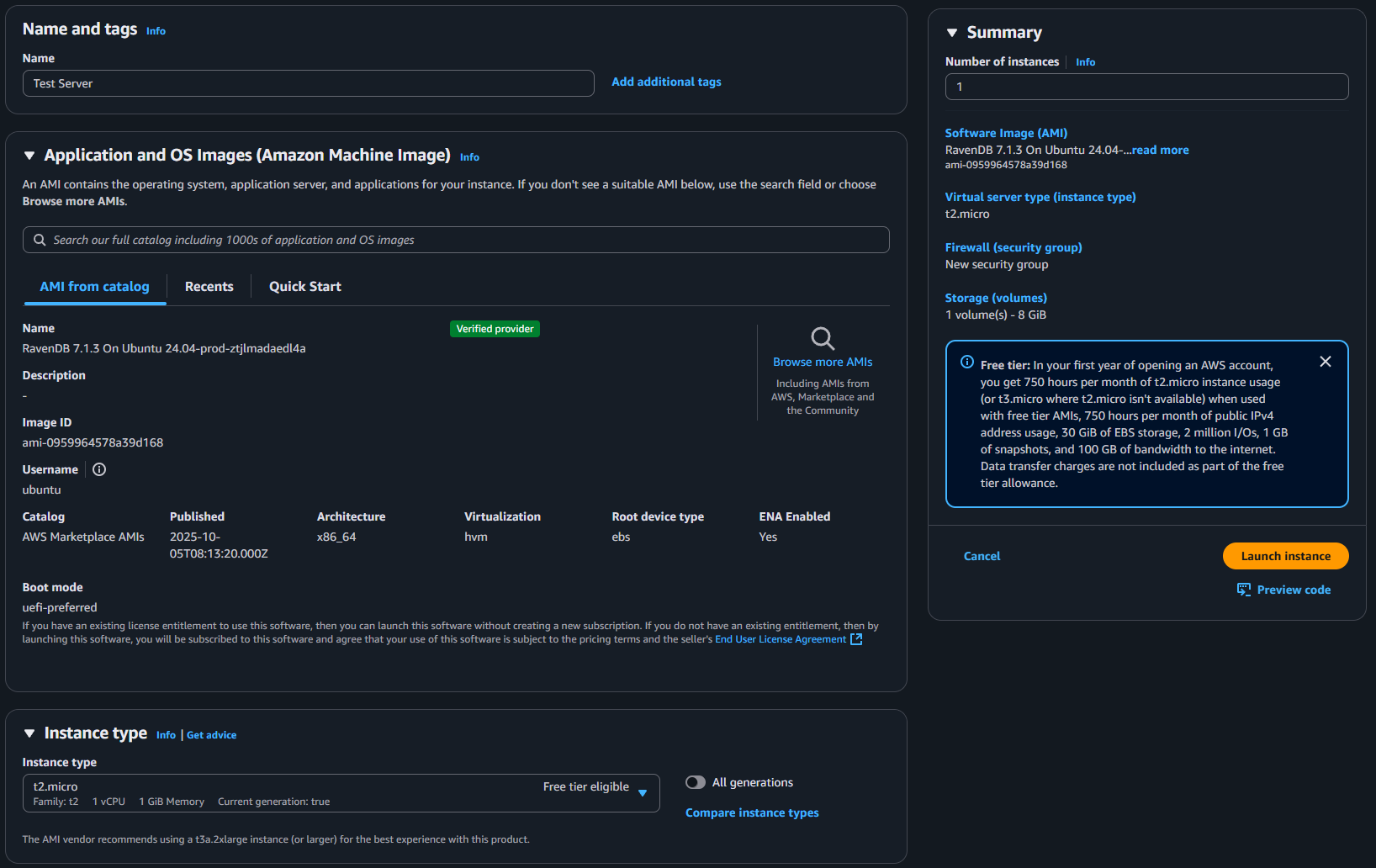
After you fill in your data, click the orange ‘Launch Instance’ button on the right. After a moment of waiting for AWS to set up your instance, you get a page on which you want to select to view all instances.
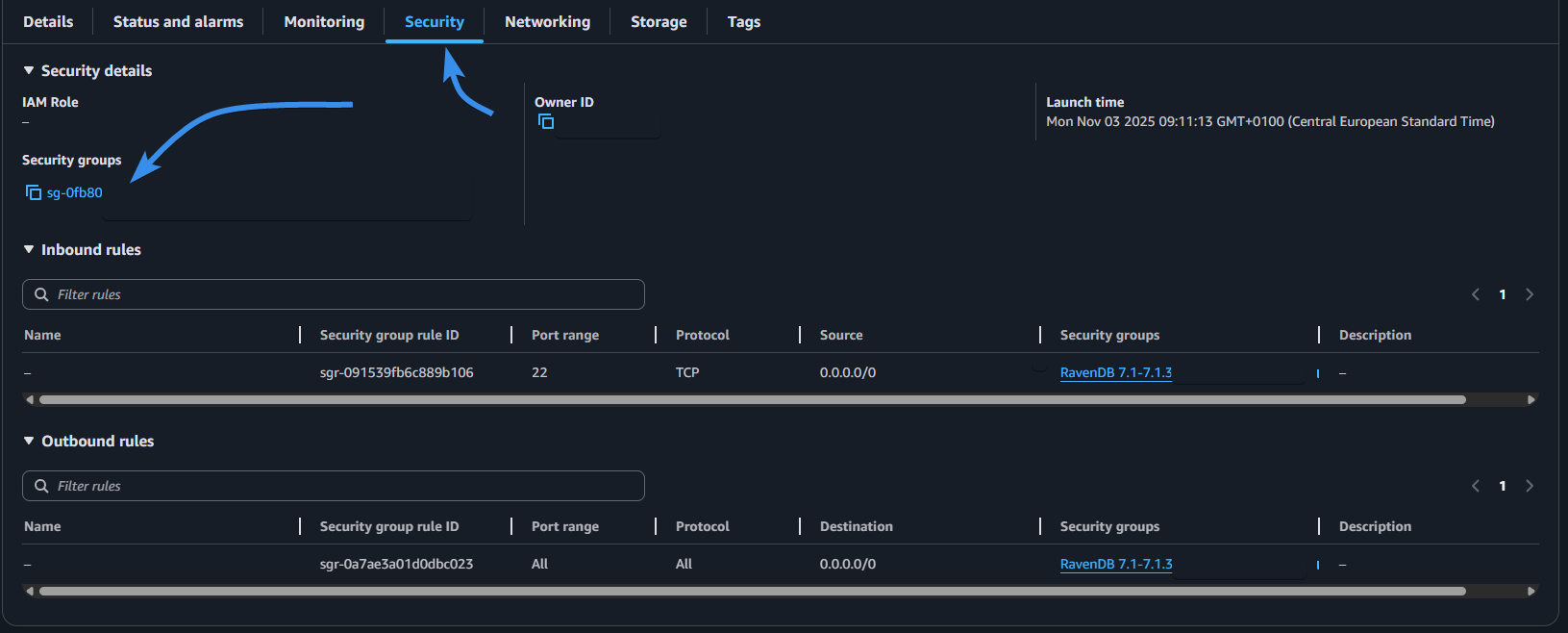
Then click on your instance ID to enter its summary. We will establish a connection with our instance using forwarding to connect to it quickly. In summary, open your ‘Security’ option, select your security group, and click on your security group.
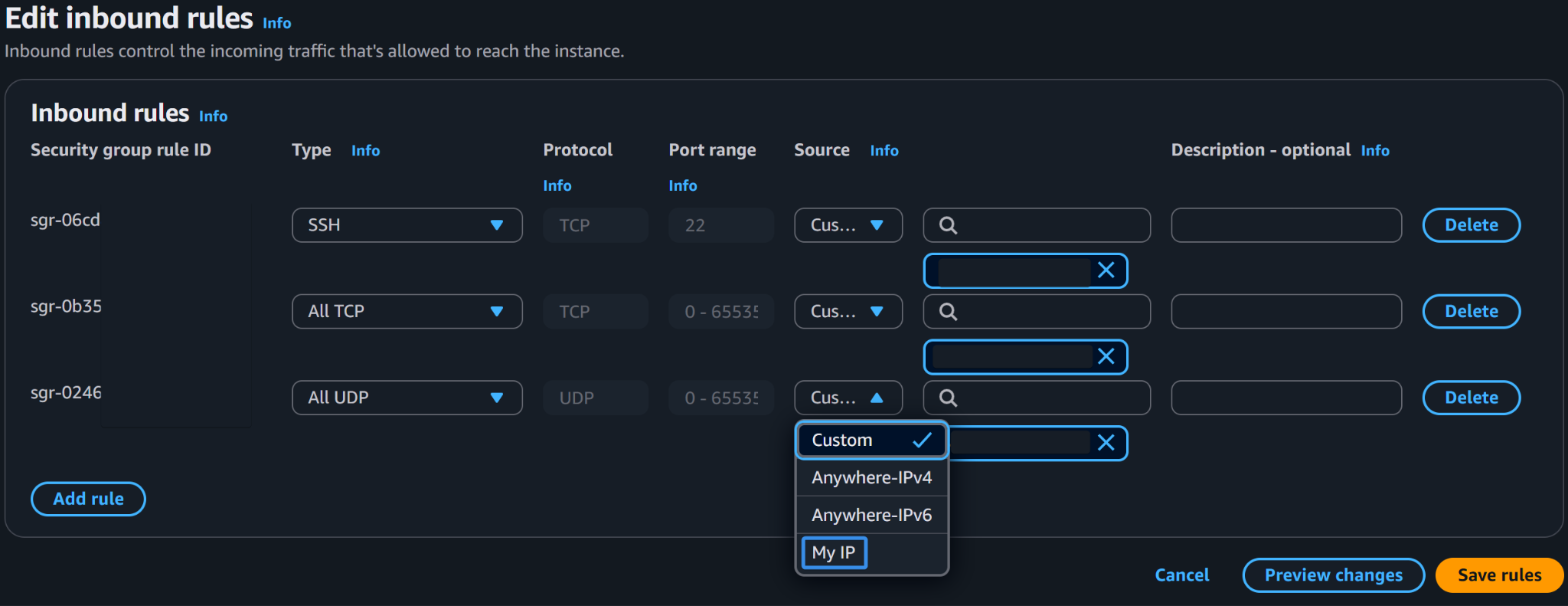
In there you want to add two new rules to open connections. Click on ‘Edit inbound rules’ and add a new rule. We add All TCP and All UDP and set them to our IP, so we can test without worrying about outside connections. We also change SSH to our IP. Then we just save our rules on the bottom right of this menu.
Then we open the command prompt of your machine and run the following command.
ssh -i Your_Key.pem -N -L localhost:8080:localhost:53700 ubuntu@Your_Instance_AddressAll you need to change in this command is your pem filename to match yours and add IP of your instance, which you can find in the summary of your server.
Then we can connect to our instance like normal RavenDB using localhost 8080. After each reboot of your machine, when wanting to connect to server remember to put this command into the command prompt. Now you can run RavenDB on AWS Marketplace alongside the rest of your apps.
Summary
Running RavenDB on an AWS server can speed things up, but maybe you don’t need the whole database on AWS? You can instead connect your RavenDB to Amazon SQS using ETL, link to the article is here.
Any questions about RavenDB features or just want to hang out and talk with the RavenDB team? Join our Discord Community Server – invitation link is here.
FAQs
What is the easiest way to deploy RavenDB in the cloud without managing the server infrastructure myself?
If you prefer a fully managed solution, you can use RavenDB Cloud, which is a Database as a Service (DBaaS) that lets you start your database in minutes.
Where can I find documentation on how to manually install and configure my RavenDB server?
You should start with the DevOps starting point in the documentation, which teaches you how to install RavenDB, set up a cluster, and properly maintain the database.
Does RavenDB provide a tool to help configure my newly installed server?
Yes, new installations feature a Setup Wizard that acts as the entry point for bringing your database into action. It has been redesigned to be a modern, polished interface that helps new users get up and running faster with fewer errors.
Woah, already finished? 🤯
If you found the article interesting, don’t miss a chance to try our database solution – totally for free!