Simple CRUD operations with RavenDB and ASP.NET Core 8 application
Highlights
- Create a basic ASP.NET Core 8 app that connects to RavenDB for document storage.
- Use DocumentStore and sessions to create, read, update, and delete movie documents.
- Test RavenDB CRUD endpoints directly in Swagger while building the application.
Preparing basic CRUD operations can be a helpful base for your next steps when building an ASP.NET app that uses RavenDB as storage. This article will create a simple app connected to a database. It will be an app for managing movies. We’ll provide you with a basic understanding of how ASP.NET and RavenDB can interact. So, let’s see how to do that.
Prerequisites
Prerequisites are the same as in the article “How to setup RavenDB with ASP.NET Core 8 application”:
- .NET SDK installed on your machine. This article uses 8.0.403
- Database in RavenDB
If you encounter any problems with prerequisites, please refer to the article linked here.
Setup
As mentioned in the prerequisites, for the sake of simplicity, we will use code from the previous article combined with boilerplate code.
Let’s prepare the base of our code – add the generated part. Open a terminal window in your directory and run the following command:
dotnet add package Microsoft.VisualStudio.Web.CodeGeneration.DesignAfter the command finishes, create a new file called ‘movie.cs’ in your directory. This file will hold our new class, the template for our new documents in the RavenDB database. Let’s look inside and give it a few variables, which you can do by adding the following code to it:
  namespace Generator
  {
      public class Movie
      {
          public required string Id { get; set; }
          public required string Title { get; set; }
      }
  }
The code above gives us a class with two properties, a base for our documents. We can see an ID, and the other is the movie’s title. Of course, you can add more – release dates or ratings from some websites like IMDb.
Now, this allows us to use terminal commands to generate some code instead of writing it ourselves. We can now use the following command to generate code for us:
dotnet aspnet-codegenerator minimalapi -e MovieEndpoints -m Generator.Movie -oNow that our machine has done most of our work, let’s clean this up. We will use this code differently than the previous article, so we must remove a few elements, unnecessary mapgets, and the employee class at the bottom. After cleaning MapGet and class on the bottom, you should have something resembling this:
  using System.Security.Cryptography.X509Certificates;
  using Raven.Client;
  using Raven.Client.Documents;
  using Your_Directory_Name;

  var builder = WebApplication.CreateBuilder(args);

  builder.Services.AddEndpointsApiExplorer();
  builder.Services.AddSwaggerGen();

  var app = builder.Build();

  if (app.Environment.IsDevelopment())
  {
      app.UseSwagger();
      app.UseSwaggerUI();
  }

  string serverURL = "https://your_RavenDB_server_URL";
  string databaseName = "your_database_name";
  string certificatePath = @"C:\path_to_your_pfx_file\cert.pfx";

  var x509Certificate = new X509Certificate2(certificatePath);

  IDocumentStore documentStore = new DocumentStore
  {
      Urls = new[] { serverURL },
      Database = databaseName,
      Certificate = x509Certificate
  };
  documentStore.Initialize();

  app.MapMovieEndpoints();

  app.Run();
Let’s modify this code so it works with the rest of the template part. Let’s start with DocumentStore. The exact part that you need to change is ‘IDocumentStore documentStore = new Document store’ and credentials input below. Remember that if you use a local server, you may want to delete the certificate depending on your configuration. We need to provide it as a dependency injection so we can use it in other parts of our code; let’s change it to:
  builder.Services.AddSingleton<IDocumentStore>(provider => {
       var store = new DocumentStore
  {
      Urls = new[] { serverURL },
      Database = databaseName,
      Certificate = x509Certificate
  };
To make it all work, you must add ‘return store;’ with the builder at the end so that will work. We also need to lower the swagger part, so cut it or delete it from above and paste our code. It should look similar to that:
  return store;
  });

  var app = builder.Build();

  if (app.Environment.IsDevelopment())
  {
      app.UseSwagger();
      app.UseSwaggerUI();
  }
All those parts are essential and can’t be skipped; alternatively, you can copy the code below. In case of using our ready code, just remember to change:
- using YourDirectoryName
- serverURL
- databaseName
- certificatePath (if you are using it, unsecured local RavenDB doesn’t need it)
  using YourDirectoryName;
  using System.Security.Cryptography.X509Certificates;
  using Raven.Client;
  using Raven.Client.Documents;

  var builder = WebApplication.CreateBuilder(args);

  builder.Services.AddEndpointsApiExplorer();
  builder.Services.AddSwaggerGen();

  string serverURL = "http://127.0.0.1:8080";
  string databaseName = "XYZ";

  builder.Services.AddSingleton<IDocumentStore>(provider => {
       var store = new DocumentStore
  {
      Urls = new[] { serverURL },
      Database = databaseName,
  };
  store.Initialize();
  return store;
  });

  var app = builder.Build();

  if (app.Environment.IsDevelopment())
  {
      app.UseSwagger();
      app.UseSwaggerUI();
  }

  app.MapMovieEndpoints();

  app.Run();
With this ready, we can continue coding our operations. To code those, we will use our generated MovieEndpoints.cs file. Inside, you need to add using Raven.Client.Documents: to gain access to RavenDB functions in this file. Also, if you are using new files for it then you need to have NuGet package installed before proceeding further.
dotnet add package RavenDB.ClientYou can delete existing endpoints and add those presented below, or you can just edit existing ones.
Operations
We divided this text into sections so you can quickly find what you need in a moment. In all cases, we will be using DocumentStore. DocumentStore is the base for all RavenDB actions. It communicates with your cluster and can handle multiple databases. Having only a single instance of DocumentStore is essential to maintaining a single definition of connection to your database.
Create
With everything else ready, let’s create some documents. To create a new document, we will use the following code:
  group.MapPost("/", async (Movie model, IDocumentStore store) =>
  {
  using var session = store.OpenAsyncSession();
  await session.StoreAsync(model);
  await session.SaveChangesAsync();
  return Results.Created($"/api/Movie/{model.Id}", model);
  })
  .WithName("CreateMovie")
  .WithOpenApi();
Let’s unravel this code. Let’s start with global explanations that apply to all those examples. We must use map methods to specify the route for all those endpoints. Meanwhile, we inject our DocumentStore and add a document using DocumentSession to our connected database. The following line immediately creates a movie object using our class as a template. Then, our object is saved and returned to us so we know it was made. We close the endpoint, and then we can continue testing this.
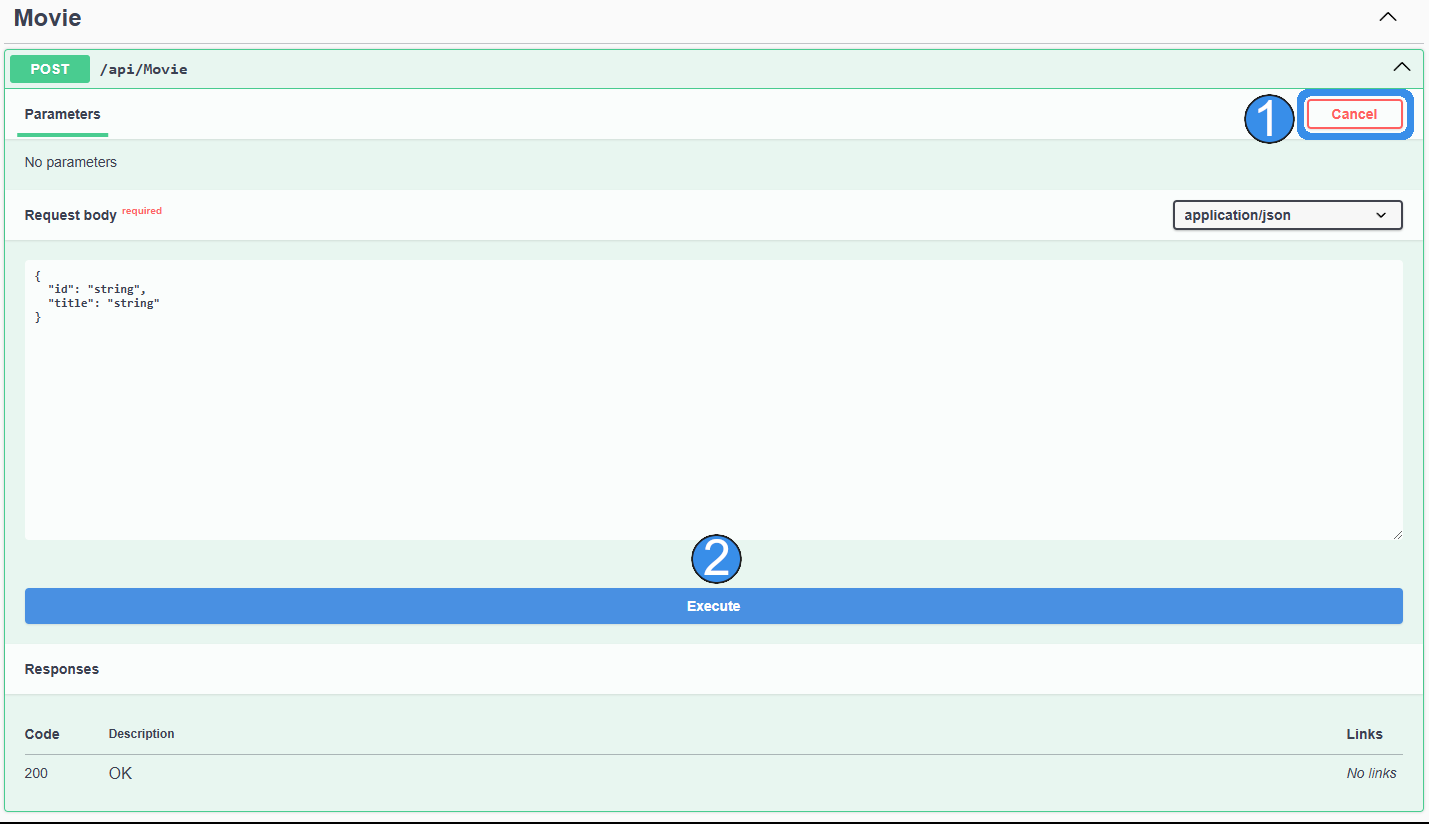
If you use dotnet run and go into your local server with /swagger at the end of your URL, known as an endpoint, you can open your Post option and try to use it, clicking ‘Try it out’ (1) and ‘Execute’ (2). You can modify the ID to create documents with different IDs. Create a few movies this time.
Read
Now that you created your new document, we need to read it. To do that, you can use this code:
    group.MapGet("/", (IDocumentStore store) =>
          {
              using var session = store.OpenSession();
              return Results.Ok(session.Query<Movie>().ToList());
          })
          .WithName("GetAllMovies")
          .WithOpenApi();
As you can see above, we again use DocumentStore, but this time to get information from our database using the route we establish with mapGet the route. Next, we open the session and return all our movies. This is what the code does for us, but now it allows us to see if our previously created movies were created correctly. As you can see, DocumentStore and Session repeat in each code example, so I will skip explaining those in future examples.
Update
Let’s create a short function to update the document we just read. To update your document, you can use the following code:
    group.MapPut("/{id}", async (string id, Movie input, IDocumentStore store) =>
          {
              using var session = store.OpenAsyncSession();
              var movie = await session.LoadAsync<Movie>(id.ToString());
              movie.Title = input.Title;
              await session.SaveChangesAsync();
              return Results.NoContent();
          })
          .WithName("UpdateMovie")
          .WithOpenApi();
In this one, we immediately load one of the documents using their ID. Then, we change the title to a new one, and the user (in this case, it’s us) adds to the new body. The session saves and returns information that the body was updated.
Read by ID
We again read your file to check if it changed like it should after using the previous endpoint, but this time, we do it by selecting it with its ID. The following code should do the job:
          group.MapGet("/{id}", async (string id, IDocumentStore store) =>
          {
              using var session = store.OpenAsyncSession();
              var movie = await session.LoadAsync<Movie>(id.ToString());
              return movie != null ? Results.Ok(movie) : Results.NotFound();
          })
          .WithName("GetMovieById")
          .WithOpenApi();
As you can see above, this code, using LoadAsync<Movie> loads a document with a matching ID and returns its information to us as a string. If the movie does not exist, we return a message that it wasn’t found.
Delete
After you successfully tested all other operations, it’s time to test the delete option. To do this, you can use the following command:
  group.MapDelete("/{id}", async (string id, IDocumentStore store) =>
          {
              using var session = store.OpenAsyncSession();
              var movie = await session.LoadAsync<Movie>(id.ToString());
        if (movie == null) {
                  return Results.NotFound(new { Message = "Movie not found" });
              }
              session.Delete(movie);
              await session.SaveChangesAsync();
              return Results.Ok(new { Message = "Movie deleted successfully" });
          })
          .WithName("DeleteMovie")
          .WithOpenApi();
Once again, we load our file, check if it exists, and proceed with the following line session.Delete(movie); which deletes the movie. Of course, next, we save changes and return information that the movie has been deleted.
Now, you can run your application and check those operations yourself. Remember to run RavenDB in the background because those will not work without it. This gives you a basic understanding of how to add CRUD to your application.
Summary
In this article, we presented basic CRUD operations with an ASP.NET Core 8 application. We connected to our RavenDB server and created, read, updated, and deleted a document. Now, you can learn more about RavenDB.
Frequently Asked Questions
How can I speed up the creation of my ASP.NET Core CRUD endpoints?
Instead of writing all the boilerplate code manually, you can use the Microsoft.VisualStudio.Web.CodeGeneration.Design package. By defining a simple class (like a Movie class with an ID and Title) and running the dotnet aspnet-codegenerator minimalapi command in your terminal, the machine will generate the base endpoint code for you.
What is the DocumentStore and how should I use it?
The DocumentStore is the foundational element for all RavenDB actions, responsible for communicating with your cluster and handling multiple databases. It is essential to maintain only a single instance of it to keep a single definition of the connection, which is typically done by injecting it as a Singleton in your ASP.NET Core services.
How can I retrieve a specific document to read or update?
You can retrieve a specific document by opening a session nd utilizing the LoadAsync<T>(id) method. This fetches the document matching that ID and returns it as a strongly typed object (like a Movie object), which you can then read or modify.
Woah, already finished? 🤯
If you found the article interesting, don’t miss a chance to try our database solution – totally for free!