How to query using RavenDB and ASP.NET Core 9
Querying in RavenDB is straightforward, regardless of whether you are using automatic indexes or static ones. It enables you to search for specific documents in your collections. Let’s see how to query with ASP.NET and RavenDB, step by step.
Highlights
- Set up a RavenDB connection in ASP.NET Core using IDocumentStore.
- Create a simple /Employees endpoint that queries and filters documents.
- Test your RavenDB query directly in Swagger before expanding the app.
Prerequisites
What you will need:
- .NET SDK installed on your machine. This article uses 9.0.200
- RavenDB Cloud account and instance with certificate or local cluster
- Database with sample data
Let’s ensure that we have all the prerequisites to connect your application to RavenDB. In this tutorial, we will use a RavenDB Cloud instance to get started with development quickly.
Let’s set up our development environment. The first step is installing the .NET SDK, which, in the case of this tutorial, is in version 9.0.200. If you want to check your .NET version, open the terminal and run the following command:
dotnet --versionIf you see the .NET version in the output, it means the installation was successful. If this command doesn’t output your version, download the .NET SDK from the link above.
To use RavenDB Cloud, you’ll need an instance and a certificate to secure the connection. RavenDB Cloud generates the certificate automatically.
1. Create an account
Click Get Started Free, then Start, and select Register Here. Enter your email, choose a domain, complete or skip billing, and confirm via the activation email.
2. Create an instance
Open the Products page and select Add Product. For a free instance, just click Next, enter account details, set a display name, and configure access (keep 0.0.0.0/0 for open access or restrict to your IP). Review the summary and click Create.
3. Install the certificate
After provisioning, go to Products and select Download Certificate on your instance. Follow the instructions for Windows or Linux, then restart your browser.
4. Access RavenDB Studio
Choose your certificate when prompted to log in. Create a new database under the Databases tab.
5. Create sample data
For testing, we also add Sample Data from the Tasks menu. You can learn how to generate sample data here.
There is also a guide on creating a local cluster with RavenDB here if you prefer doing it locally.
Setup
Let’s take this code one step at a time. To speed up the process, let’s use the code from one of the previous articles as a starting point. We also need to move a few parts for later, so let’s go out with this entry code.
  using System.Security.Cryptography.X509Certificates;
  using Raven.Client;
  using Raven.Client.Documents;
  using your_directory;
  using Models;
  using Microsoft.AspNetCore.Mvc;

  var builder = WebApplication.CreateBuilder(args);

  builder.Services.AddEndpointsApiExplorer();
  builder.Services.AddSwaggerGen();

  string serverURL = "http://127.0.0.1:8080";
  string databaseName = "YourDatabaseNameGoesHere";
  string certificatePath = @"path_to_your_certificate_pfx_file/cert.pfx";

  var x509Certificate = new X509Certificate2(certificatePath);

  builder.Services.AddSingleton<IDocumentStore>(serviceProvider =>
  {
      var store = new DocumentStore
      {
          Urls = new[] { serverURL },
          Database = databaseName
          Certificate = x509Certificate
      };
      store.Initialize();
      return store;
  });
  var app = builder.Build();
  if (app.Environment.IsDevelopment())
  {
      app.UseSwagger();
      app.UseSwaggerUI();
  }

  app.Run();
First, from the top, we are using a namespace called ‘Models’ that has our employee class inside. We move it from the main file to clean up a bit of this part of the code and make it less chaotic. The Models file looks inside like this:
  namespace Models
  {
      public class Location
      {
          public float Latitude { get; set; }
          public float Longitude { get; set; }
      }

      public class Address
      {
          public string City { get; set; }
          public string Country { get; set; }
          public string Line1 { get; set; }
          public object Line2 { get; set; }
          public Location Location { get; set; }
          public string PostalCode { get; set; }
          public string Region { get; set; }
      }

      public class Employee
      {
          public Address Address { get; set; }
          public DateTime Birthday { get; set; }
          public int Extension { get; set; }
          public string FirstName { get; set; }
          public DateTime HiredAt { get; set; }
          public string HomePhone { get; set; }
          public string LastName { get; set; }
          public List<string> Notes { get; set; }
          public string ReportsTo { get; set; }
          public List<int> Territories { get; set; }
          public string Title { get; set; }
      }
  }
After we have our usings, we proceed further by adding the default ASP.NET host config, configuring OpenAPI (Swagger) for later use, RavenDB connection settings, and a DocumentStore singleton for dependency injection.
  var builder = WebApplication.CreateBuilder(args);

  builder.Services.AddEndpointsApiExplorer();
  builder.Services.AddSwaggerGen();

  string serverURL = "https://your_RavenDB_server_URL";
  string databaseName = "your_database_name";
  string certificatePath = @"C:\path_to_your_pfx_file\cert.pfx";

  var x509Certificate = new X509Certificate2(certificatePath);

  builder.Services.AddSingleton<IDocumentStore>(serviceProvider =>
  {
      var store = new DocumentStore
      {
          Urls = new[] { serverURL },
          Database = databaseName
          Certificate = x509Certificate
      };
      store.Initialize();
      return store;
  });
Note: What is dependency injection? Dependency Injection is a design pattern in programming where a class or function receives (or is “injected with”) the objects it depends on, instead of creating them itself. If you want to learn more you can read more here.
After that, let’s write the application startup code:
     return store;
  });
  var app = builder.Build();
  if (app.Environment.IsDevelopment())
  {
      app.UseSwagger();
      app.UseSwaggerUI();
  }

  app.Run();
With it all, we can proceed to adding our endpoint and query.
Query
Now let’s create an endpoint that will make a query for us. Let’s look at this code and try to analyze it a bit:
  app.MapGet("/Employees", ([FromServices] IDocumentStore store, string? firstName) =>
  {
      using var session = store.OpenSession();
      var query = session.Query<Employee>();

      if (string.IsNullOrWhiteSpace(firstName) == false)
          query = query.Where(e => e.FirstName == firstName);

      List<Employee> employees = query.ToList();
      return employees;
  })
  .WithName("Employee")
  .WithOpenApi();
MapGet defines a route for our application, specifically /employees. When we’ll send an HTTP request to this endpoint, the code inside will run.
Inside, we use [FromServices] IDocumentStore store to get access to our RavenDB connection. With this store, we open a session(OpenSession), which allows us to talk to the database. Session is the primary interface your application will interact with. You can find more information in the documentation here.
Then comes the query. We prepare our query on Emloyees collection, and then optionally adds filtering by name, based on the provided (or not) term.
Alternatively, we could use Vector Search, which would enable us to search “by meaning” of our data, using AI embeddings. If you want to learn more about vector search, you can read more here.
After filtering, query returns the matching employee objects. The result is turned into a list, and is returned as the response of our endpoint.
We also give this route a name using .WithName(“Employee”) and make it available for OpenAPI documentation with .WithOpenApi().
What is left to do is test it by executing dotnet run in the console and using your URL with /swagger.
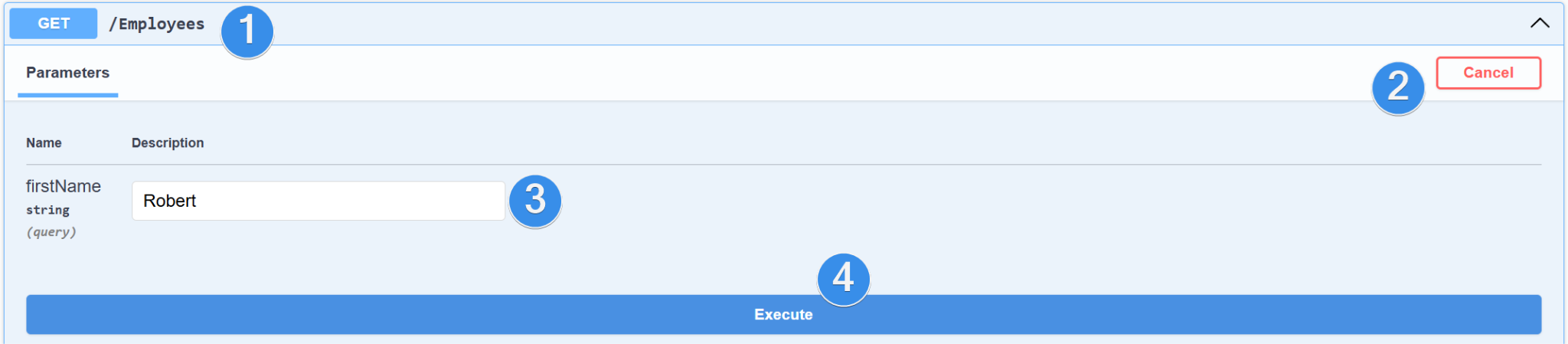
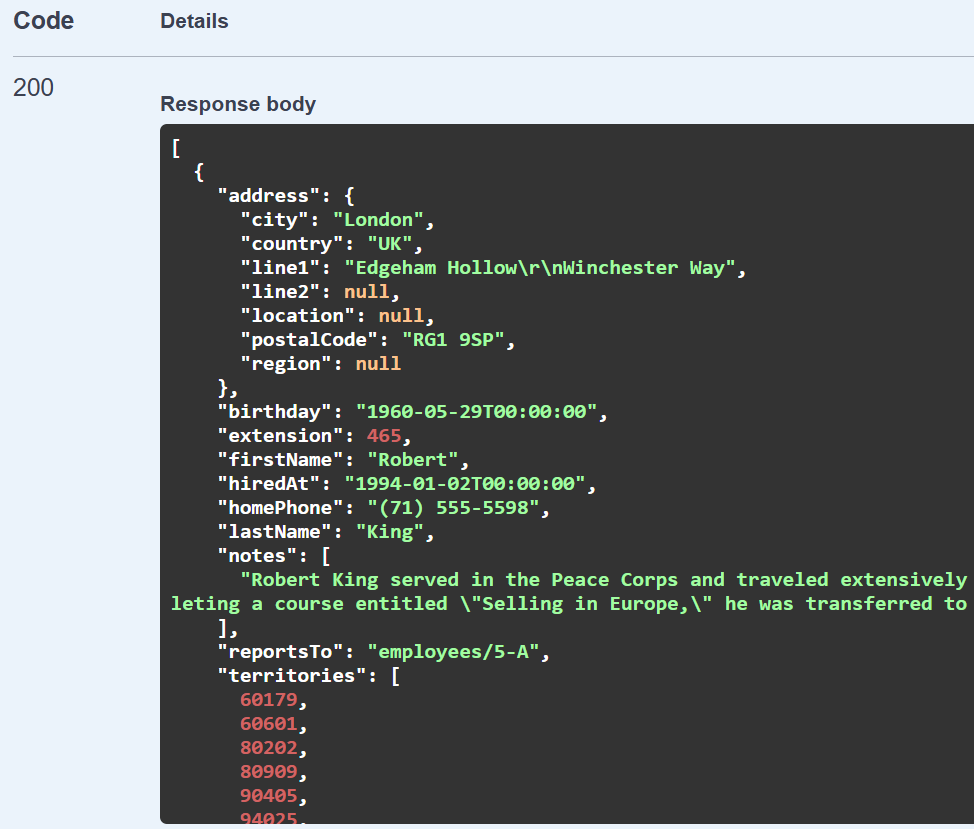
There, simply unfold the endpoint (1) we’ve just created, choose to try it out (2), input name (3), and then execute (4). It works if your server’s response finds the right person from sample data.
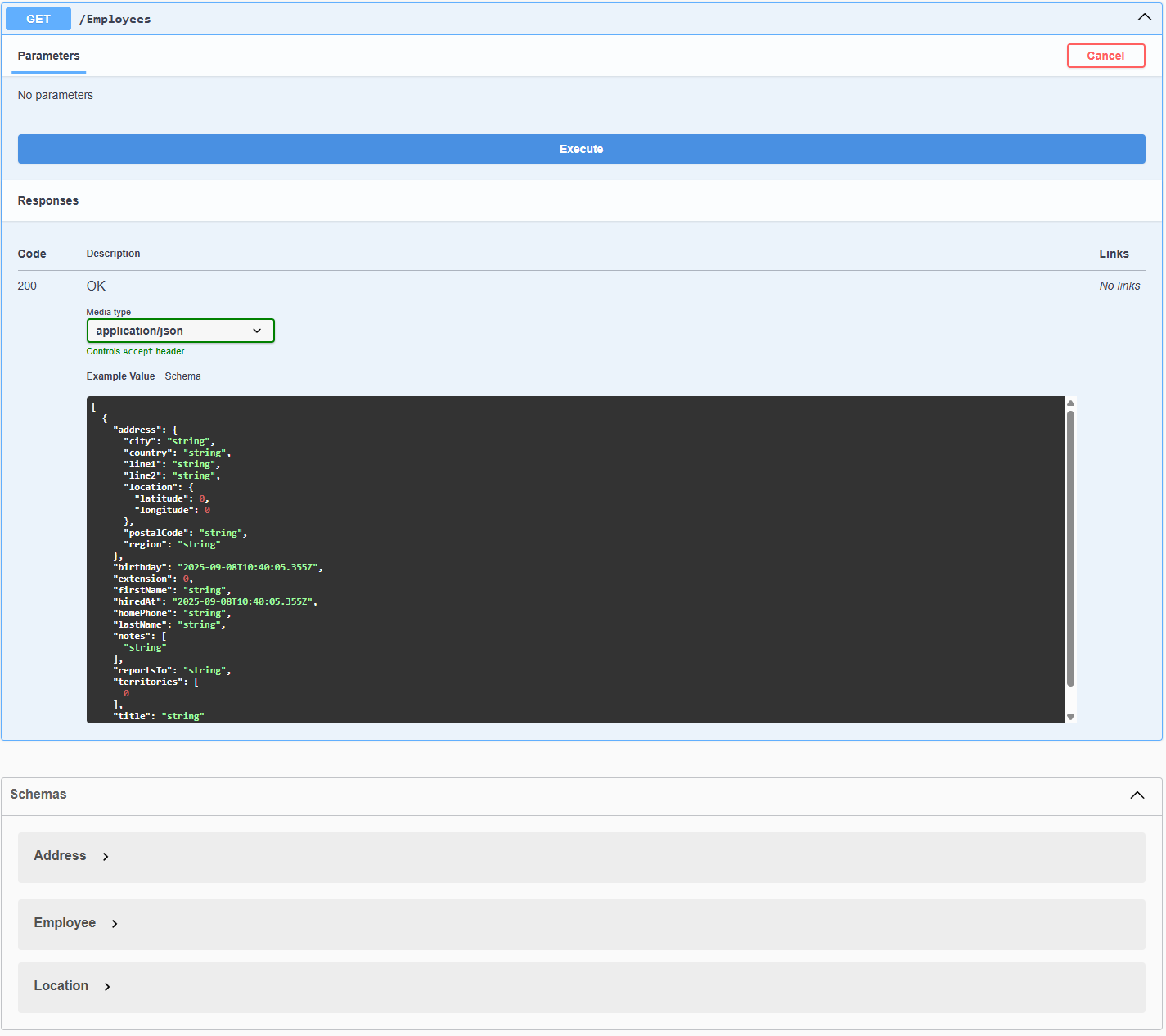
If you created sample data, just as we did, you will get a return with data that will look like this.
Our complete code looks like this.
  using Raven.Client;
  using Raven.Client.Documents;
  using your_directory;
  using Models;
  using Microsoft.AspNetCore.Mvc;

  var builder = WebApplication.CreateBuilder(args);

  builder.Services.AddEndpointsApiExplorer();
  builder.Services.AddSwaggerGen();

  string serverURL = "https://your_RavenDB_server_URL";
  string databaseName = "your_database_name";
  string certificatePath = @"C:\path_to_your_pfx_file\cert.pfx";

  var x509Certificate = new X509Certificate2(certificatePath);

  builder.Services.AddSingleton<IDocumentStore>(serviceProvider =>
  {
      var store = new DocumentStore
      {
          Urls = new[] { serverURL },
          Database = databaseName
          Certificate = x509Certificate
      };
      store.Initialize();
      return store;
  });
  var app = builder.Build();
  if (app.Environment.IsDevelopment())
  {
      app.UseSwagger();
      app.UseSwaggerUI();
  }
  app.MapGet("/Employees", ([FromServices] IDocumentStore store, string? firstName) =>
  {
      using var session = store.OpenSession();
      IQueryable<Employee> query = session.Query<Employee>();
      if (!string.IsNullOrWhiteSpace(firstName))
      {
          query = query.Where(e => e.FirstName == firstName);
      }
      List<Employee> employees = query.ToList();
      return employees;
  })
  .WithName("Employee")
  .WithOpenApi();

  app.Run();
Summary
This article is just a tip of an iceberg of RavenDB querying capabilities. Deep dive in querying mechanics and capabilities by visiting our documentation.
If you are interested in RavenDB, maybe you want to read about other awesome features – like GenAI, read article here.
If you want to stay ahead in tech, RavenDB news, and chat with other fellow developers, here is the invite link to Discord – RavenDB’s Developers Community.
FAQs
What language is used to query data in RavenDB?
You can query your data using the Raven Query Language (RQL), which empowers you to write simple yet powerful SQL-style queries.
Do I need to manually create indexes to maintain query performance?
No, RavenDB features Auto indexes, making it a self-optimizing database that handles index creation with zero manual effort. However, if you want complete control over precomputing and performance, you can also use
Can I query documents based on geographic locations?
Yes, RavenDB provides Spatial capabilities that allow you to search and sort your data by geographic location effortlessly.
Woah, already finished? 🤯
If you found the article interesting, don’t miss a chance to try our database solution – totally for free!